
Open Hanbit Office Quote Advisor from Chapter 9 and ask what it can do. Then reopen that chat from Conversations, attach the Knowledge Base price list, and get a draft quote to send to the customer. Check the draft against the price list before it goes out.
The agent screen#
Click Hanbit Office Quote Advisor under Agent Colleagues in the sidebar to open the agent screen. The left side is its profile; the right side is a New Chat with this agent.
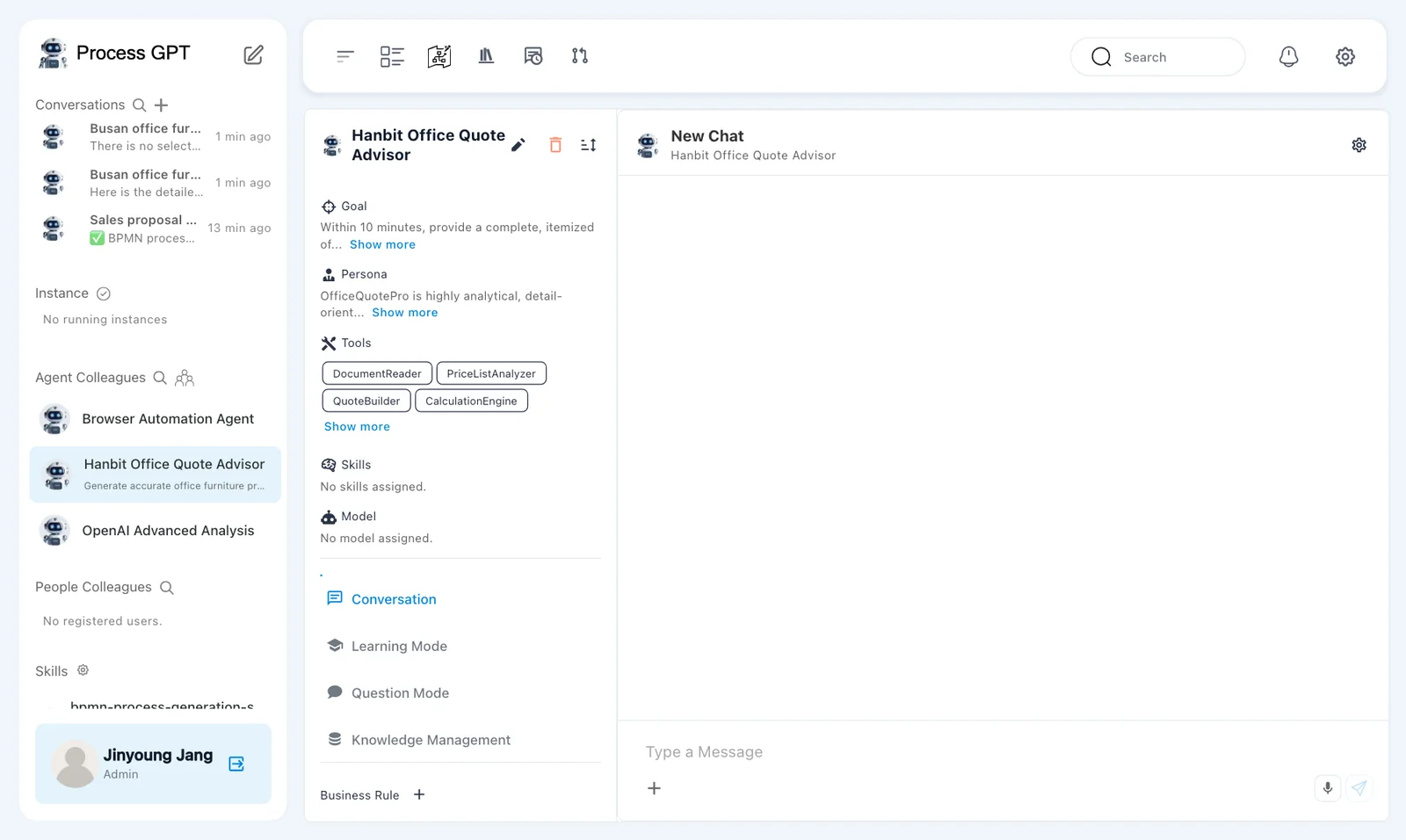
| Profile section | What you see |
|---|---|
| Goal · Persona | What you saved in Chapter 9. Click Show more to expand |
| Tools · Skills · Model | The tool names saved in Chapter 9 (in our run, the made-up DocumentReader, PriceListAnalyzer, QuoteBuilder, CalculationEngine and Show more), No skills assigned. and No model assigned. (the default model) |
| Conversation | The mode that's on now. You chat with the agent |
| Learning Mode · Question Mode · Knowledge Management · Business Rule | For teaching the agent and attaching rules. This chapter uses only Conversation |
Try it 1 — Say hello first#
Type the message below in Type a Message on the right and send it.
Hello. Briefly tell me what you can help with and what you need to write a quote.
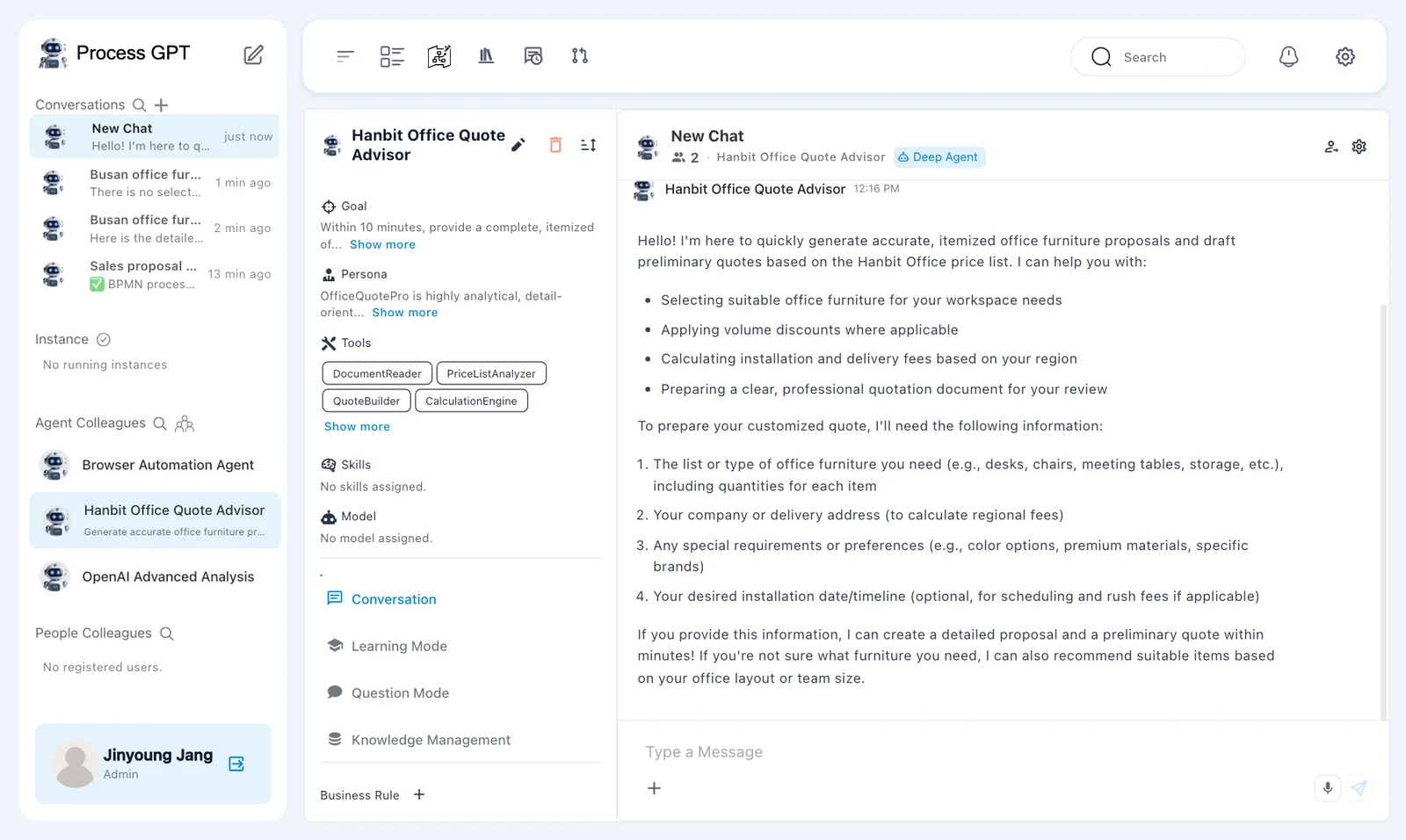
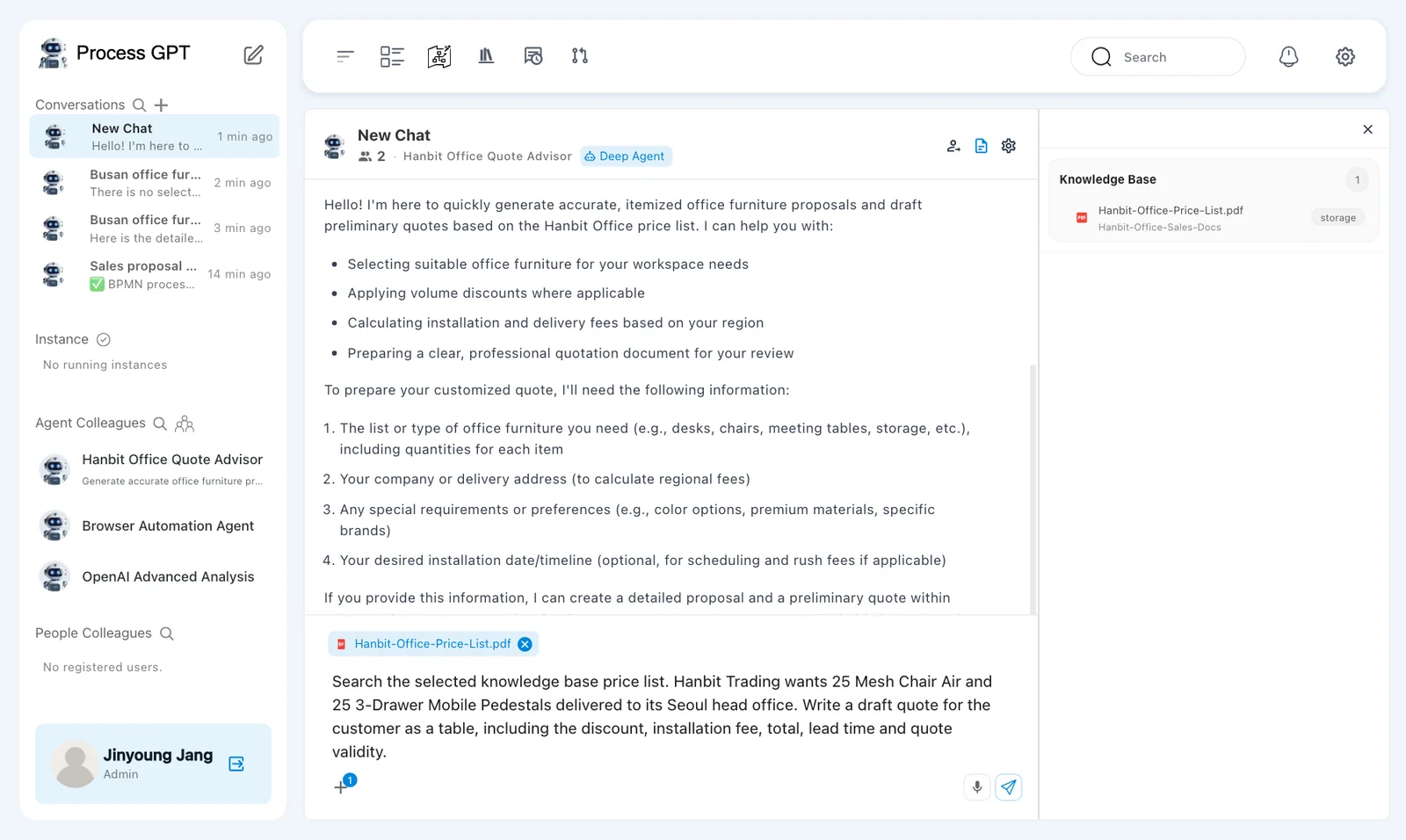
The agent introduces itself following its Chapter 9 goal and persona. In our run, it listed what it can help with (choosing furniture, applying volume discounts, calculating installation and delivery fees by region, preparing a quotation document) and what it needs for a quote (the furniture you need with the quantity of each, your company or delivery address for regional fees, any special requirements, and an optional installation date). This chat stays at the top of Conversations in the sidebar as New Chat.
Try it 2 — Attach the price list in the chat room and get a quote#
The + on the agent screen offers only Attach File. To attach the Knowledge Base price list, reopen that chat from Conversations.
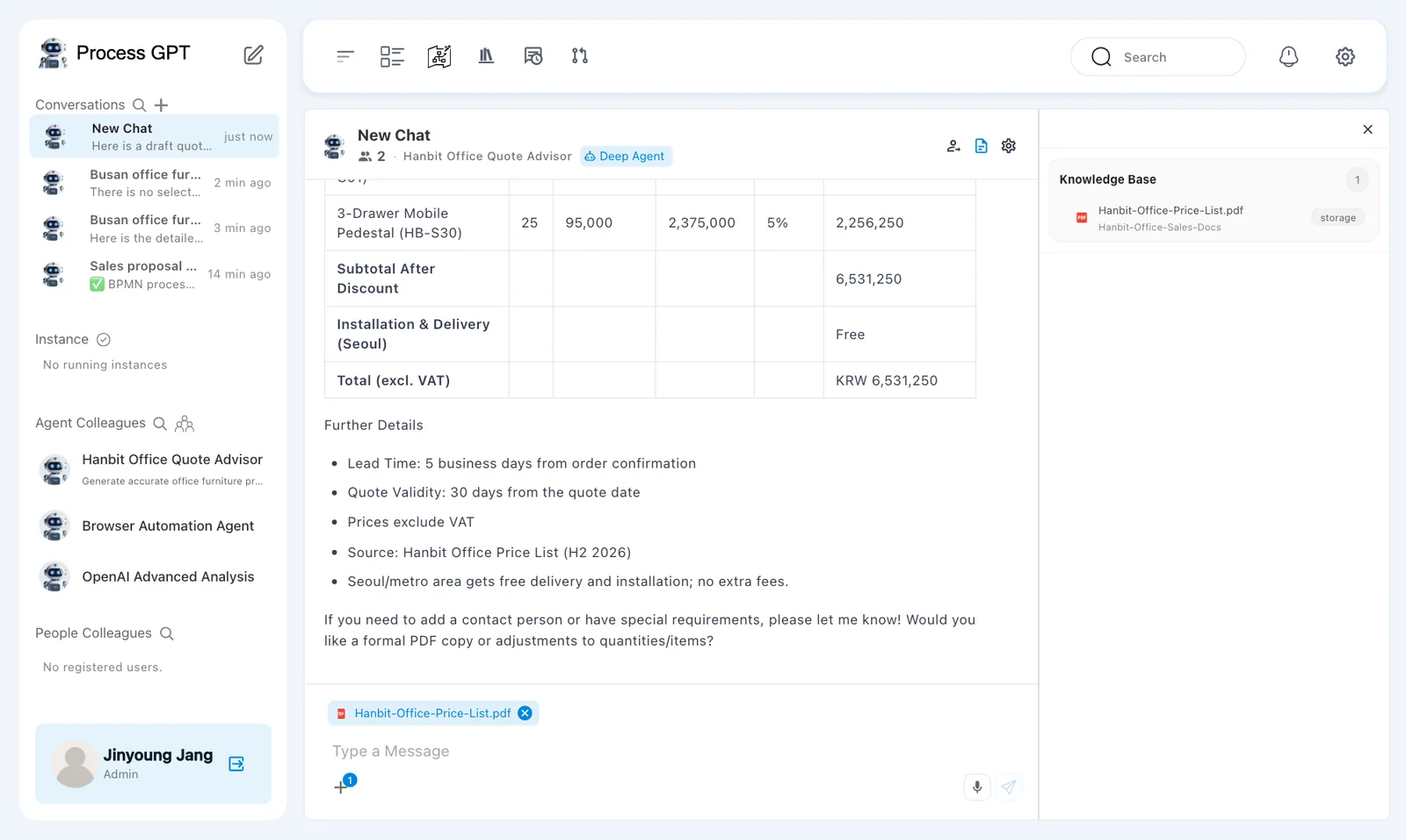
- Click New Chat at the top of Conversations in the sidebar. If the header shows 👥 2 · Hanbit Office Quote Advisor · Deep Agent, this is your chat room with that agent.
- Click + › Knowledge Base in the chat box, then Expand all → check
Hanbit-Office-Price-List.pdf→ Use 1 file (same as in Chapter 8). - Send the question below.
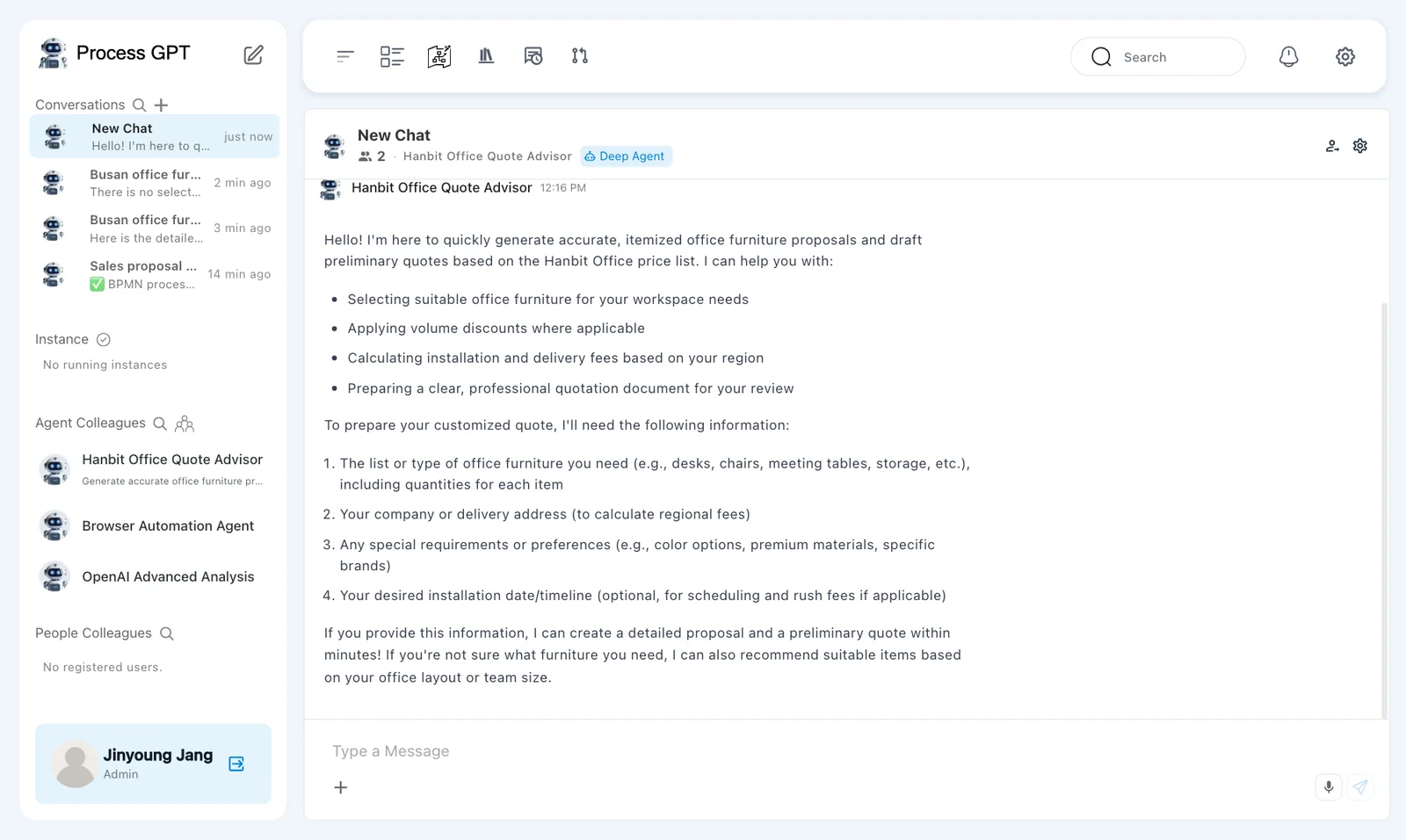
Search the selected knowledge base price list. Hanbit Trading wants 25 Mesh Chair Air and 25 3-Drawer Mobile Pedestals delivered to its Seoul head office. Write a draft quote for the customer as a table, including the discount, installation fee, total, lead time and quote validity.
In our run, this draft came back after about 26 seconds, titled "Draft Quote: Hanbit Trading (Seoul Head Office)".
| Product | Qty | List Price (KRW) | Subtotal (KRW) | Discount | Discounted Subtotal (KRW) |
|---|---|---|---|---|---|
| Mesh Chair Air (HB-C01) | 25 | 180,000 | 4,500,000 | 5% | 4,275,000 |
| 3-Drawer Mobile Pedestal (HB-S30) | 25 | 95,000 | 2,375,000 | 5% | 2,256,250 |
The table went on with Subtotal After Discount 6,531,250, Installation & Delivery (Seoul) Free and Total (excl. VAT): KRW 6,531,250. Under Further Details came the lead time (5 business days from order confirmation), the quote validity (30 days from the quote date), "Prices exclude VAT", the source (Hanbit Office Price List (H2 2026)) and free delivery and installation in the Seoul area.
Try it 3 — Check against the price list#
Before sending it to the customer, check the draft against the price list.
| What to check | Price list | Draft |
|---|---|---|
| Unit price | Mesh Chair Air KRW 180,000, 3-Drawer Mobile Pedestal KRW 95,000 | Same |
| Discount | 20–49 of the same product → 5% | Same |
| Amounts | 180,000×25×0.95 = KRW 4,275,000, 95,000×25×0.95 = KRW 2,256,250 | Same |
| Installation | Free delivery and installation in Seoul and Gyeonggi | Same |
| Lead time | The longest product lead time — 5 business days for both | Same |
| Quote validity | 30 days from the quote date | Same |
| Total | 4,275,000 + 2,256,250 = KRW 6,531,250 (VAT not included) | Same |
In our run, every line matched the price list. If something doesn't match, continue the chat and ask for a fix, or take the draft and fix it yourself.
A person checks the draft before it goes out
The agent calculates from the price list, but it can still get a word or a condition wrong. Its answer also varies a little each time, even for the same question. Always check numbers and conditions against the source. Chapter 12 shows how to make checking and approving a step of a process.
“Attach File” on the agent screen
In the current version, files attached with Attach File on the agent screen aren't passed to the agent. To ask about a document, upload it to the Knowledge Base as in this chapter, and pick it with Knowledge Base in the chat room opened from Conversations.
Next chapter#
You've seen the agent write a draft quote from the price list. Next, you'll turn this work into a process that follows the company's quote approval policy, and hand some of its steps to agents (Chapter 12).
Check your understanding
- How do you attach the Knowledge Base price list when you start from the agent screen?
- Why is there no installation fee in this draft?
- If the same customer raises the Mesh Chair Air order to 50, what is the amount for the chairs? Ask the agent, then check it yourself against the price list.
Answers
- Chat with the agent once, reopen that chat room from Conversations in the sidebar, then in + › Knowledge Base check the price list file and click Use 1 file.
- The customer's head office is in Seoul. The price list makes delivery and installation free in Seoul and Gyeonggi.
- 50 falls in the 50–99 band, so the discount is 8%. 180,000 × 50 × 0.92 = KRW 8,280,000.