
In the org chart's Create Agent, describe the job in one sentence, and the AI drafts an agent with its name, role, goal and persona filled in. Review the draft and save it to add Hanbit Office Quote Advisor to Agent Colleagues in the sidebar.
What is an agent colleague#
In Process GPT, an agent is an AI with a name and a job, like a human colleague. You give it work in chat (Chapter 10) or hand it a step of a process. When you create an agent, you fill in:
| Field | Meaning | Example |
|---|---|---|
| Name · Role | The name shown in the sidebar and org chart, and a one-line description | Hanbit Office Quote Advisor |
| Goal | What the agent is trying to achieve | Write accurate quotes from the price list |
| Persona | Tone and working attitude | Friendly and thorough, citing sources |
| Tools | Names of the MCP servers it can use (Chapter 14, coming soon) | (not connected in this chapter) |
| Skills | Documents describing how to do the work | (left empty in this chapter) |
| AI Provider · AI Model | The language model that writes the answers. Leave empty to use the default model chosen at install | (empty) |
The built-in Browser Automation Agent and OpenAI Advanced Analysis are agents made the same way.
Try it 1 — Draft an agent from one sentence#
- Click the person icon next to Agent Colleagues in the sidebar to open the org chart.
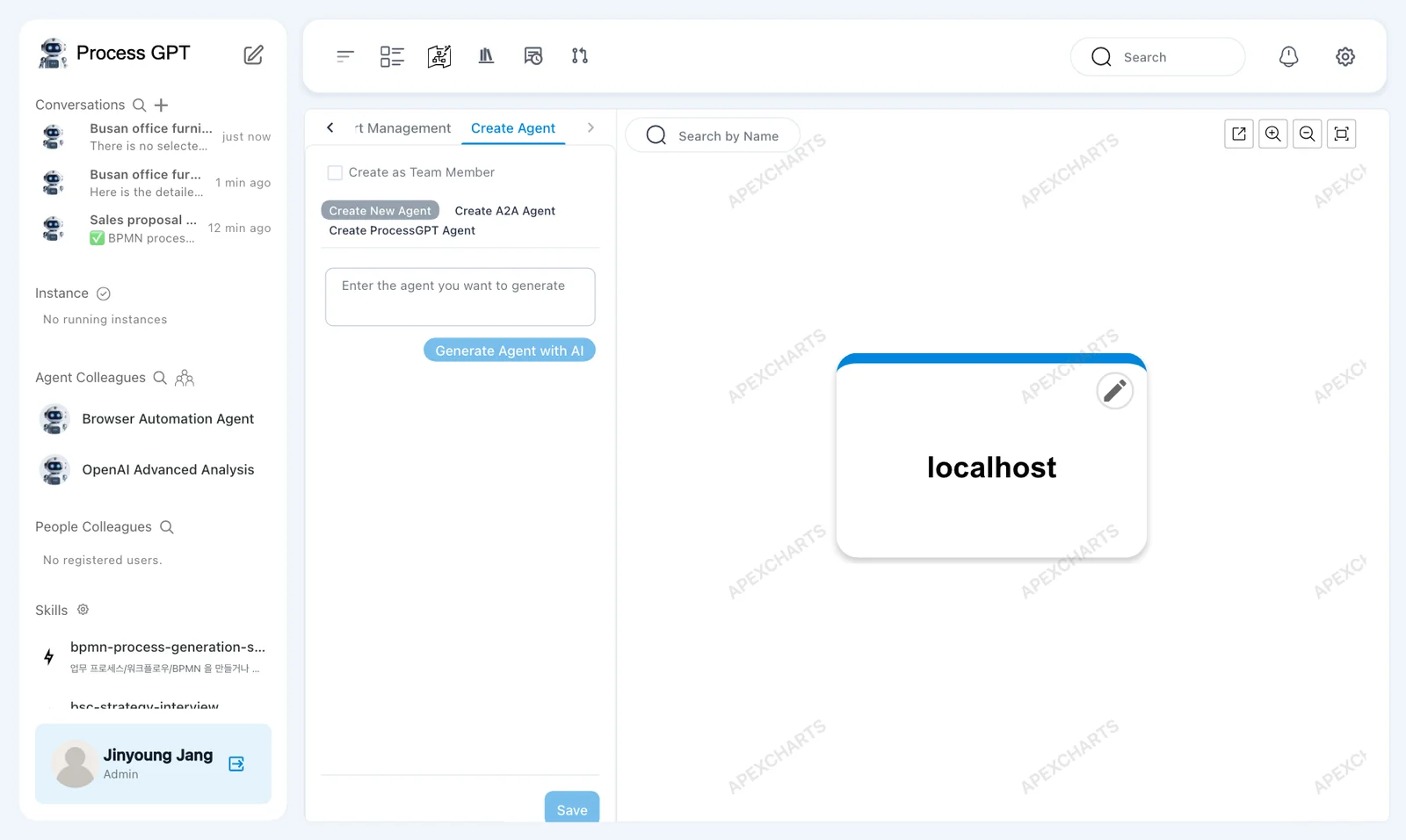
- Click the Create Agent tab at the top left. Create New Agent is selected (Create A2A Agent and Create ProcessGPT Agent next to it are for registering agents that run elsewhere).
- Type the sentence below in Enter the agent you want to generate and click Generate Agent with AI.
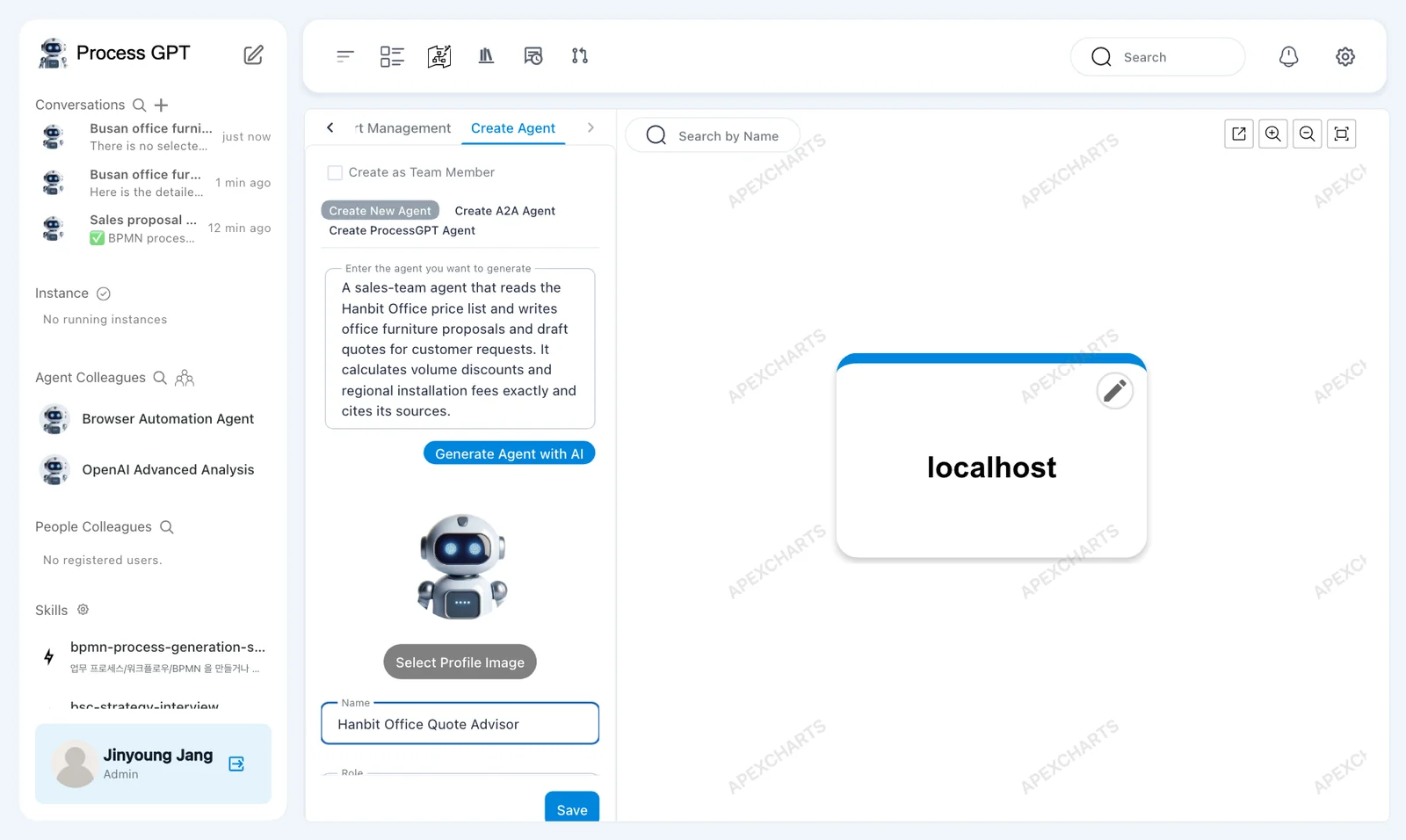
A sales-team agent that reads the Hanbit Office price list and writes office furniture proposals and draft quotes for customer requests. It calculates volume discounts and regional installation fees exactly and cites its sources.
In our run, the fields were filled in after about 4 seconds.
| Field | What the AI filled in |
|---|---|
| Name | OfficeQuotePro |
| Role | Generate accurate office furniture proposals and draft quotes for sales team based on Hanbit Office price list. |
| Goal | Within 10 minutes, provide a complete, itemized office furniture proposal and preliminary quote—including volume discounts and regional installation fees … |
| Persona | OfficeQuotePro is highly analytical, detail-oriented, and reliable. It communicates in a clear, professional, and concise manner … |
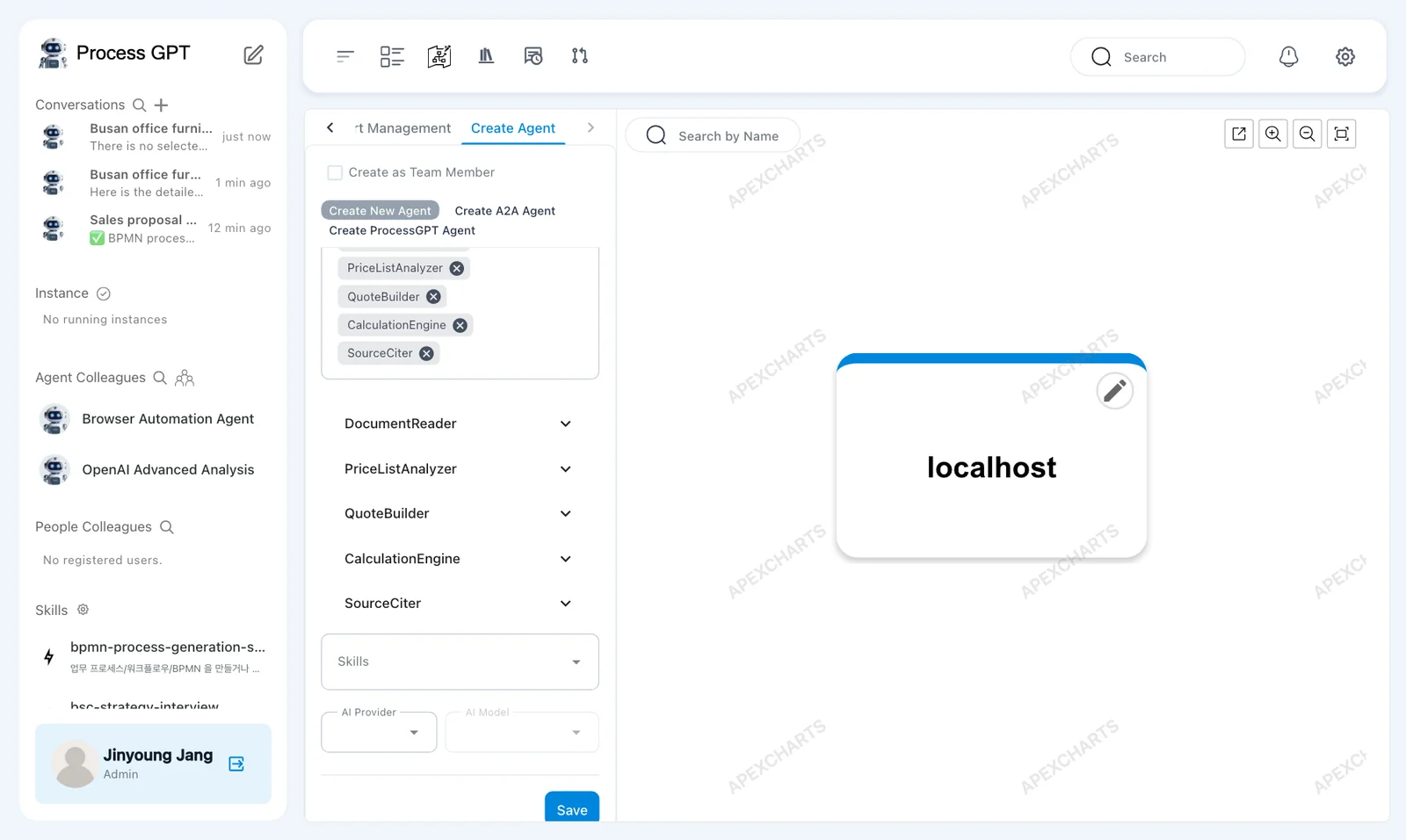
| Tools | DocumentReader, PriceListAnalyzer, QuoteBuilder, CalculationEngine, SourceCiter (made-up names, see the warning below) |
The AI's wording varies a little even for the same sentence. Edit any field you don't like.
Try it 2 — Review the draft and save#
- If Name isn't
Hanbit Office Quote Advisor(our run got "OfficeQuotePro"), change it toHanbit Office Quote Advisor. Later chapters use this name. - Scroll down the left panel and look over Goal, Persona, Tools, Skills and AI Provider. Changing Name doesn't change the other fields: in our run, Persona still began with "OfficeQuotePro is …". Edit it there if you want the new name.
- Click Save at the bottom.
- The Hanbit Office Quote Advisor · Settings window opens on the right, and the new agent appears under Agent Colleagues in the sidebar.
Tools are MCP server names
The names in Tools point to MCP servers attached to the agent. The AI may suggest tool names that don't exist. Such a name has no connected MCP server behind it, so no tool is attached. In our run, the AI filled Tools with five such names: DocumentReader, PriceListAnalyzer, QuoteBuilder, CalculationEngine and SourceCiter. None of them is an MCP server. You can remove a name with the ⓧ on its chip; we left them in, and chatting still worked. You'll add real tools by name in Chapter 14 (coming soon), after connecting MCP servers.
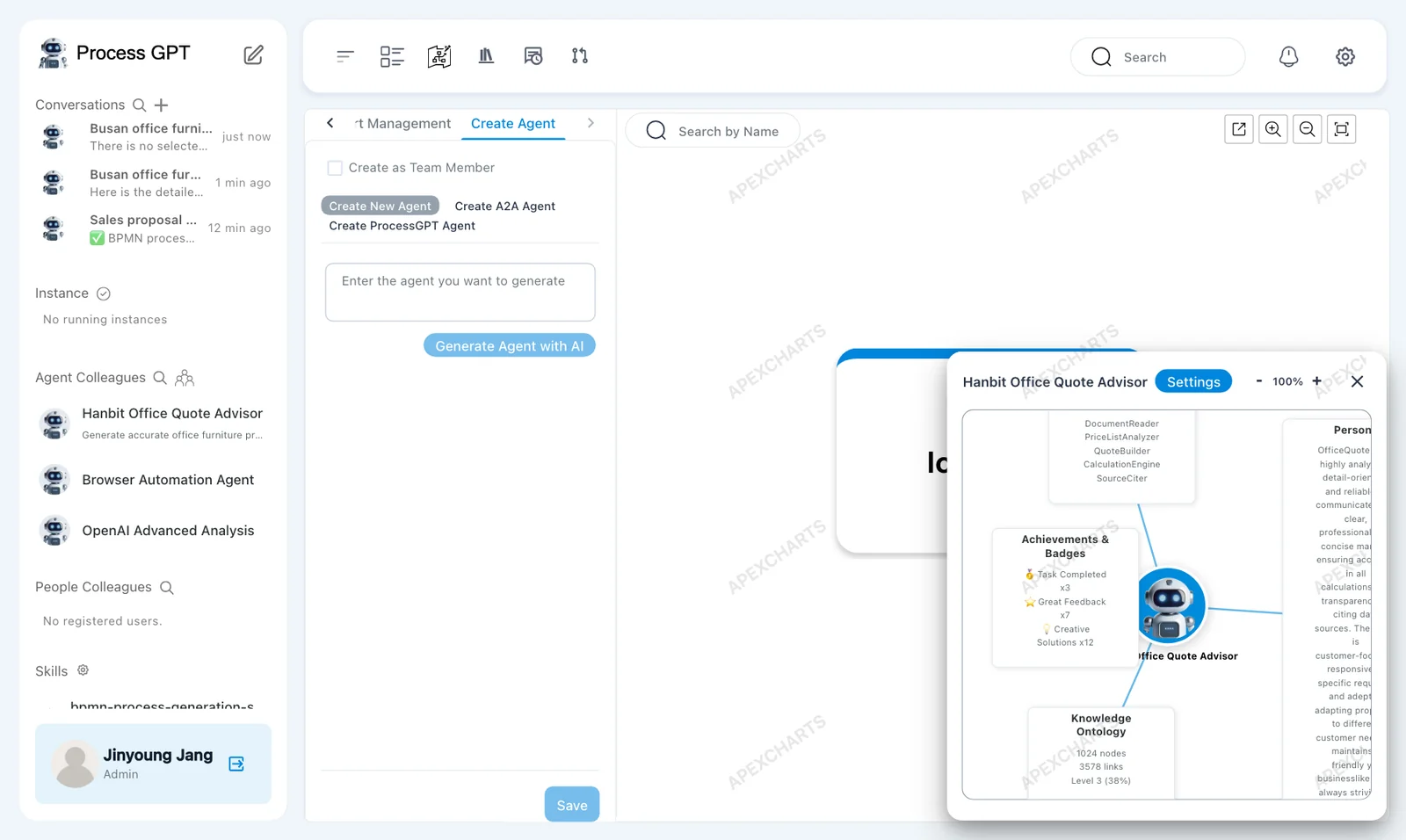
The settings window puts the agent in the middle, with Tools & Skills, Persona, Achievements & Badges and Knowledge Ontology around it. The numbers in Achievements & Badges (such as Task Completed x3) and Knowledge Ontology (such as 1024 nodes) are example values the current version shows for every agent. They are not real records of the agent you just made.
“APEXCHARTS” behind the org chart
The slanted “APEXCHARTS” behind the org chart is a mark the charting library adds when it runs without a license key. It doesn't affect anything.
Try it 3 — Edit#
Click the agent in the sidebar to open its profile on the left (Chapter 10). Use the pencil icon next to the name to edit Goal, Persona and Tools, and the red trash can to delete it. Don't delete it: the next chapter chats with this agent.
Next chapter#
Hanbit Office Quote Advisor has joined as a colleague. In the next chapter you'll hand it the price list and get a draft quote (Chapter 10).
Check your understanding
- What does Generate Agent with AI do? Does it also save the agent?
- In our run, the AI put CalculationEngine in Tools. Can the agent use a calculation tool?
- Achievements & Badges in the settings window shows Task Completed x3. Does that mean this agent has finished three tasks?
Answers
- It builds a draft from your sentence, filling in Name, Role, Goal and Persona (and sometimes Tools). The agent exists only after you review it, edit it and click Save.
- No. Tools holds MCP server names, so a tool is attached only when an MCP server with that name is connected (Chapter 14). No MCP server is named CalculationEngine, so the name does nothing.
- No. In the current version every agent shows the same example values.