
Pick the Hanbit Office Bulk Order Quote Approval Policy in the Knowledge Base and ask the Deep Agent to build a process that follows it. Approve the draft and pick two agents for the stock check and quote calculation, and the process, agents and input forms are created in one go. Then check the flow against the policy and ask for a fix where it differs.
How this differs from Chapter 3#
In Chapter 3 you described the steps one by one in words. But companies already have documents such as policies and work manuals. Pick a document and say "follow this policy", and the Deep Agent reads it and pulls out the steps, owners and gateways.
| Chapter 3 — described in words | This chapter — from a document | |
|---|---|---|
| Agent | Basic Agent | Deep Agent |
| Based on | Sentences you write | A policy document in the Knowledge Base |
| What you get | Process and forms | Process, forms and agents for the steps |
The key points of the policy (Hanbit-Office-Quote-Approval-Policy.pdf, uploaded in Chapter 8):
| Article | What it says |
|---|---|
| Article 2 — Receiving the quote request | The sales representative receives and records the quote request (company name, contact person, products and quantities, installation region, requested delivery date) |
| Article 3 — Stock check | Confirm the stock and expected arrival date. An agent may do this |
| Article 4 — Quote calculation | Calculate the amount, discount, installation fee and total from the price list. An agent may do this |
| Article 5 — Approval | Under KRW 30,000,000: sales team lead. KRW 30,000,000 or more: sales team lead, then the finance officer. A rejected quote goes back to quote calculation |
| Article 6 — Reply to the customer | Send the quote and record the date sent and the quote validity (30 days) |
Try it 1 — Pick the policy and make the request#
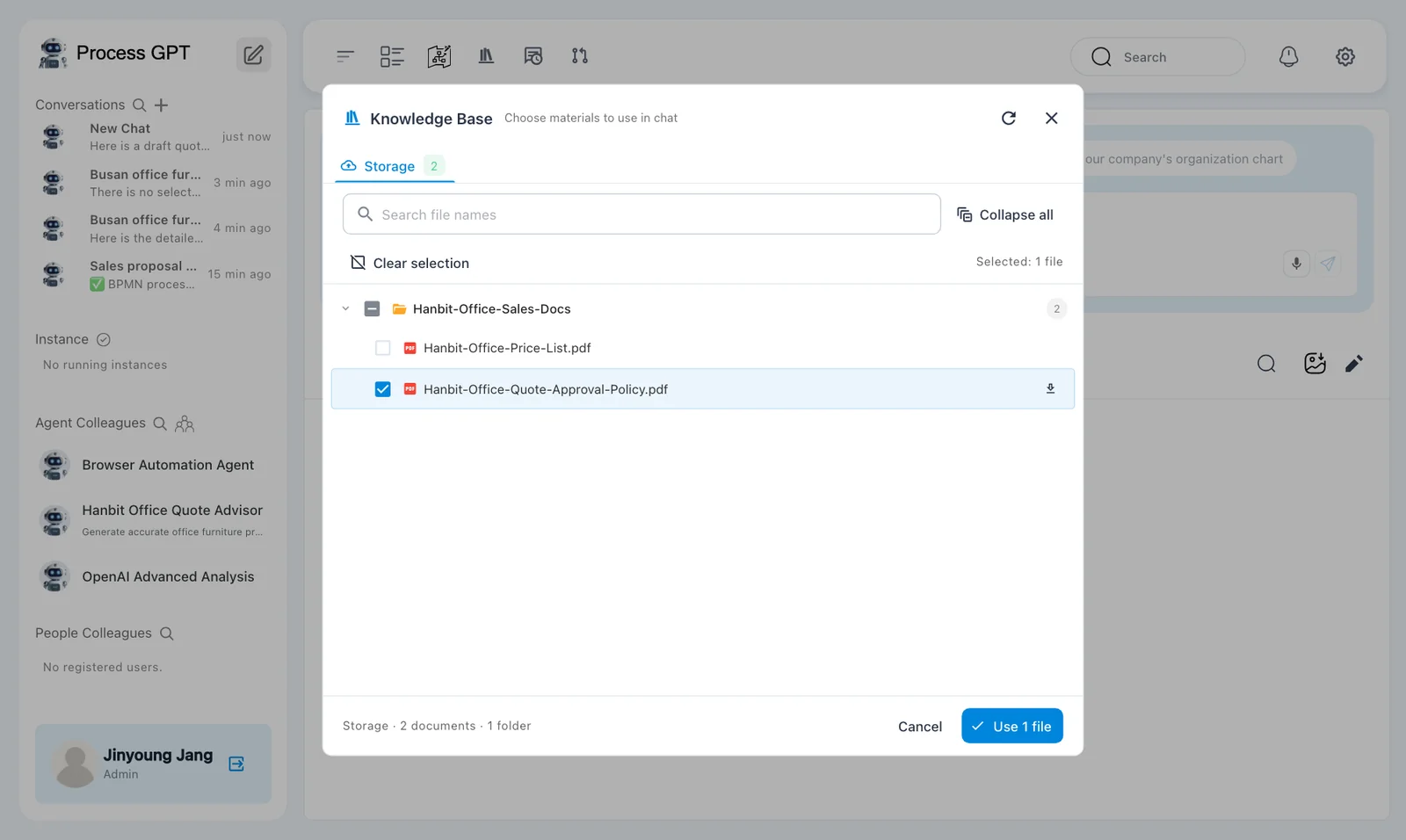
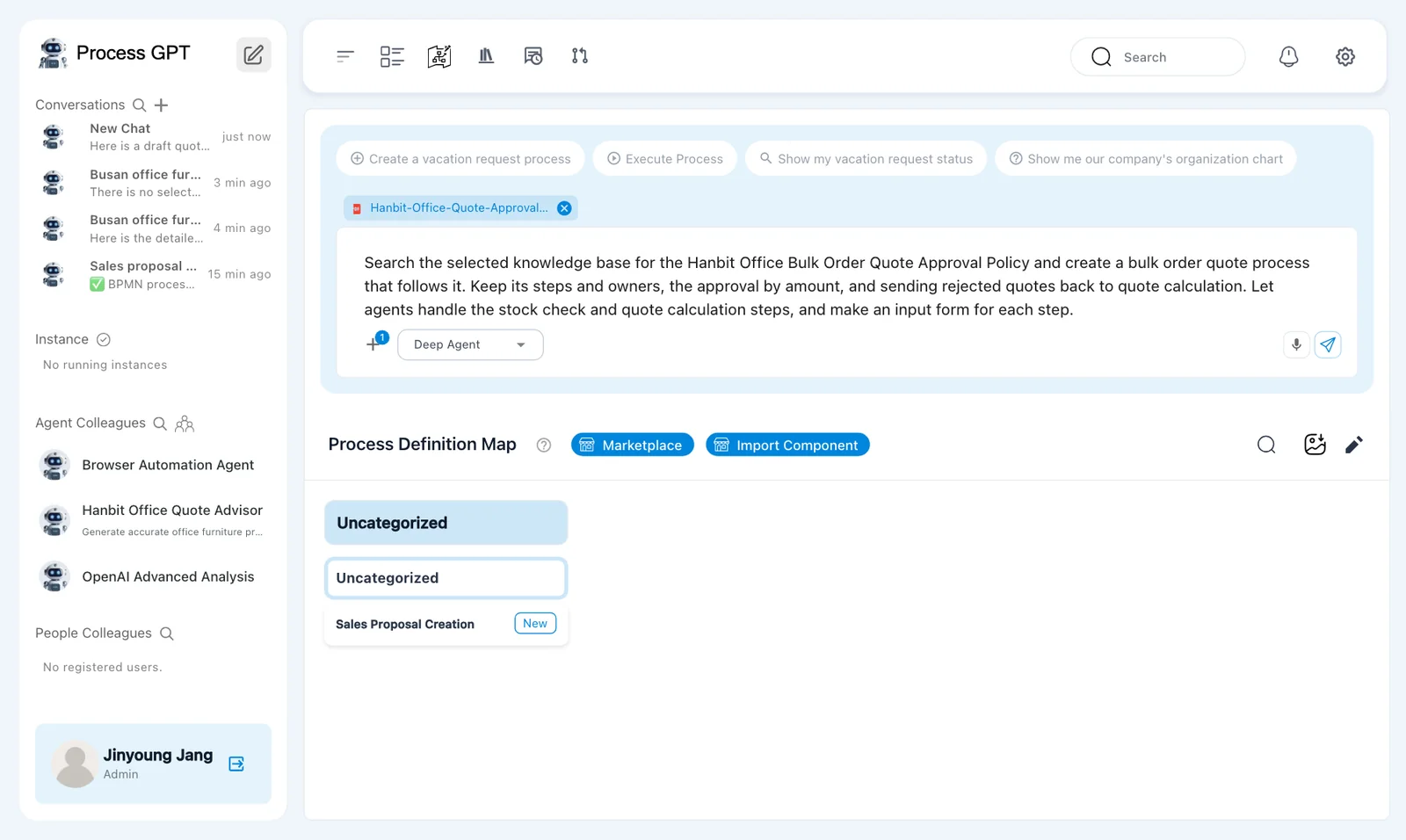
- In the chat box on Home (the pencil icon), make sure the agent is Deep Agent.
- + › Knowledge Base › Expand all › check
Hanbit-Office-Quote-Approval-Policy.pdf› Use 1 file. - Send the text below.
Search the selected knowledge base for the Hanbit Office Bulk Order Quote Approval Policy and create a bulk order quote process that follows it. Keep its steps and owners, the approval by amount, and sending rejected quotes back to quote calculation. Let agents handle the stock check and quote calculation steps, and make an input form for each step.
Try it 2 — Approve the draft#
In our run, the draft window appeared after 26 seconds. Its title is the Deep Agent's opening sentence: "Here is the proposed process draft for the "Hanbit Office Bulk Order Quote Approval Process," derived directly from the official policy and following process best practices. Please review — if you want to add or change any steps, let me know." The draft follows the policy in five steps. The sales representative receives the quote request and fills in the quote request form. The stock checker (an agent) confirms the stock, the expected arrival date and whether the requested delivery date can be met. The quote calculator (an agent) calculates the unit price, volume discount, installation fee and total from the price list. Under KRW 30 million, the sales team lead approves or rejects; at KRW 30 million or more, the sales team lead approves first, then the finance officer. A rejected quote goes back to quote calculation with the approver's reason. Last, the sales representative sends the quote and records the date sent and the 30-day validity. The body ends with Shall I proceed as drafted? Tell me if you want to add or change any steps. In the current version, the opening sentence is repeated twice in the body and the headings show raw ** marks. You can ignore both.
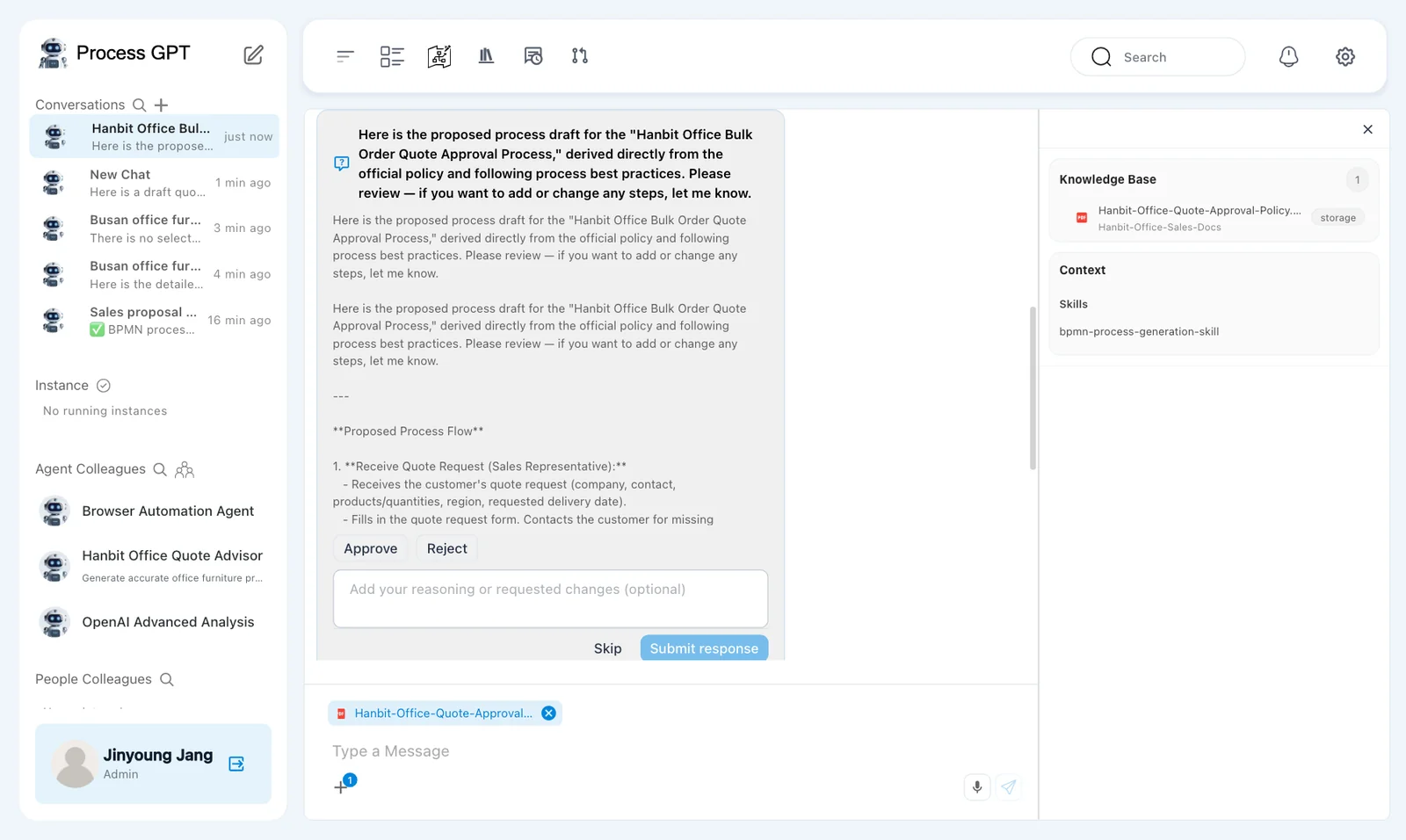
If it matches the policy, choose Approve and click Submit response. If something needs changing, choose Reject and write what to change in the box below (Add your reasoning or requested changes (optional)).
When the draft comes as a chat message
The Deep Agent sometimes shows the draft as a chat message instead of the window and asks whether to create the process with this flow. Then reply "Yes, please create the process with this flow."
Try it 3 — Pick agents for the steps#
Next, the Pick the items to add to this process (skip if none) window appears. These are candidates the Deep Agent suggests after reading the policy. In our run, it appeared 70 seconds after the request.
| Candidate | What the window says |
|---|---|
| [Agent] Stock check automation agent | Handles the stock check step using the inventory system (activity: stock_check) |
| [Agent] Quote calculation automation agent | Handles calculation of quote, discounts and fees as per the official price list (activity: quote_calculation) |
| [DMN] Approval decision table | Automates the approval routing and escalation … |
In our run, the window also suggested a [DMN] item (a rule as a decision table, Chapter 15). Other runs can suggest [Skill] items (documents describing how to do the work, Chapter 11, coming soon). This chapter picks only the agents.
Check [Agent] Stock check automation agent and [Agent] Quote calculation automation agent (2 selected), leave the [DMN] item unchecked, and click Submit response.
![Items to add — the two agents checked, “[DMN] Approval decision table” unchecked, “2 selected”. A preview of the flow already built, in the Work folder on the right](img/dp-candidates-picked.webp)
Try it 4 — Review and save#
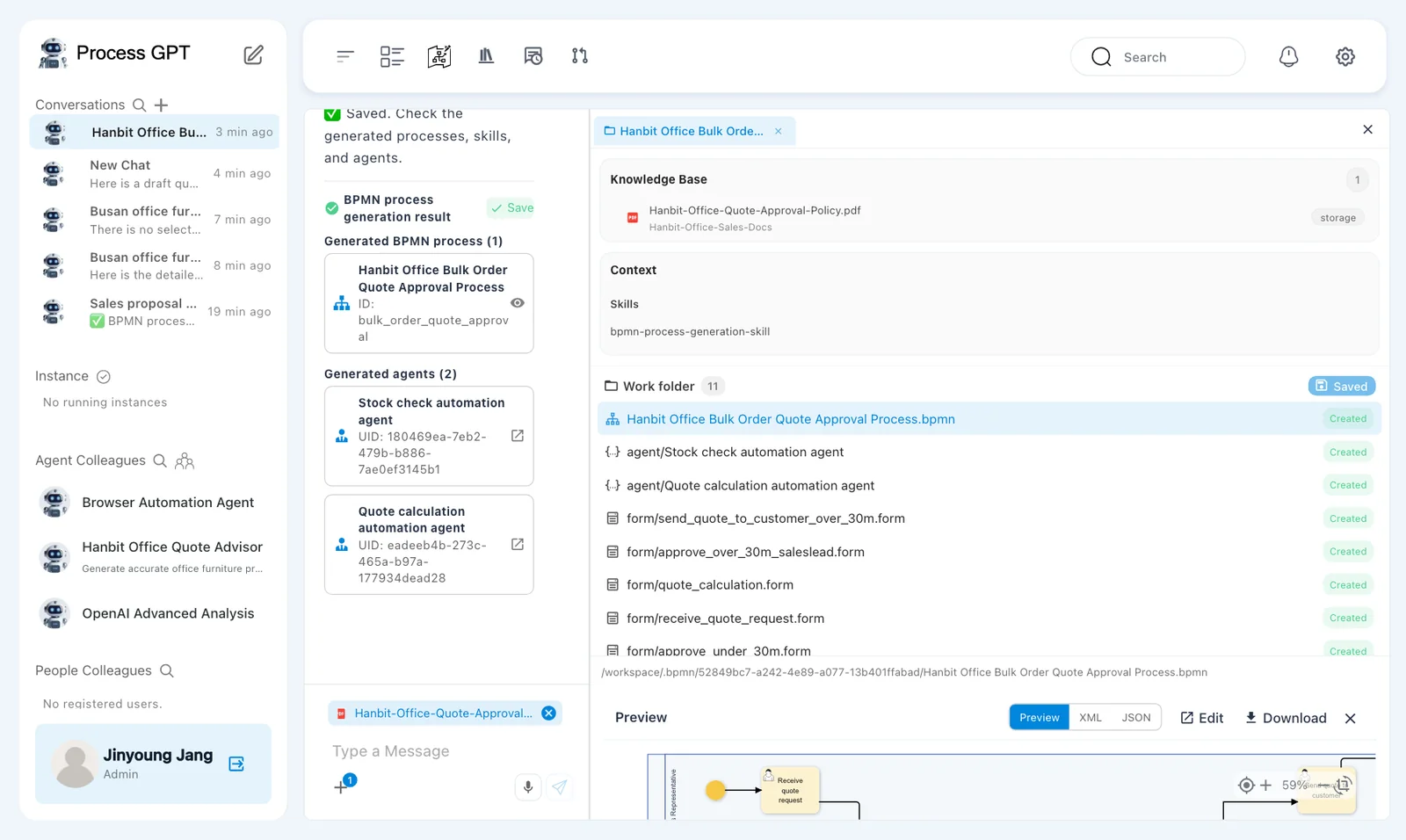
In our run, about 128 seconds after the request, the Deep Agent said "I've created the Hanbit Office Bulk Order Quote Approval process, including agent-powered stock check and quote calculation steps, amount-based approval routing, and rejection loops, with dedicated input forms for each step." and asked us to review it and press "Save". The Work folder on the right already held 11 items. We replied "Yes, please create the process with this flow." anyway, and at about 157 seconds it answered "I've created the process with the specified flow—every step, owner, approval logic, agent-based automation, and input form is now implemented in files and ready for review." The Work folder still showed the same 11 items. This time no "holding the result back" notice came. If you get one, reply "Yes, please create the process with this flow."
| Work folder | Contents |
|---|---|
| Hanbit Office Bulk Order Quote Approval Process.bpmn | The flow. Click it for a preview below (Preview · XML · JSON) |
| agent/Stock check automation agent · agent/Quote calculation automation agent | Agent files for the two agent steps |
| form/receive_quote_request.form · quote_calculation · approve_under_30m · approve_over_30m_saleslead · send_quote_to_customer_over_30m … | An input form for each step |
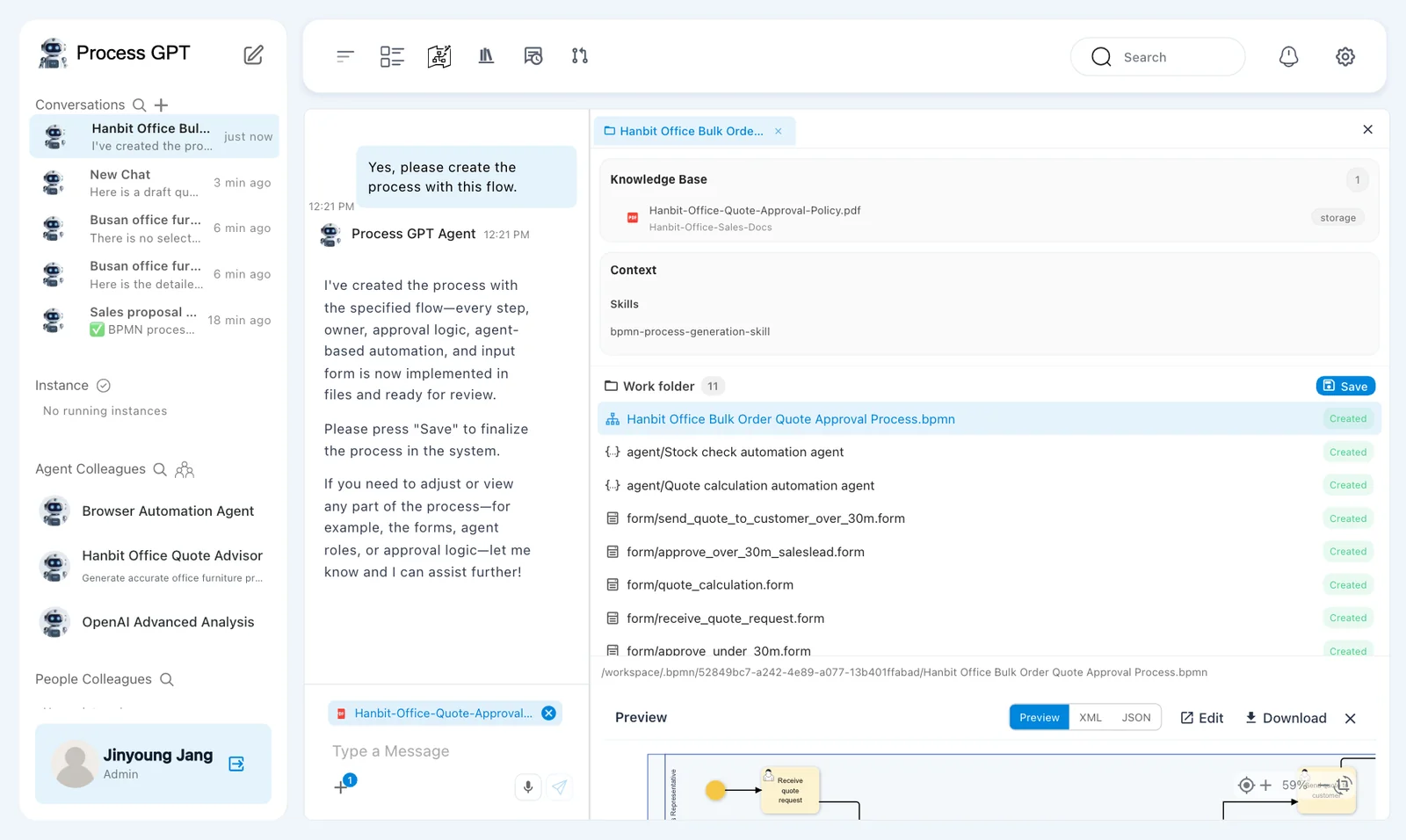
Click Save at the top right of the Work folder. In our run, saving took a little over 2 minutes. "✅ Saved. Check the generated processes, skills, and agents." appears, with the saved items as cards: Generated BPMN process (1) (Hanbit Office Bulk Order Quote Approval Process, ID bulk_order_quote_approval) and Generated agents (2) (Stock check automation agent and Quote calculation automation agent). The Save button turns into Saved. This time both agent steps got new agents; the Hanbit Office Quote Advisor you made in Chapter 9 wasn't used. Once you go to another screen or refresh, the new agents appear under Agent Colleagues in the sidebar (for example Quote calculation automation agent, with the role "Quote Calculator (Agent)").
Nothing is kept until you save
Up to Save, everything exists only in the Work folder, even when the Deep Agent's message says the files "have been generated and saved". If you leave without clicking Save, the process doesn't go into the Process Definition Map.
Try it 5 — Check the flow against the policy#
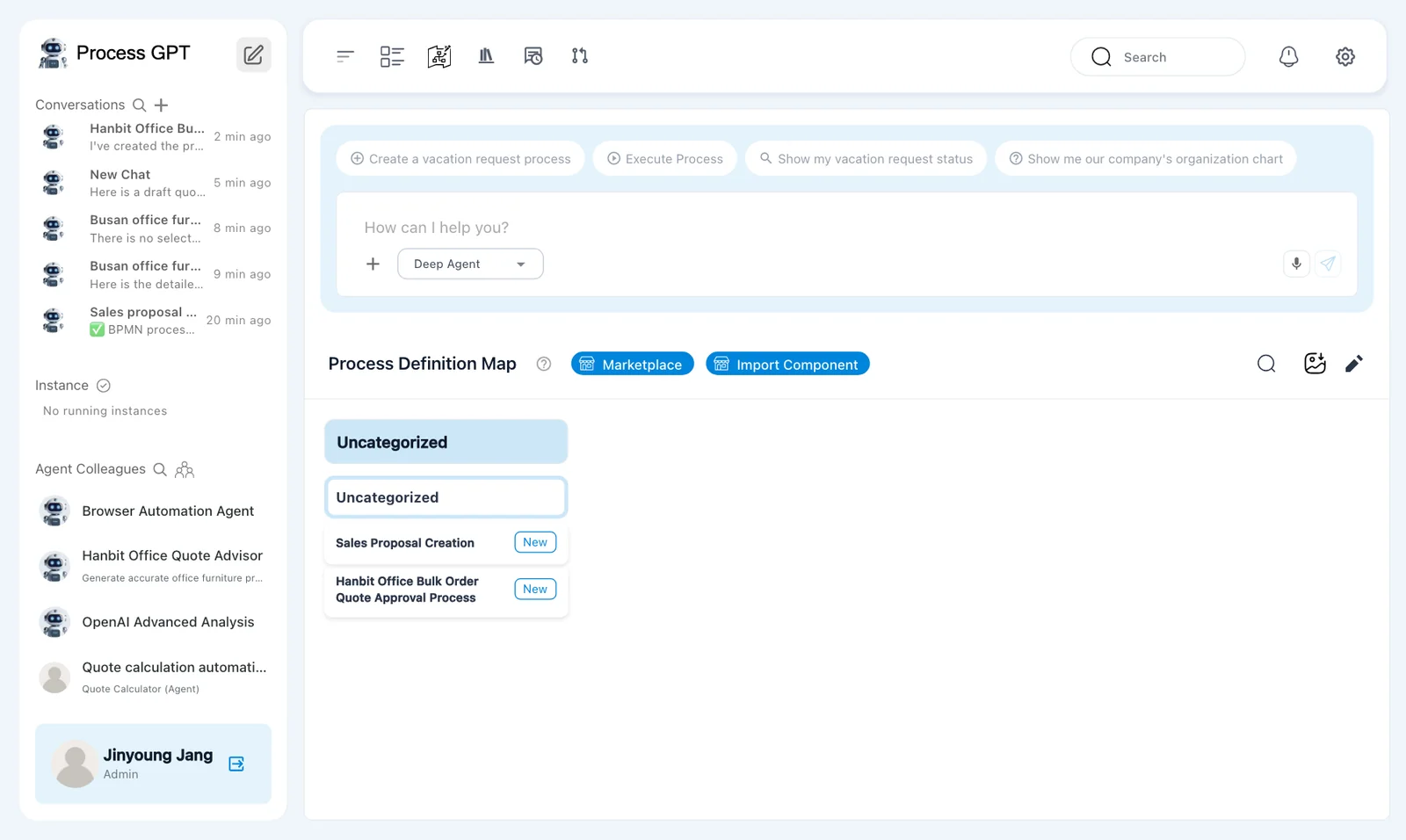
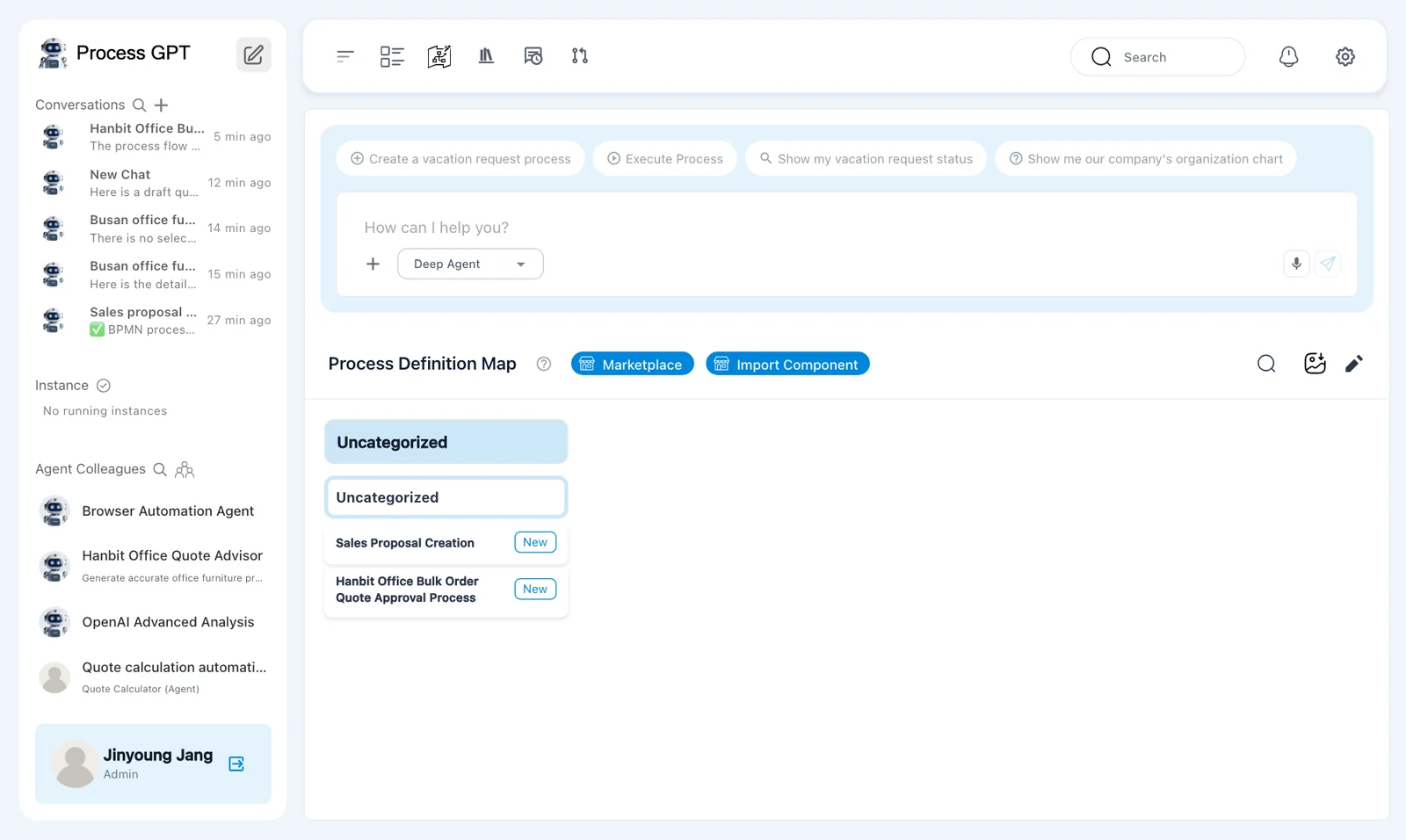
Hanbit Office Bulk Order Quote Approval Process now appears under Uncategorized in the Process Definition Map on Home. Click it to open it.
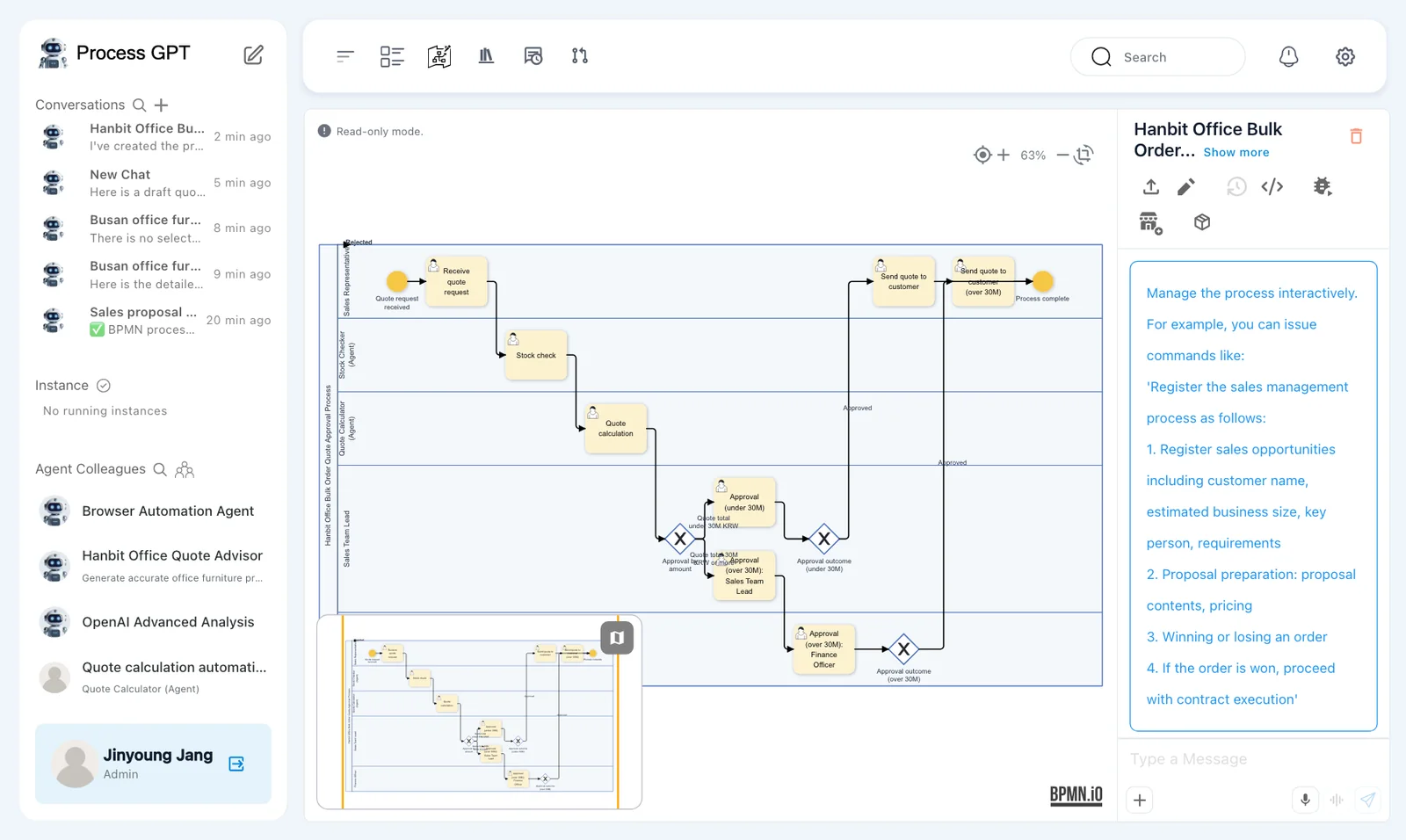
| What to check | Policy | First generated flow |
|---|---|---|
| Lanes | Sales representative, stock check, quote calculation, sales team lead, finance officer | Same |
| Stock check · quote calculation | An agent may do them | Stock Checker (Agent) and Quote Calculator (Agent) lanes |
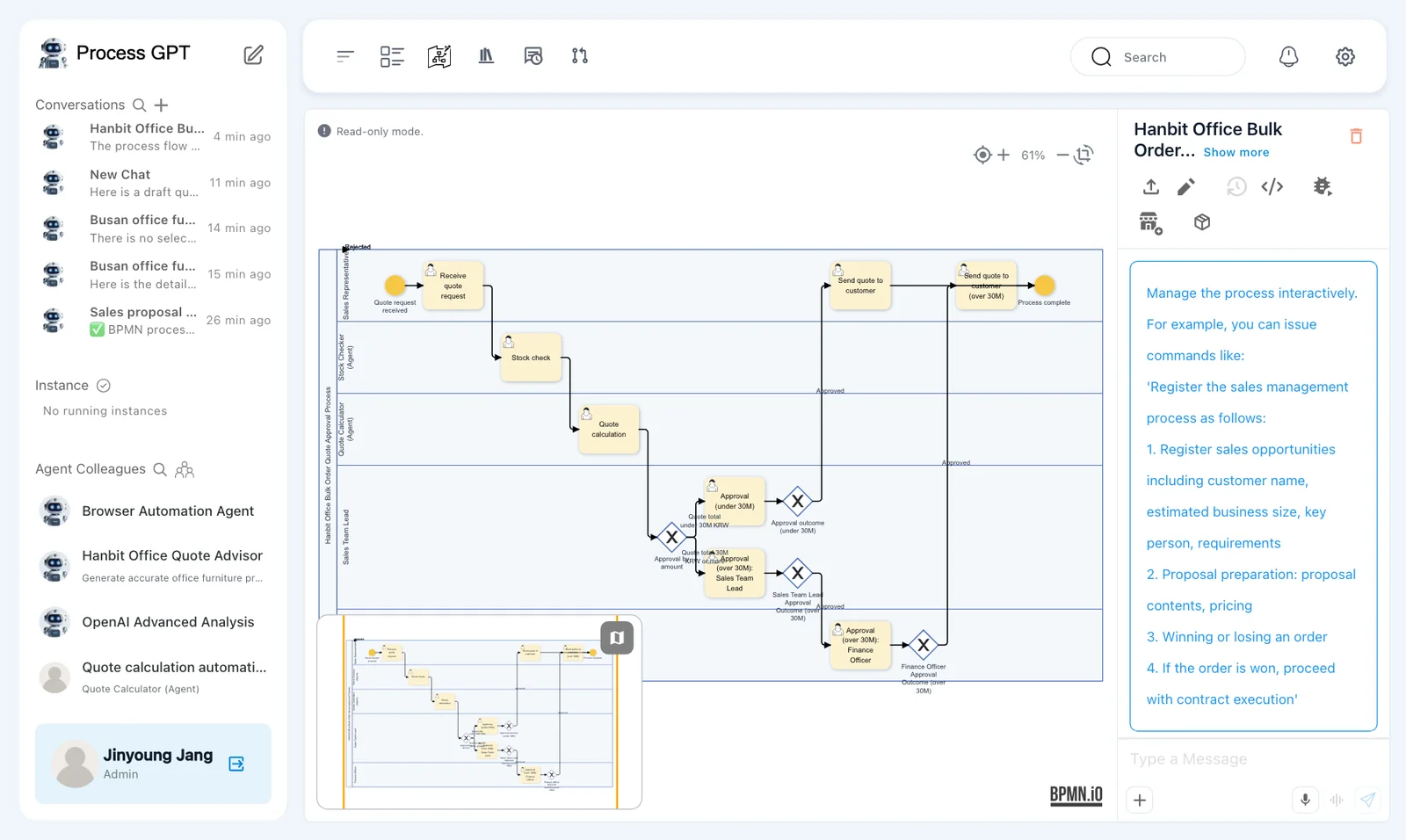
| Approval by amount | The sales team lead; for KRW 30,000,000 or more, then the finance officer | Same order: Approval by amount after Quote calculation sends under KRW 30M to Approval (under 30M), and 30M or more to Approval (over 30M): Sales Team Lead → Approval (over 30M): Finance Officer |
| Approved · rejected | Approved → reply to the customer. Rejected → back to quote calculation | Partly. Approval outcome (under 30M) and Approval outcome (over 30M) (after the finance officer) send Approved to the customer and Rejected back to Quote calculation. But Approval (over 30M): Sales Team Lead goes straight to the finance officer, with no approve or reject decision |
The last row differs. The amount split and the order of approvals are right, but on the KRW 30,000,000-or-more path a quote the sales team lead rejects has nowhere to go. Just as you checked the draft quote against the price list in Chapter 10, check flows the AI makes against the source too.
Arrows bent to the top-left
In the current version, some arrows (here, the Rejected ones back to Quote calculation) are drawn along the top edge and bent into the top-left corner of the flow, so only their "Rejected" label shows there. Labels can also overlap steps, and the arrow from Send quote to customer to the end runs across Send quote to customer (over 30M). Only the drawing is off: in our run, the saved definition did send those Rejected arrows back to Quote calculation.
Try it 6 — Ask for a fix#
- Stay in this chapter's chat room (Hanbit Office Bulk Order Quote Process), or reopen it from Conversations in the sidebar.
- Type what differs into the chat box at the bottom (not the form preview on the right) and send it. We sent the Article 5 rule below, which restates the approval order:
This differs from Article 5. If the quote total is under KRW 30,000,000, the sales team lead approves and it goes straight to the reply to the customer; if it is KRW 30,000,000 or more, the finance officer must approve after the sales team lead before the reply. Fix the flow in that order.
Our message didn't name the missing rejection, but the Deep Agent fixed the flow against Article 5 and added it. If your flow has a different gap, describe that gap in your own words. In our run, the notice "Something went wrong while putting the process files together, so I'm holding the result back." came back after 26 seconds, with the reason "There's no passing validate_process_definition record yet. Try again, or tell me what to change." We replied "Yes, please fix it that way.", and at about 42 seconds the Deep Agent said the process had been fixed according to Article 5, with both approvers able to send a rejected quote back to quote calculation. We sent the same reply once more, and at about 63 seconds it confirmed: "The process flow has been fixed exactly as you specified". It also said "This revision is saved and ready for review", but nothing is kept until you click Save in the Work folder. Saving took about 2 minutes again.
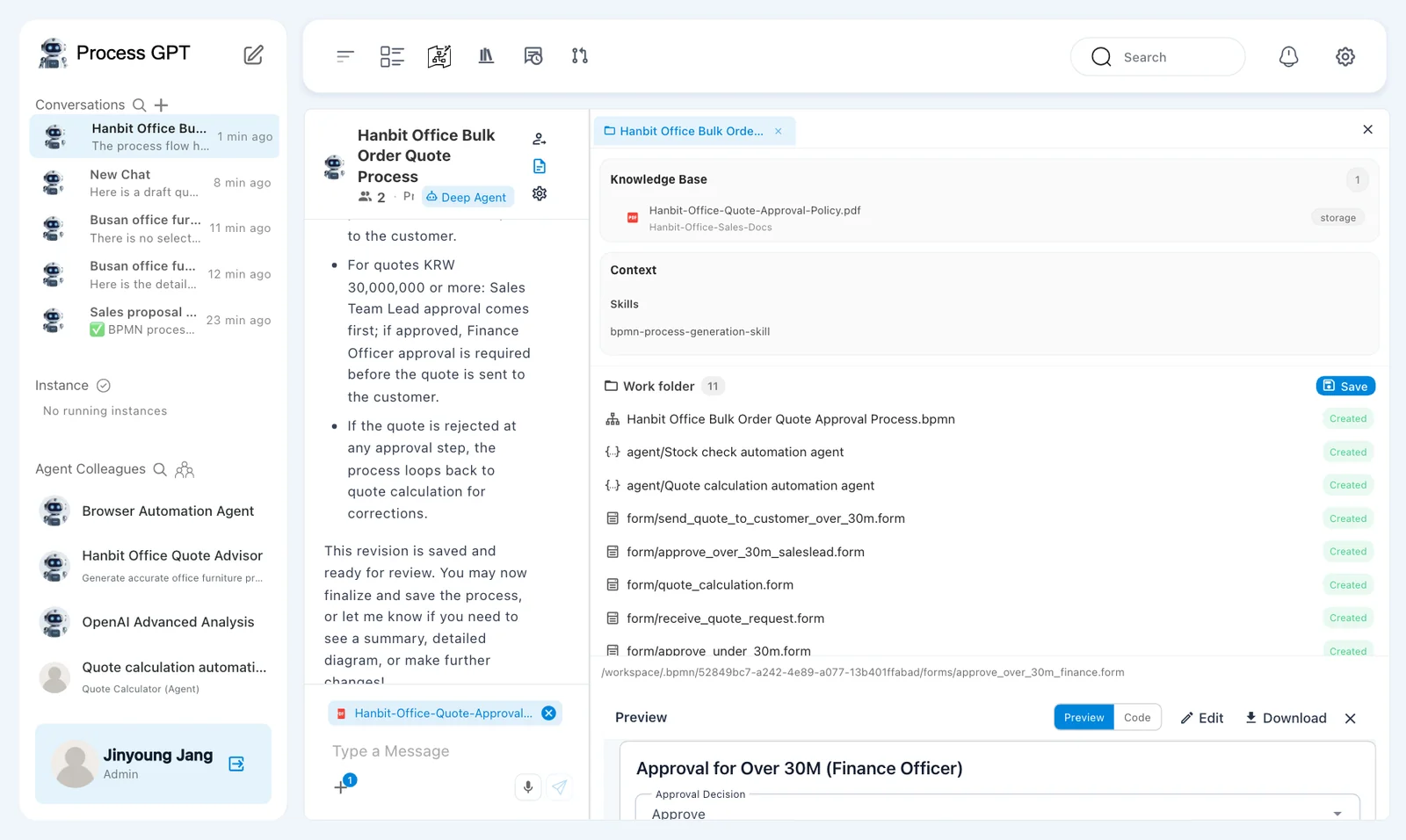
In our run, the fix was saved over the same definition, so the map still shows one Hanbit Office Bulk Order Quote Approval Process.
If your run saved a second definition with the same name, delete the older one:
- Open each one. The older one is the one without your fix.
- With the older one open, click the red trash can at the top right (Delete Process) and confirm the deletion.
In the fixed flow, a new Sales Team Lead Approval Outcome (over 30M) decision comes after the sales team lead's approval on the KRW 30,000,000-or-more path. The rest stays as before.
| After Approval by amount | Next |
|---|---|
| Under KRW 30,000,000 | Approval (under 30M) → Approval outcome (under 30M): Approved → Send quote to customer → End; Rejected → Quote calculation |
| KRW 30,000,000 or more | Approval (over 30M): Sales Team Lead → Sales Team Lead Approval Outcome (over 30M): Approved → Approval (over 30M): Finance Officer; Rejected → Quote calculation. Then Finance Officer Approval Outcome (over 30M): Approved → Send quote to customer (over 30M) → End; Rejected → Quote calculation |
In the current version, the Rejected arrows are still drawn into the top-left corner, and the label of Finance Officer Approval Outcome (over 30M) hangs below the pool. Only the drawing is off.
Not running it yet
Running this process so that agents handle the stock check and quote calculation is covered in Chapter 13 (coming soon). In the current version, the roles and agents you created aren't properly connected to the process engine, so that chapter will be published once this is fixed.
Next chapter#
You built a process with agents in it from a policy document, checked it against the source and fixed it. The policy's numeric rules (volume discounts, approval limits) are easier to change when kept separately in a decision table. Next up: decision tables (DMN) (Chapter 15).
Check your understanding
- Why does this chapter use the Deep Agent rather than the Basic Agent?
- In the first generated flow, what matched the policy and what didn't?
- In the fixed flow, whose approval do a KRW 25,000,000 quote and a KRW 40,000,000 quote each need before going to the customer?
Answers
- The Deep Agent finds and reads the Knowledge Base document you picked and builds the process, form and agent files from it. The Basic Agent doesn't read the picked document, so it can make up rules, such as approval limits, that aren't in the policy.
- The lanes, the amount split and the order of approvals matched: the sales team lead, then the finance officer for KRW 30,000,000 or more. What didn't: on the KRW 30,000,000-or-more path, Approval (over 30M): Sales Team Lead went straight to the finance officer, so a quote the sales team lead rejects had no way back to quote calculation as the policy requires.
- KRW 25,000,000 needs only the sales team lead's approval (Approval (under 30M) → Send quote to customer); KRW 40,000,000 needs the sales team lead's and then the finance officer's approval before Send quote to customer (over 30M).