
In ⚙ settings on the top bar, change your account and theme, and bring sales representative Minji Kim into the company as a user. Switch the screen language to Korean and back, and find the Knowledge Base tab and the MCP Servers and Environments tabs used in Chapter 14 (coming soon).
The settings screen#
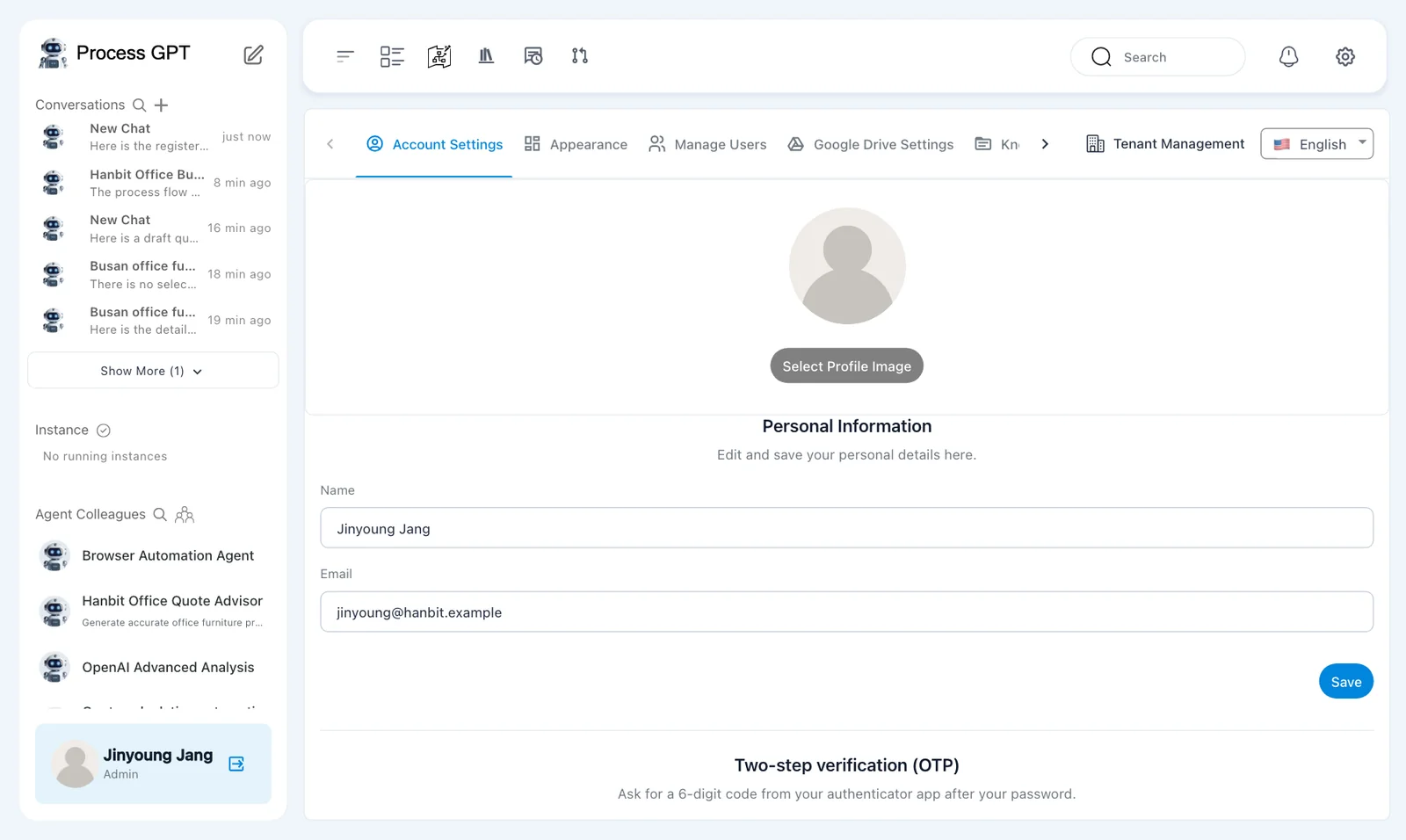
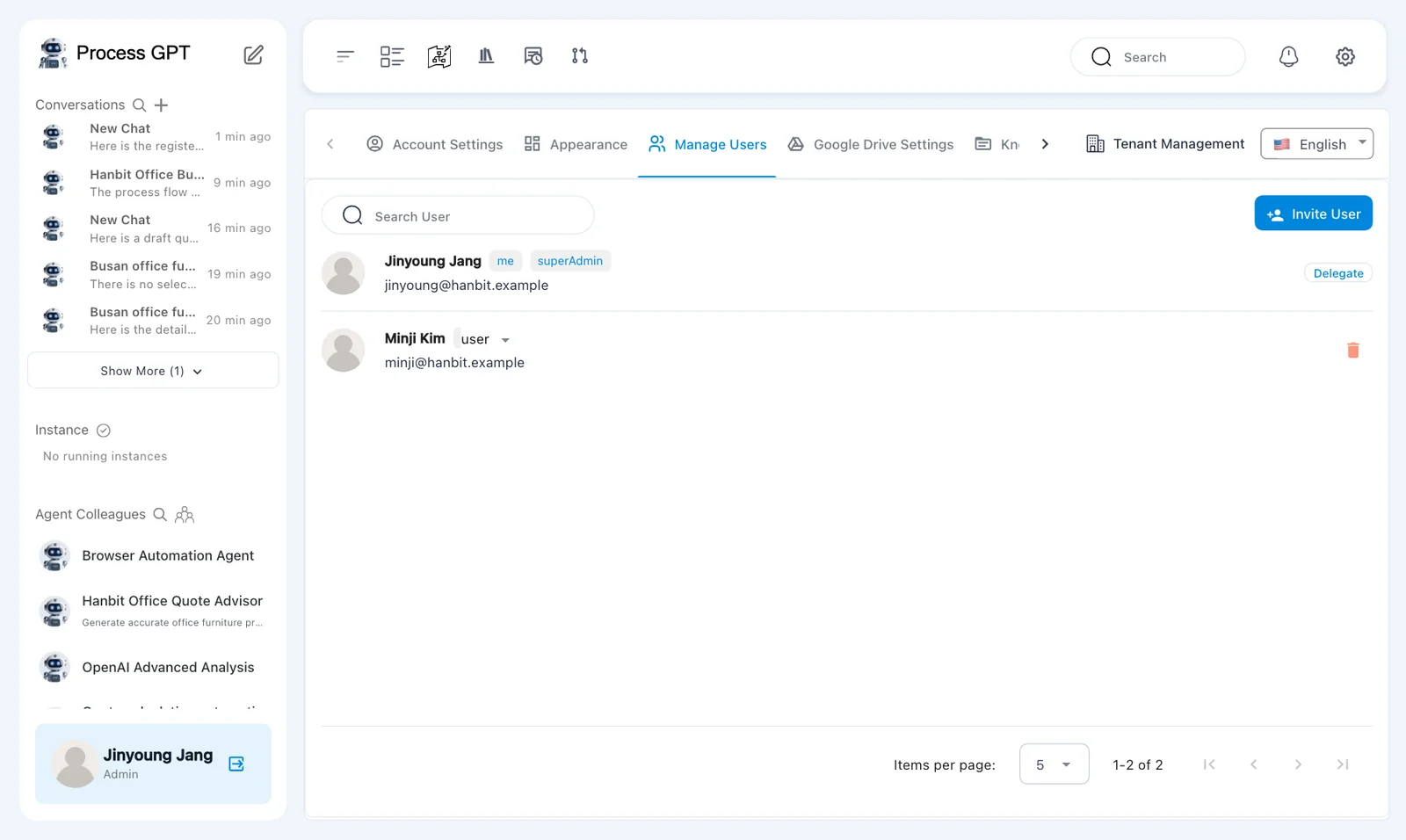
Click ⚙ at the right end of the top bar to open settings. The tabs run in one row along the top, and the screen language (🇺🇸 English) is at the end of the row.
| Tab | What it does | In this tutorial |
|---|---|---|
| Account Settings | Name, email, profile picture, two-step verification (OTP) | This chapter |
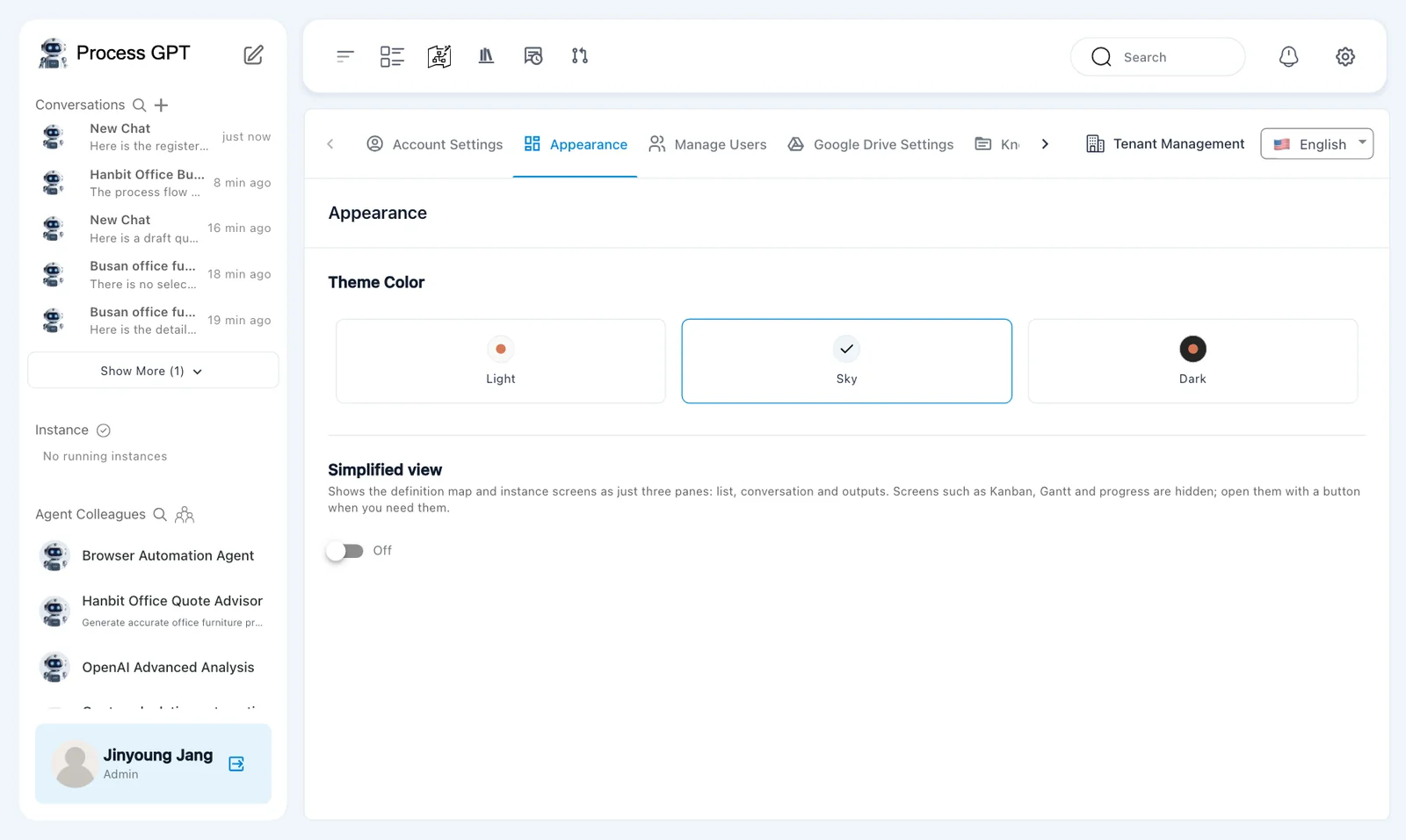
| Appearance | Theme Color (Light, Sky, Dark), Simplified view (On/Off) | This chapter |
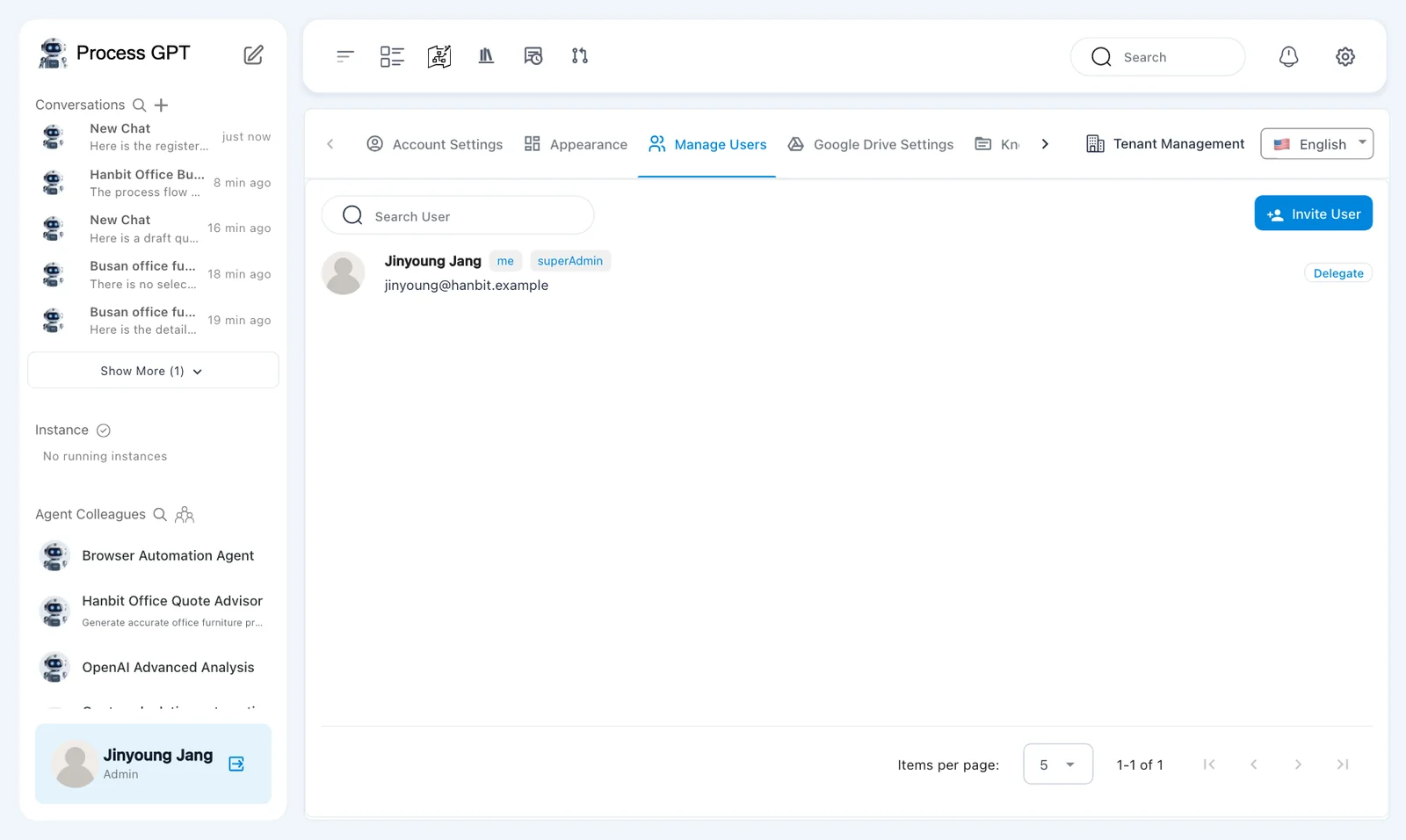
| Manage Users | People in the same company and their roles | This chapter |
| Knowledge Base | The same screen as Knowledge Base on the top bar | Chapter 8 |
| MCP Servers · Environments | Tool servers to attach to agents, and their secrets | Chapter 14 (coming soon) |
| Google Drive Settings · Git Settings · DataSource · Code Editor · Glossary Management · Catalog · Org Groups · Tenant Management | External storage, data connections and admin features | Not used |
Try it 1 — Account and theme#
- In Account Settings you can change your name and profile picture. If you change them, click Save.
- Under Two-step verification (OTP), if you switch on Turn on two-step verification, you enter a 6-digit code from your authenticator app each time you sign in. Leave it off for this tutorial.
- In Appearance, try a Theme Color. If you switch Simplified view from Off to On, the definition map and instance screens show just three panes: list, conversation and outputs.
Try it 2 — Bring in a colleague#
For now, Manage Users lists only you (Jinyoung Jang, me, superAdmin). Invite User sends an invitation email, but a local install doesn't send email. Locally, a colleague joins this company as a user by signing up at the same address.
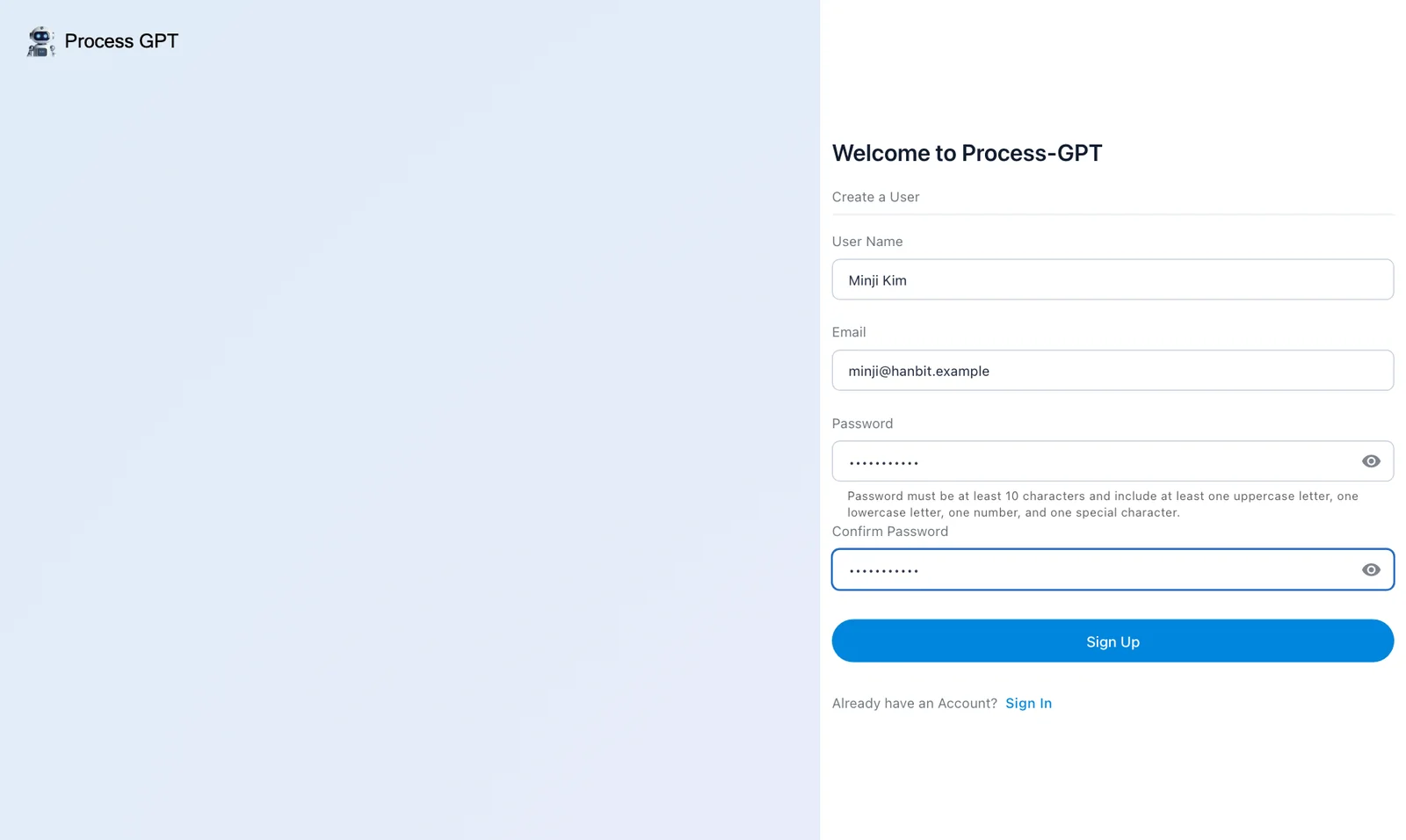
- Open http://localhost:8088 in another browser (or a private window), and sign up sales representative Minji Kim (
minji@hanbit.example) with Try Beta Test › Create an account (same as Chapter 1). - “Registration successful.” appears, Minji Kim is signed in right away, and the Process Architecture opens.
- Refresh Manage Users on Jinyoung Jang's side, and Minji Kim (
user) is now in the list.
Only the first to sign up is an admin
A local install has only one company (tenant localhost). The first person to sign up becomes the admin (superAdmin), and everyone who signs up after that joins right away as a regular user (user).
Try it 3 — Change the screen language#
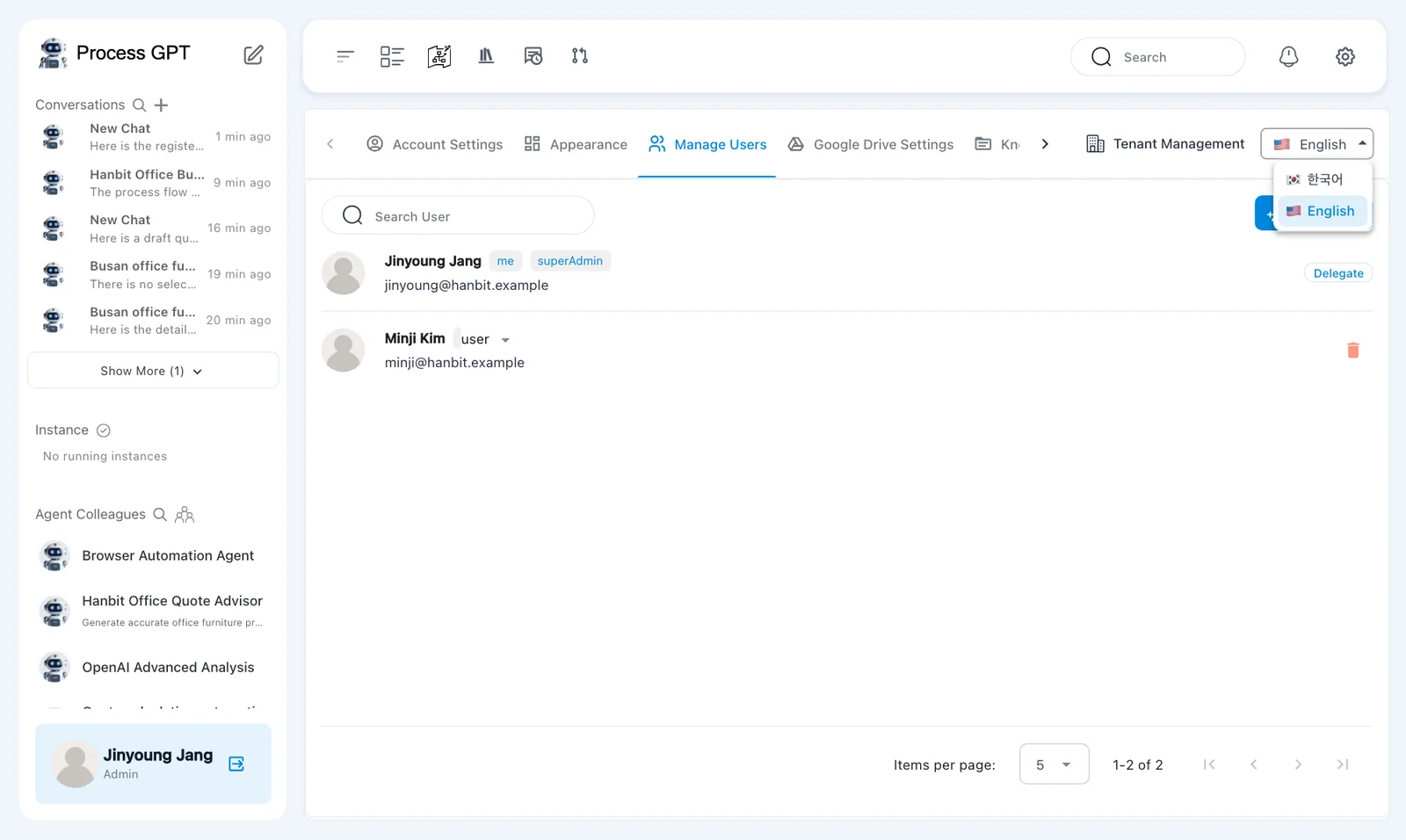
- Click 🇺🇸 English at the end of the tab row and choose 🇰🇷 한국어. The tab names change to 계정 설정, 테마 설정, 사용자 관리 ….
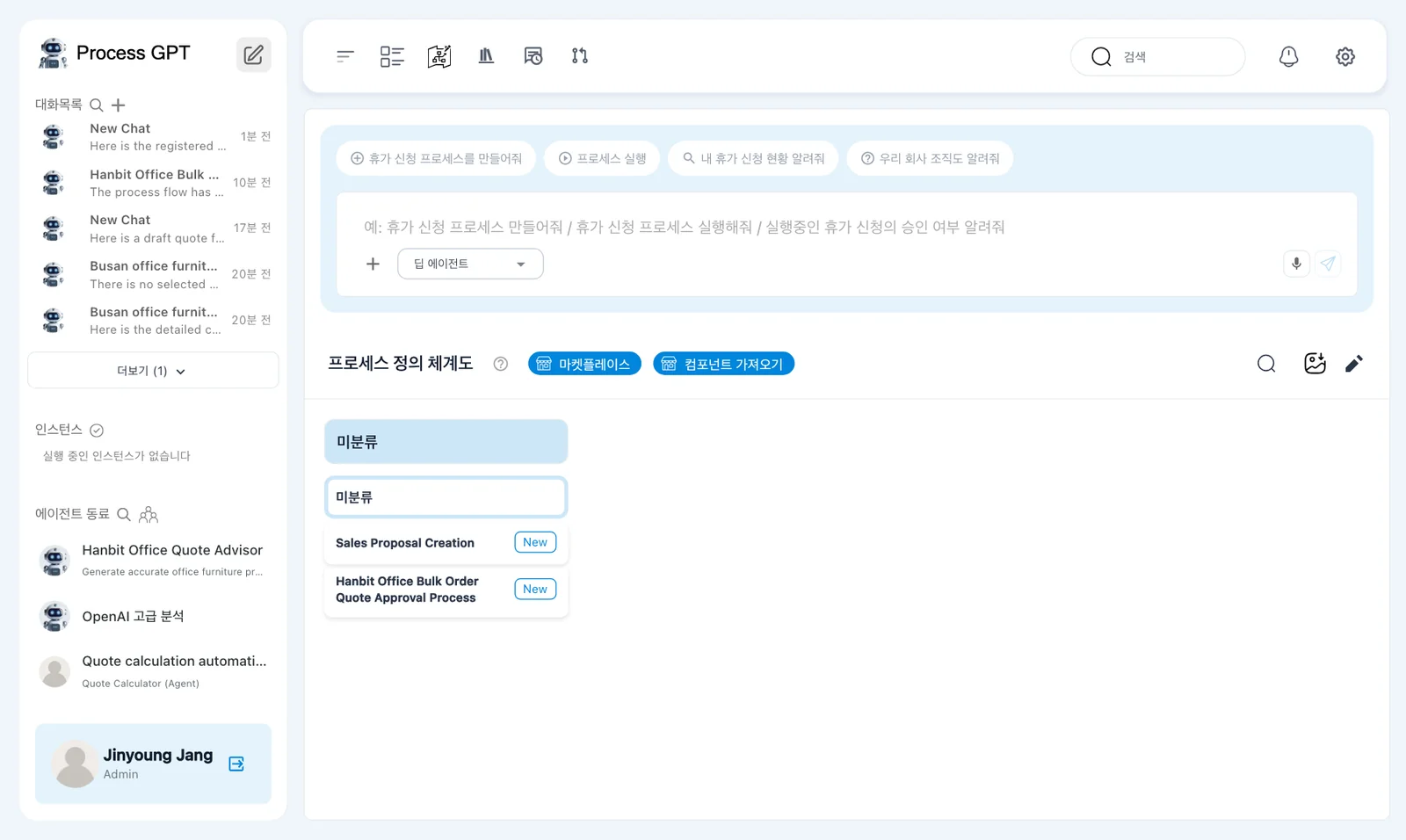
- Go to home: the sidebar (대화목록, 에이전트 동료) and the chat box (its example sentences, 딥 에이전트) are in Korean too. The names of the processes and agents you made stay as they are.
- Go back to settings, click 🇰🇷 한국어 and switch back to 🇺🇸 English.
Next chapter#
That's all the chapters published for now. Chapters marked “Coming soon” (Org chart and role owners, Run a process and handle tasks, Approve and reject, and more) will be published one by one as fixes for the current version land. A one-page summary is in the appendix.
Check your understanding
- On a local install, how do you bring a colleague into this company as a user?
- Minji Kim signed up second. Is she an admin?
- After switching the screen to Korean, where do you click to switch back to English?
Answers
- Have them sign up themselves at the same address (http://localhost:8088) with Create an account. A local install doesn't send invitation emails.
- No. Only Jinyoung Jang, who signed up first, is an admin; Minji Kim joins as a regular user.
- In ⚙ settings, click 🇰🇷 한국어 at the end of the tab row and choose 🇺🇸 English.