
Open the "Sales Proposal Creation" definition you made in Chapter 3, look at the lanes and steps in its BPMN flow diagram and the form attached to each step, rename a step and save it as a version, then compare two versions side by side. You'll also learn how to export the definition as a file.
The definition screen#
Click "Sales Proposal Creation" on the Process Definition Map, and the definition opens in read-only mode ("Read-only mode." at the top left). The flow diagram is in the middle, and the icons for working with the definition are at the top right.
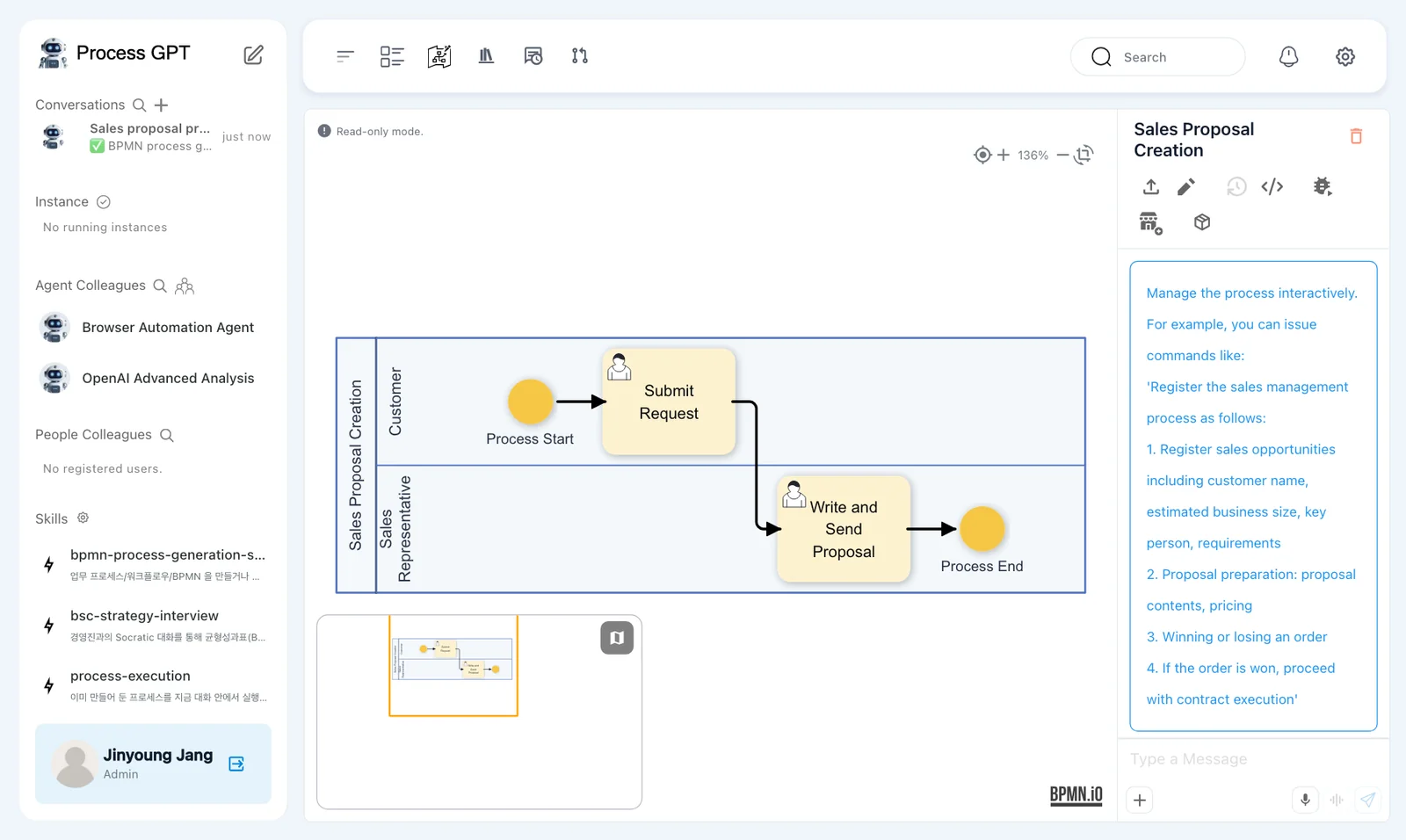
Read the symbols in the flow diagram like this.
| Symbol | Name | Meaning |
|---|---|---|
| Long horizontal band | Lane | The area one role owns: "Customer", "Sales Representative" |
| Circle | Start/end event | Where the process begins and ends |
| Rounded rectangle (person icon) | User task | A step a person finishes by filling in a form |
| Arrow | Flow | The order in which work moves to the next step |
Hover over the icons at the top right to see their names: Import BPMN, Click the pencil icon to edit., Version History: available in edit mode., Show XML, Simulate, Register to Marketplace, Export Component (.zip), and Delete Process (the red trash can).
Try it 1 — Look at a step and its form#
- Click the pencil icon to switch to edit mode. Drawing tools (events, gateways, tasks, lanes and more) appear at the top left.
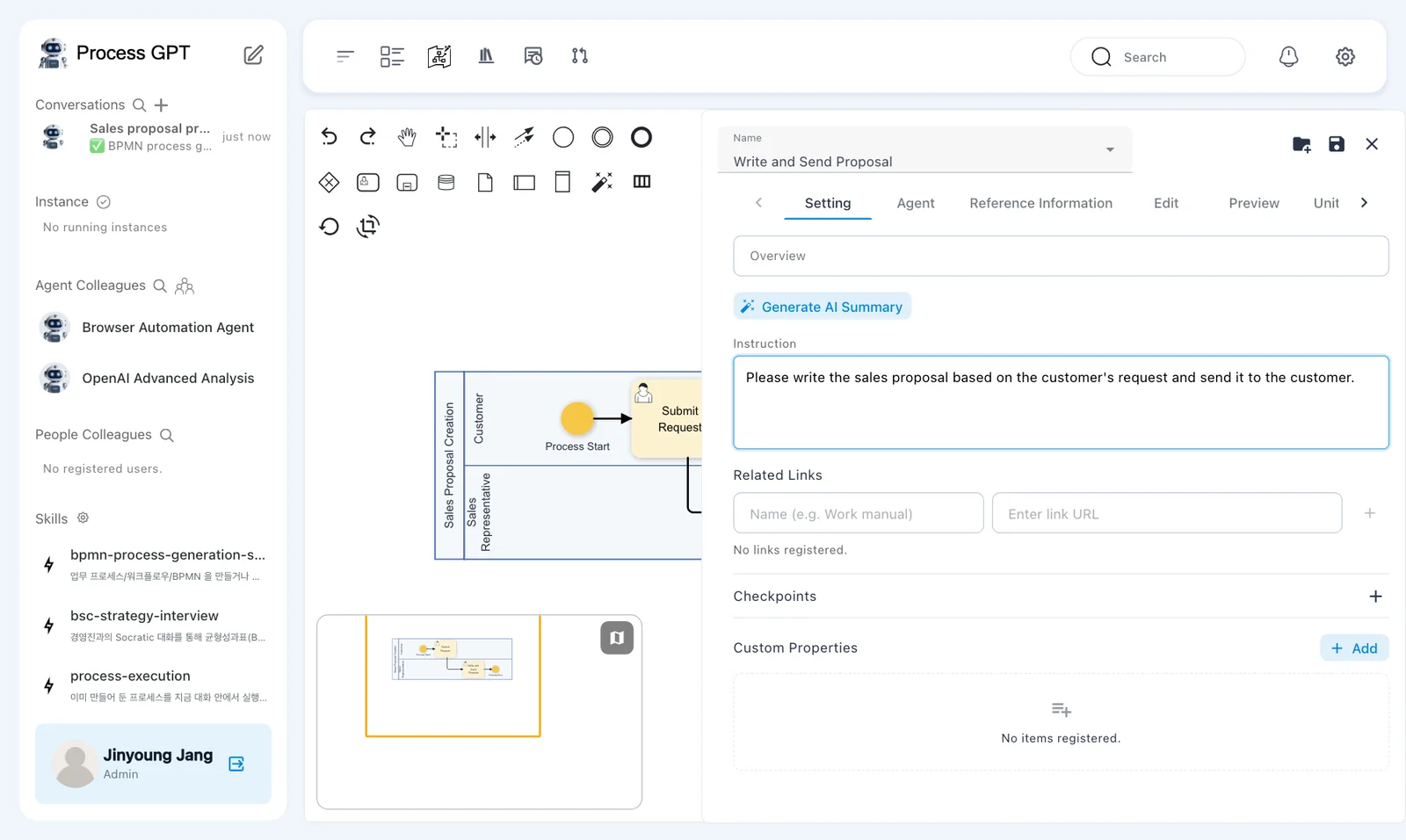
- Double-click "Write and Send Proposal" in the flow diagram. The step panel opens on the right.
- Skim the panel's tabs — Setting, Agent, Reference Information, Edit, Preview, Unit Test, PI Flag.
- Click Preview to see the form the owner fills in at this step.
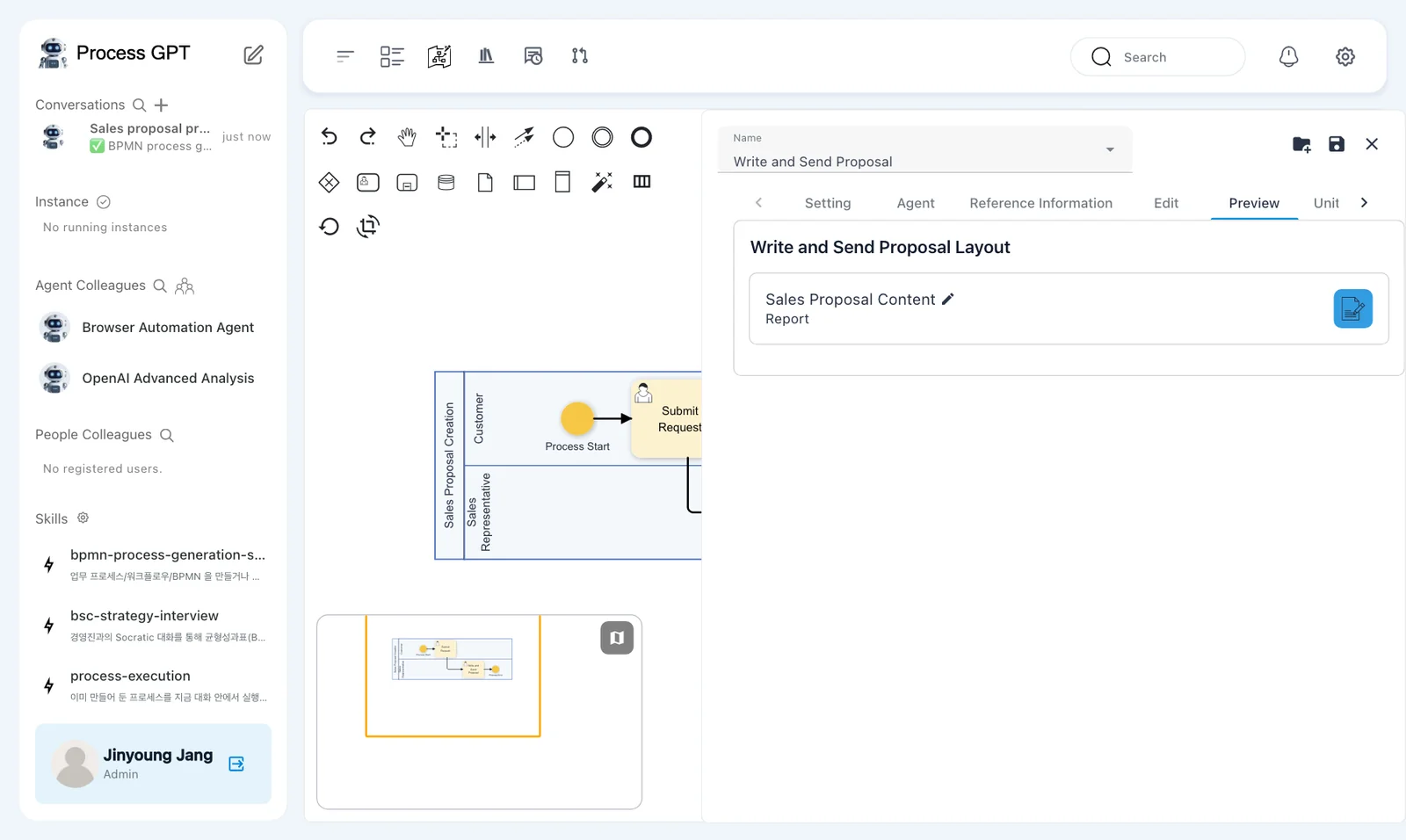
The AI writes the form, so its fields and labels can differ from run to run. In our run, the form was titled "Write and Send Proposal Layout" and had one field, "Sales Proposal Content".
On the Setting tab, you write the step's Overview, its Instruction (guidance for the owner or agent to follow), Related Links, and Checkpoints (items to check before finishing). On the Agent tab, you can hand this step to an AI agent.
Try it 2 — Edit and save as a version#
Rename the second step, "Write and Send Proposal", so the name covers the whole job: preparing the proposal and sending it to the customer.
- Change Name at the top of the Setting tab in the step panel to
Prepare and Send Proposal. - Click 💾 (save panel) at the top right of the panel, then close the panel with ✕.
- Click 💾 (save) at the top right of the definition screen. The Version Up dialog opens.
- Leave Version Tag at Minor Update ("Current Version : v0.0 -> Next Version : v0.1"), write what you changed in Description (for example,
Renamed step 2 to "Prepare and Send Proposal"), and click Save.
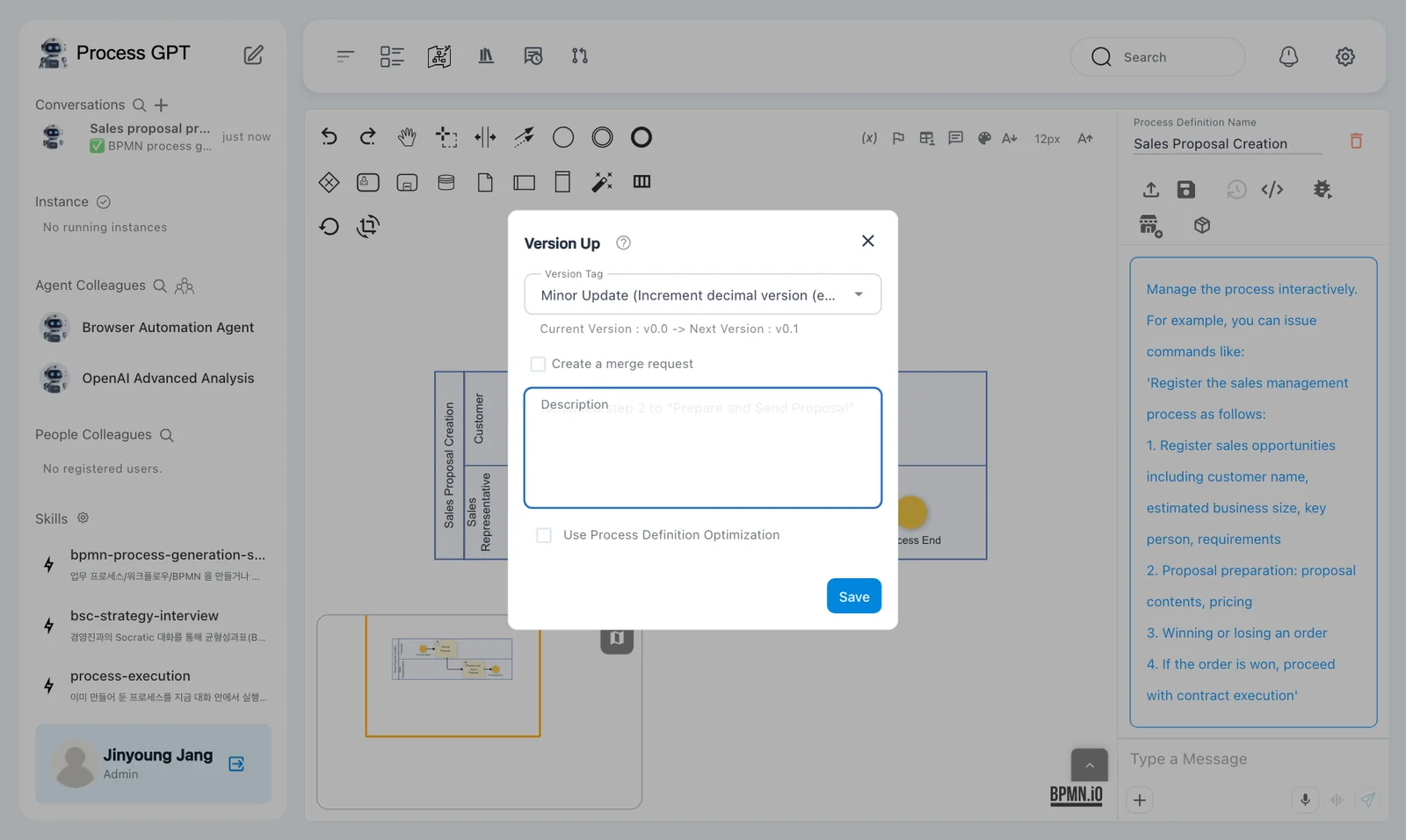
Open the definition again and you'll see the new name in the flow diagram. In the same way, rename the first step, "Submit Request", to Enter Customer Request and save once more (v0.2).
Saving the panel vs. saving the definition
The 💾 in the step panel only applies that step's changes to the flow diagram. A version is created only when you save the definition with 💾 at the top right. If you just close the panel without saving the definition, your changes are lost.
Try it 3 — Compare two versions#
Once there are two or more versions, the Version History icon in edit mode becomes active. Before that, its tooltip says "No other saved versions available".
- In edit mode, click Version History. The Version Comparison screen opens.
- In Process Hierarchy on the left, expand Uncategorized and choose "Sales Proposal Creation".
- Choose v0.2 for Version A (New) at the top and v0.1 for Version B (Old) at the bottom.
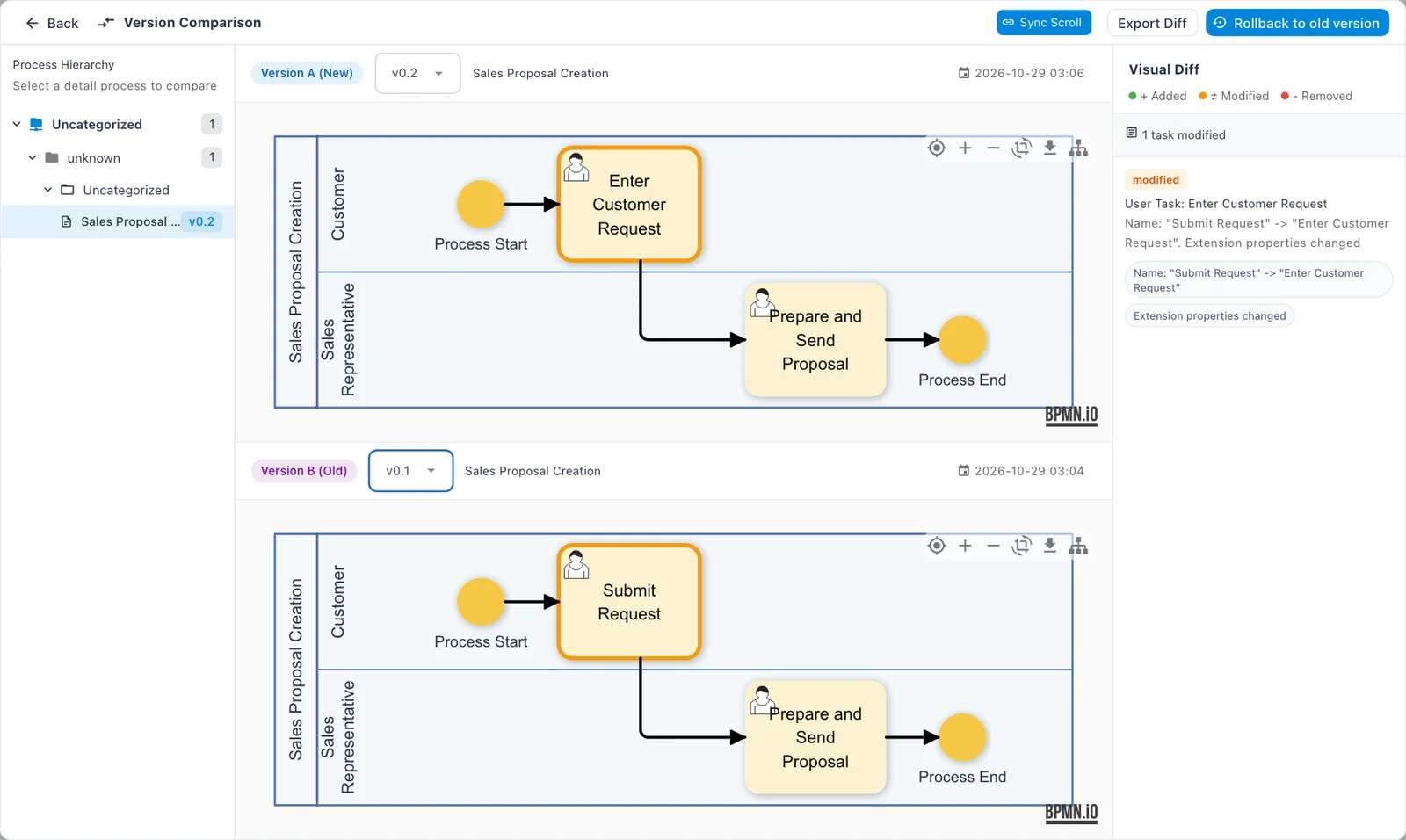
Visual Diff on the right shows what changed as Added (green), Modified (orange) and Removed (red). In our run, it listed the new name and, for the same step, "Extension properties changed". If you made a mistake, go back with Rollback to old version at the top; use Export Diff to save the comparison as a file.
When “unknown” appears in the process hierarchy
In the current version, unnamed intermediate levels in the version comparison's process hierarchy show up as "unknown", like "Uncategorized › unknown › Uncategorized › Sales Proposal Creation". Just expand all the way down and choose the process.
Try it 4 — Export the definition as a file#
Click Export Component (.zip) on the definition screen to download a zip file containing the definition and its forms (in our run, …-0.2.zip, about 15 KB). Upload this file with Import Component on the home screen of another Process GPT, and the same process is installed. Use it to move a process to another install in your company or to back it up.
Next chapter#
So far you've made and worked with a process that has only steps people do. The chapters on running a process and handling tasks (Chapters 5–7) are coming soon, so next we move on to AI agents. First, you'll upload the company documents that agents use as their sources to the Knowledge Base (Chapter 8).
Check your understanding
- You renamed a step in the step panel and only closed the panel. When you open the definition again, will the name be changed?
- How is a changed step shown on the Version Comparison screen?
- How do you move a process you made to another company's Process GPT?
Answers
- No. The panel's 💾 only applies the change to the flow diagram. It's kept only when you save with 💾 at the top right of the definition screen and create a version.
- It's highlighted with an orange border in the flow diagram, and Visual Diff on the right shows modified and the changed properties (such as the name).
- Download the file with Export Component (.zip) on the definition screen, then upload it with Import Component on the home screen of the destination.