
Read completed processes in the dashboard and heatmap. Separate whole-process cycle time from task duration and waiting, and identify display defects that limit interpretation.
Your installation needs these fixes
The run screens in this chapter were captured on an installation with the following fixes applied (2026-10-30). Before these fixes reach the installation repository, time calculations or analytics screens may differ. This notice will be removed once the fixes are included.
- Analytics: process-gpt-analytic #1 — calculates duration and waiting from actual start times.
- Interface: process-gpt-vue3 #236 — fixes first-step start times and dashboard behavior.
- Installation: process-gpt-infra-docker #1 — fixes analytics service routing and time-zone setup.
Read three completed executions#
This chapter does not start new work. It analyzes earlier executions. The English run had three completed instances:
- 「Sales Proposal Submission」: one instance from Chapter 6.
- 「Sales Proposal Approval」: two instances from Chapter 7, including one rejection, rewrite, and approval loop.
All three were 「COMPLETED」. Your counts and times will differ if you ran different exercises or took longer to complete them.
The English run had no executed quote process because Chapter 13 (coming soon) is not available yet. There is no quote-process comparison in this chapter.
Jinyoung Jang reviews the overall results as the admin. Do not judge Minji Kim or Seoyeon Park from a single time value. First identify the step and whether the screen shows processing, waiting, or total elapsed time.
Here, lead time means the elapsed time from start to completion. Separate a process's cycle time from an individual task's average duration. They are not the same measure.
Try it 1 — Read the dashboard overview#
- Open 「Analytics Dashboard」.
- Check the heading 「Process Execution Status & Analysis」.
- Read the instance and completion counts in the top cards.
- Read the agent and human task counts separately from the instance count.
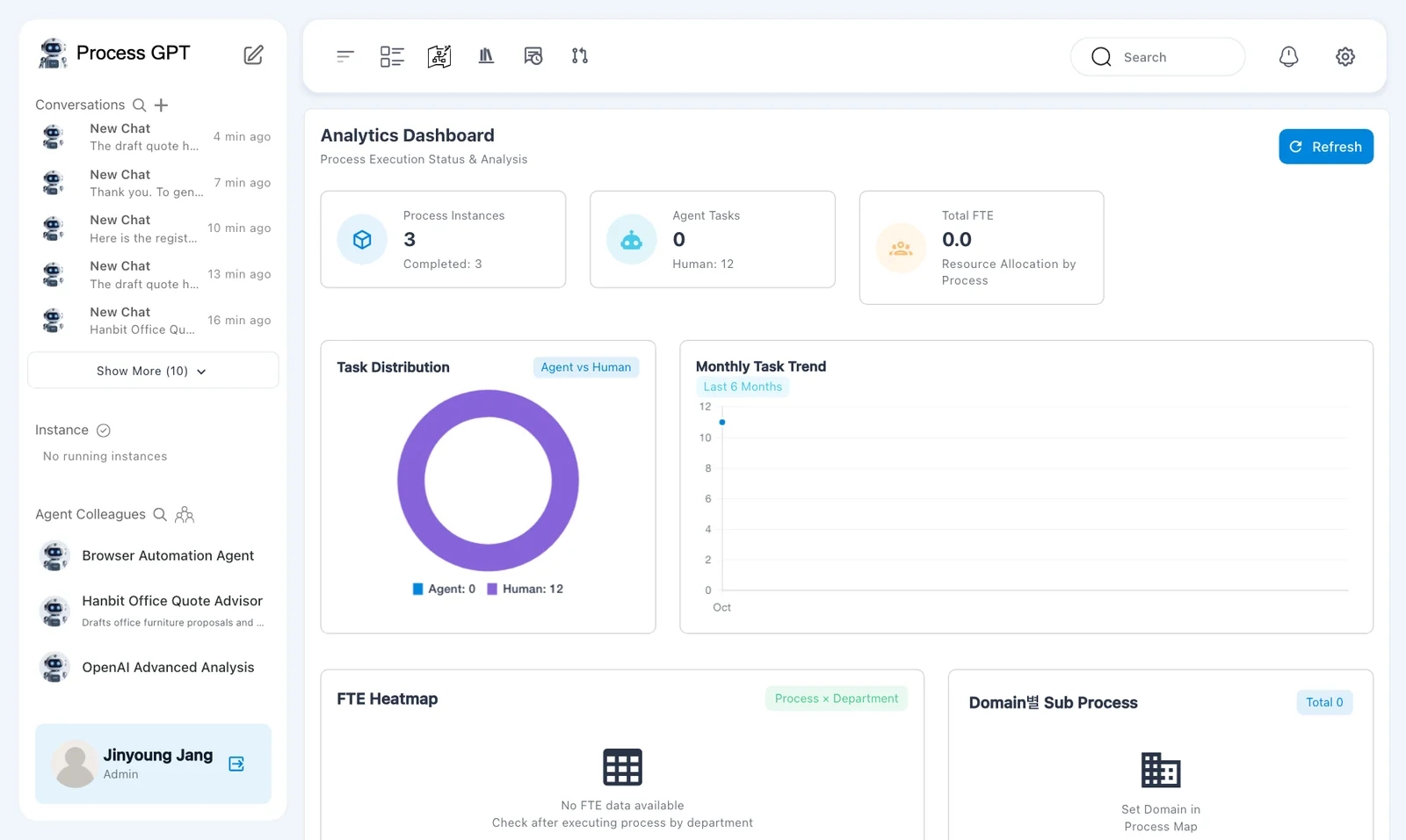
The page includes 「Refresh」. At capture time, the top cards showed:
| Item | Displayed value |
|---|---|
| 「Process Instances」 | 3, with 「Completed: 3」 |
| 「Agent Tasks」 | 0 |
| 「Human」 | 12 |
| 「Total FTE」 | 0.0 |
An instance contains several steps. Three completed instances do not mean three completed tasks.
Try it 2 — Separate missing data from execution data#
- Scroll to 「FTE Heatmap」.
- Read the message in 「Domain별 Sub Process」.
- Check 「Tasks by Department」 and 「Agent vs Human Performance Comparison」.
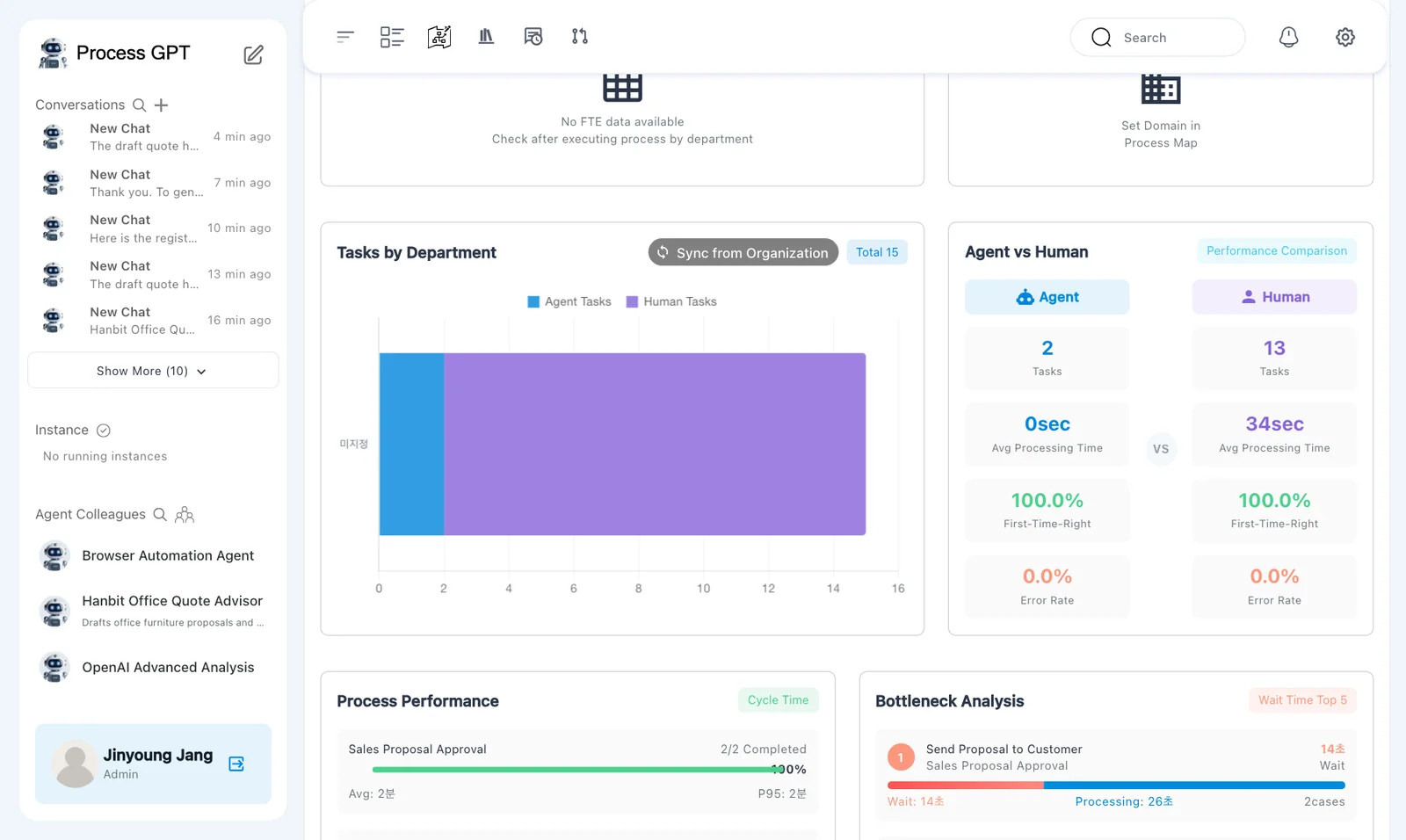
「FTE Heatmap」 shows 「Process × Department」 and 「No FTE data available」. 「Domain별 Sub Process」 shows a total of 0 and 「Set Domain in Process Map」. The word 「별」 remains Korean here; it means “by.”
These messages do not mean the completed instances disappeared. The top cards still show three completed instances. Each section needs its own supporting data. This run did not produce an FTE or domain analysis result.
「Tasks by Department」 shows 「Sync from Organization」 and a total of 15. The performance comparison shows:
| Subject | Tasks shown | Time shown |
|---|---|---|
| Agent | 2 | 0sec |
| Human | 13 | 34sec average |
Both show 100.0% 「First-Time-Right」 and 0.0% 「Error Rate」. These are displayed analytics values. They do not prove that an agent's calculations or generated documents were correct.
Task counts disagree between sections
The top cards show 0 agent tasks and 12 human tasks. The comparison shows 2 agent tasks and 13 human tasks. The department section totals 15. The captured evidence does not establish why every count differs. Do not combine these figures as if they counted the same records.
Try it 3 — Read whole-process cycle time#
- Find 「Process Performance (Cycle Time)」.
- Compare the completion counts and average times for the two process definitions.
- Find 「Recent Process Instances」 and read each instance's duration.
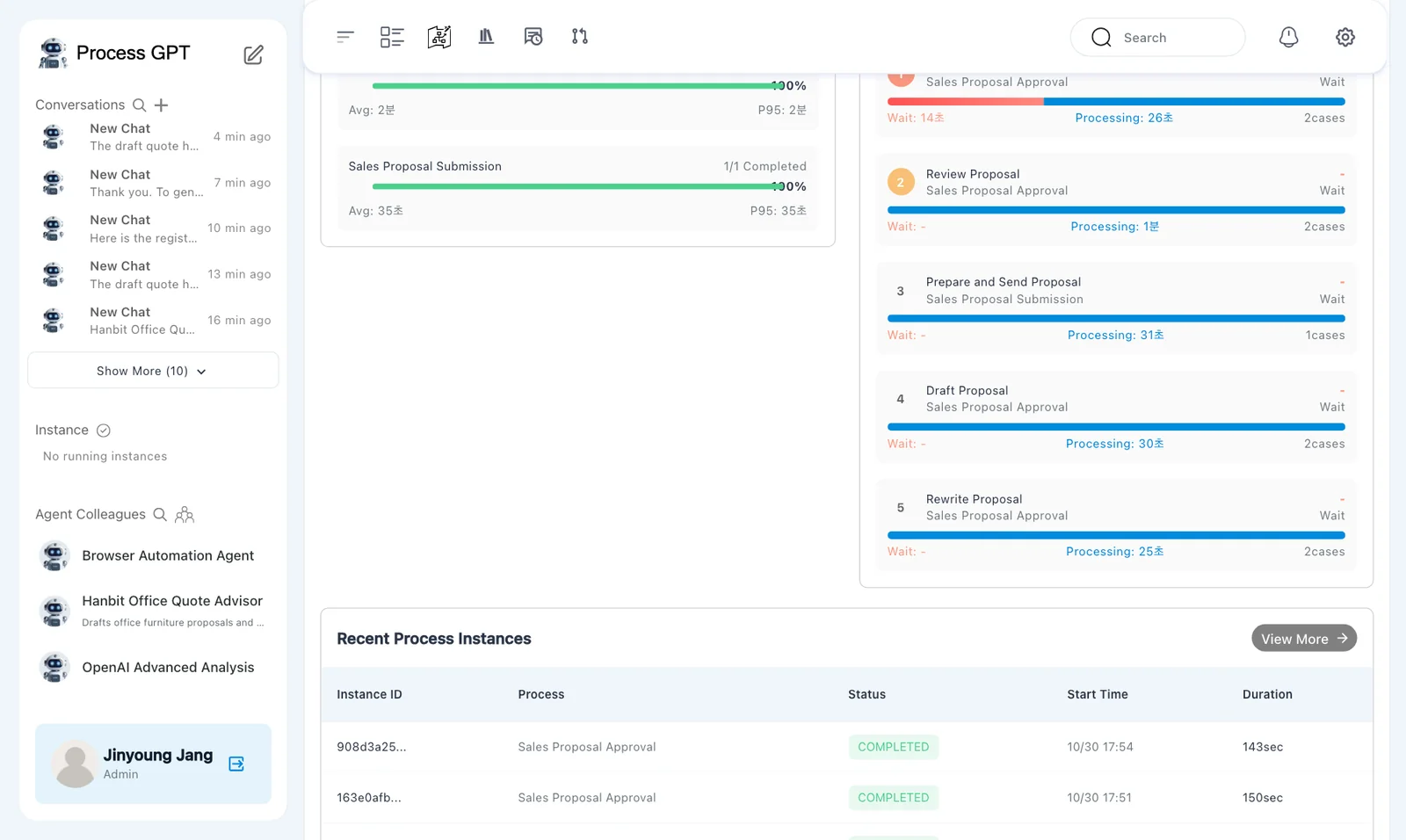
The cycle-time section shows:
| Process | Completion | Average | P95 |
|---|---|---|---|
| 「Sales Proposal Approval」 | 2/2, 100% | 「2분」 | 「2분」 |
| 「Sales Proposal Submission」 | 1/1 | 「35초」 | 「35초」 |
The time units remain Korean in this section. 「분」 means minutes, and 「초」 means seconds.
「Recent Process Instances」 shows the two approval runs as 143sec and 150sec. The submission run is 35sec. Read the units and rounding with each value.
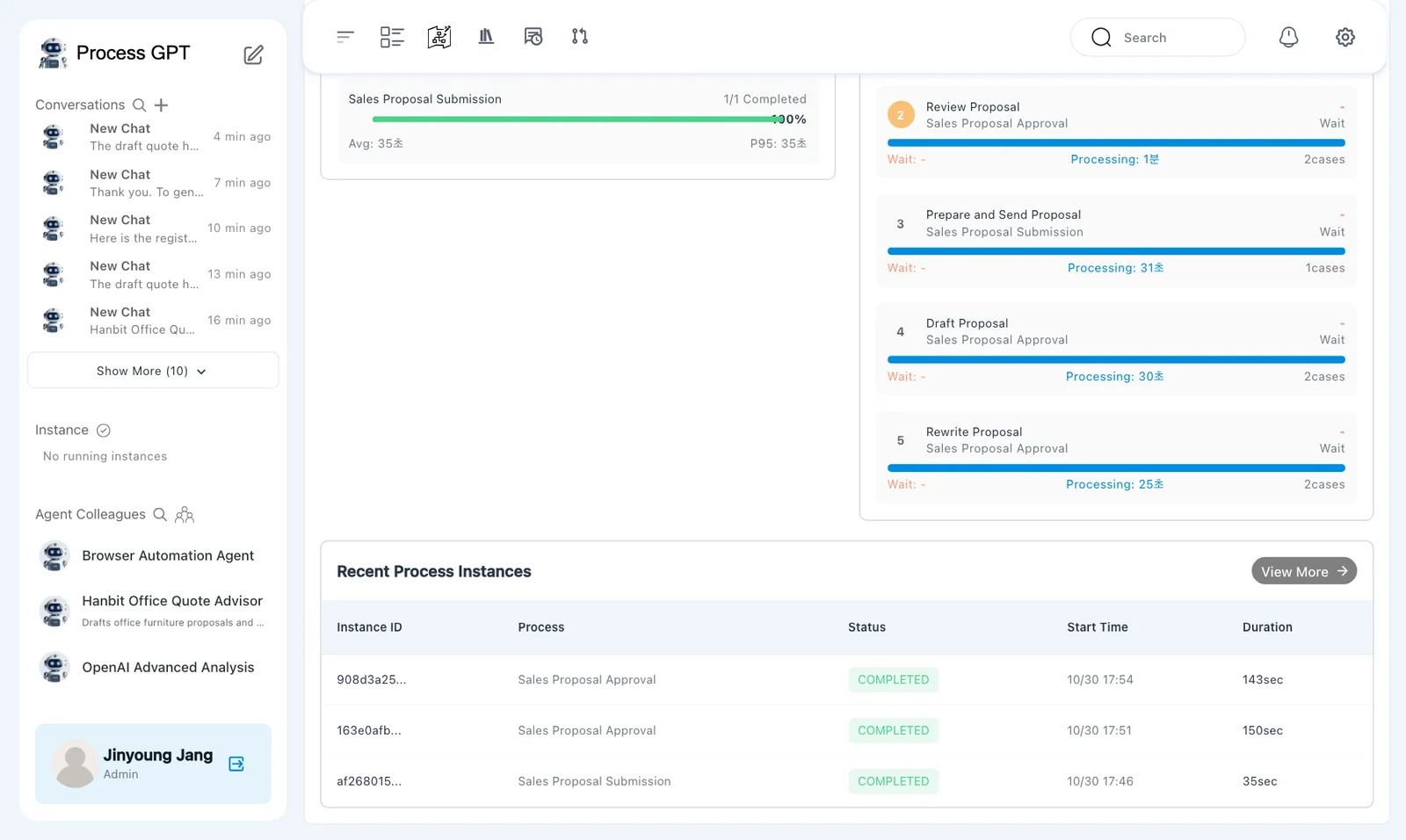
This is a small practice sample. It can show which captured run took longer. It is not enough to establish a typical time for real customer work.
Try it 4 — Separate waiting from processing#
- Read 「Bottleneck Analysis (Wait Time Top 5)」.
- Check whether each number is labeled as waiting or processing.
- Find the named steps in their process flow before drawing conclusions.
The first entry was 「Send Proposal to Customer」. It showed a wait of 「14초」 and processing of 「26초」 across two cases.
| Step | Time shown |
|---|---|
| 「Send Proposal to Customer」 | Wait 14 seconds; processing 26 seconds; 2 cases |
| 「Review Proposal」 | Processing 1 minute |
| 「Prepare and Send Proposal」 | Processing 31 seconds |
| 「Draft Proposal」 | Processing 30 seconds |
| 「Rewrite Proposal」 | Processing 25 seconds |
The section title mentions waiting. That does not make every time inside it a wait time. Preserve the labels when recording results.
A long duration identifies a step worth examining. It does not show that someone worked continuously for that whole period. These records do not explain why a step took longer.
Try it 5 — Open process analytics#
- Open the analytics heatmap view.
- Check 「History-based process performance analysis and bottleneck detection」.
- In 「Select Process to Analyze」, choose 「Sales Proposal Approval」.
- Set 「Period」 to 「Last 30 days」, 「Status」 to 「All」, and 「Metric」 to 「Total Duration」.
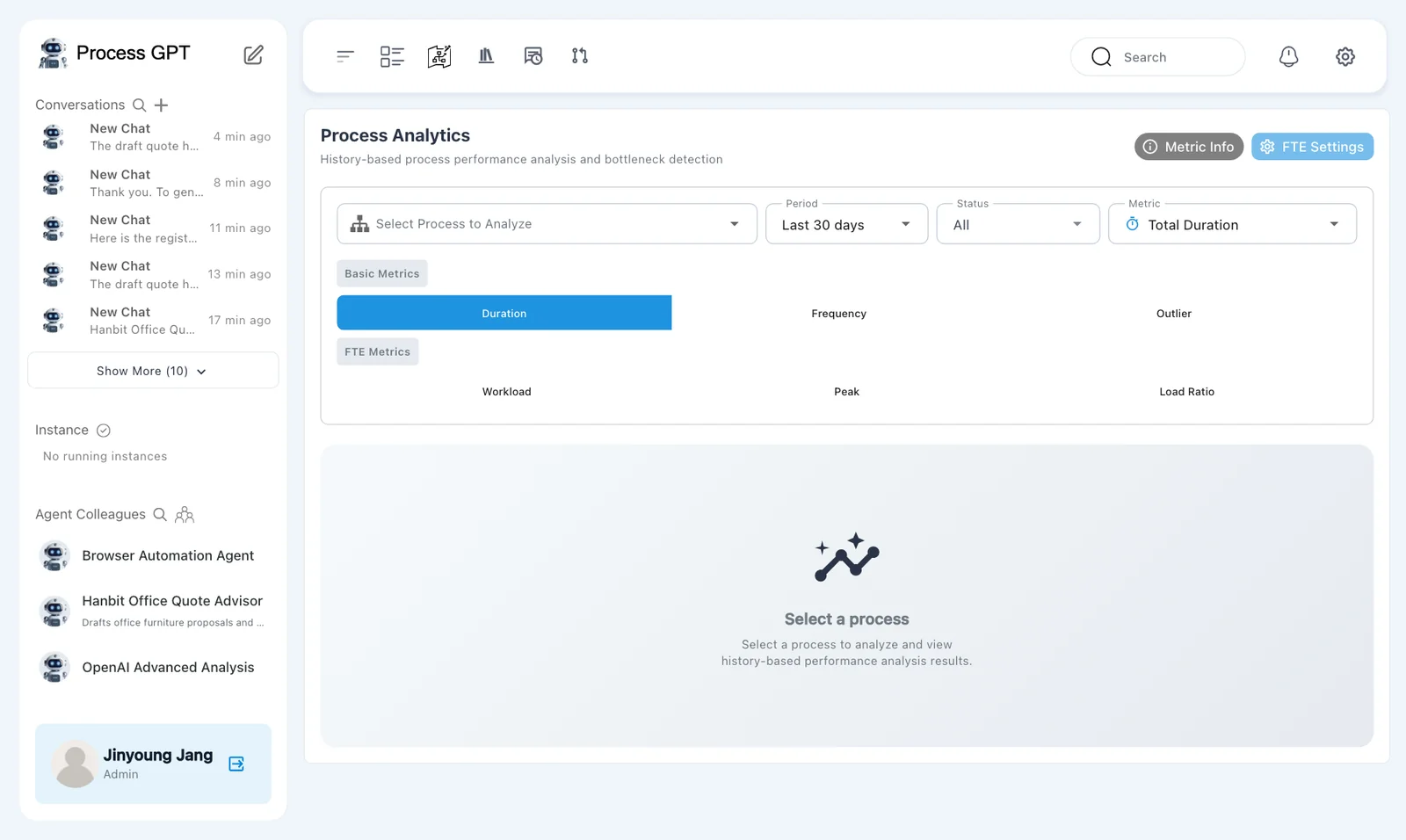
The page includes 「Metric Info」 and 「FTE Settings」. The metric groups are:
- 「Basic Metrics」: 「Duration」, 「Frequency」, and 「Outlier」.
- 「FTE Metrics」: 「Workload」, 「Peak」, and 「Load Ratio」.
This exercise reads duration and frequency. Do not infer workload or load ratio from a screen that has no FTE data.
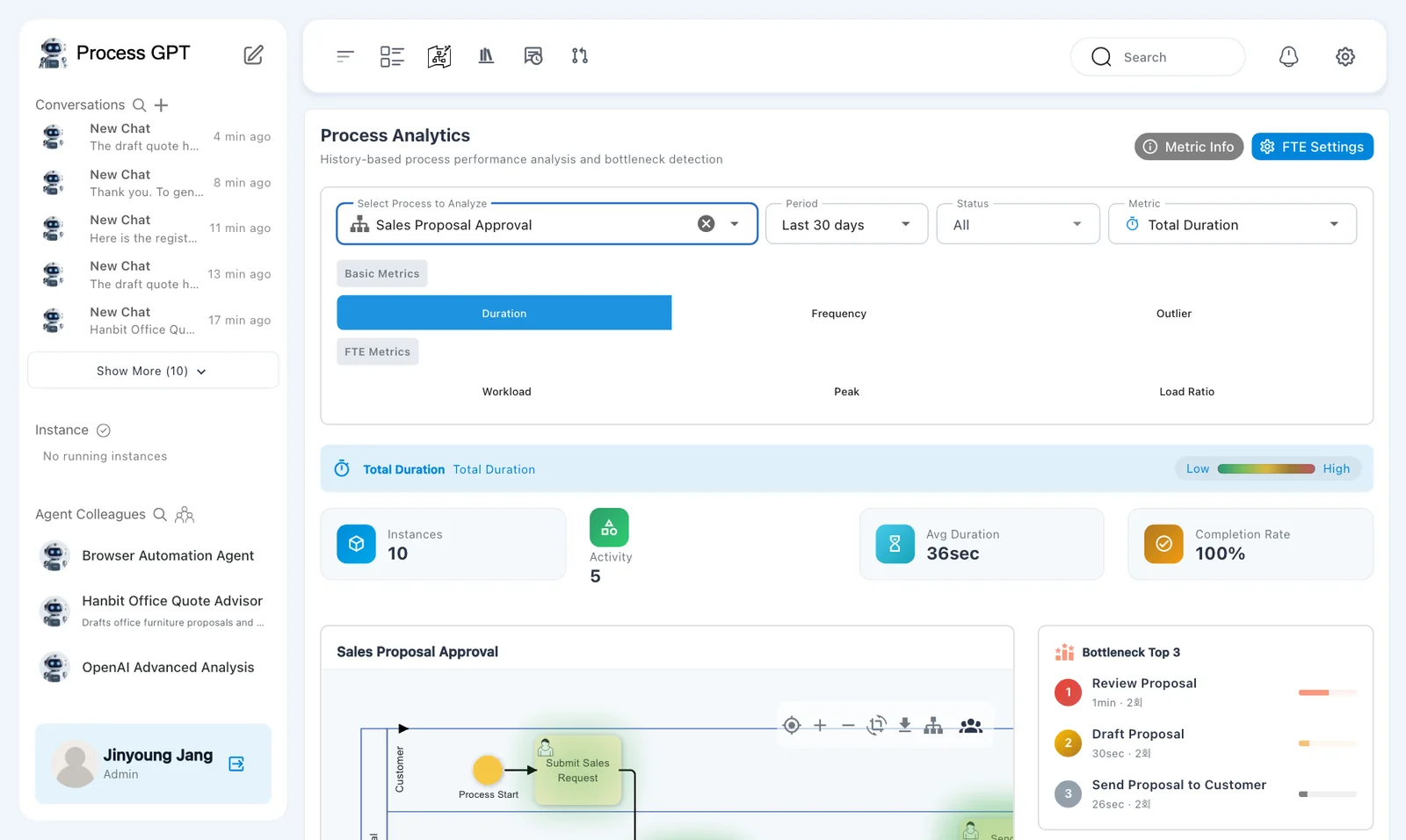
For 「Sales Proposal Approval」, the cards show 「Instances」 10, 「Activity」 5, 「Avg Duration」 36sec, and 「Completion Rate」 100%.
The task-duration average is not the whole-process duration of 143 or 150 seconds.
The 「Instances」 card does not show the true instance count
This view shows 10 for two completed approval instances. It counts task executions in this card rather than process instances. Check the dashboard's two completed approval runs. Do not report ten approval instances from this card.
Try it 6 — Read the approval heatmap#
- Read the duration badges over the flow diagram.
- Find the steps listed in 「Bottleneck Top 3」.
- Compare names, durations, and bottleneck scores.
- Switch 「Metric」 to 「Frequency」 and inspect 「Flow Node Count — Execution Count」.
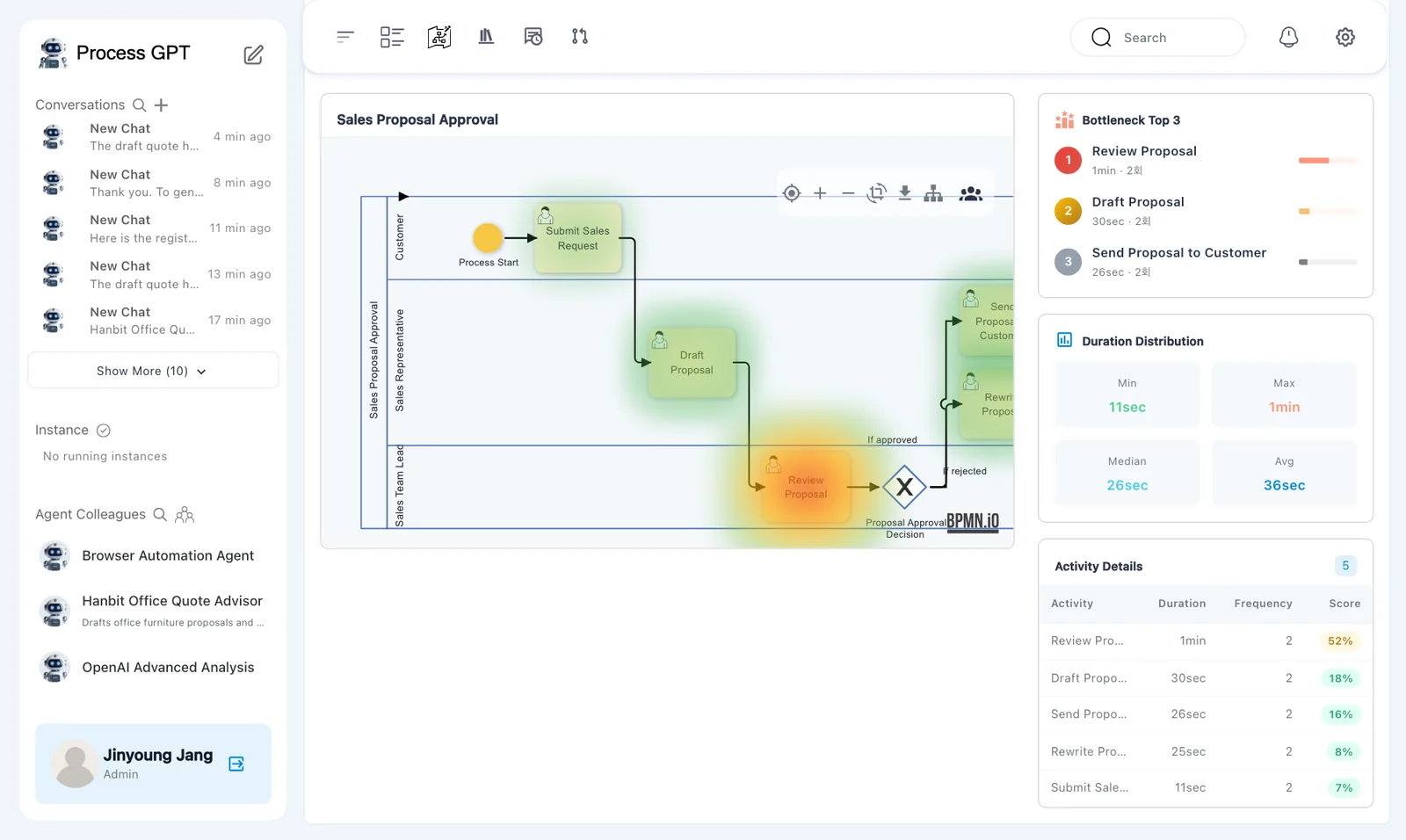
The node badges show:
| Step | Duration | Bottleneck score |
|---|---|---|
| 「Review Proposal」 | 1min | 52% |
| 「Draft Proposal」 | 30sec | 18% |
| 「Send Proposal to Customer」 | 26sec | 16% |
| 「Rewrite Proposal」 | 25sec | 8% |
| 「Submit Sales Request」 | 11sec | 7% |
「Bottleneck Top 3」 lists 「Review Proposal」, 「Draft Proposal」, and 「Send Proposal to Customer」. Each shows 「2회」. The Korean 「회」 means occurrences or times.
Use the labels and numbers to confirm what the colors suggest. Do not estimate exact times from color alone.
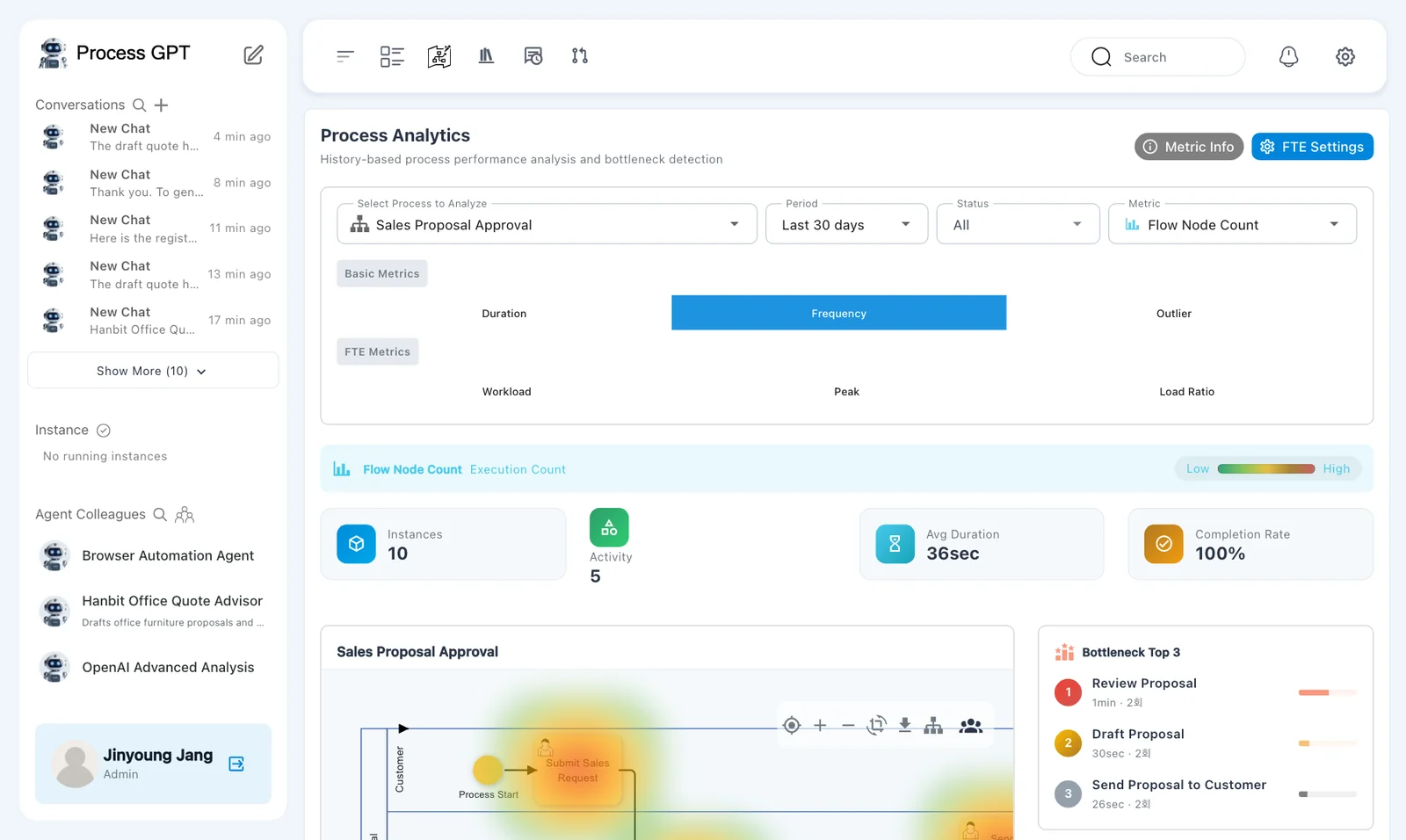
One of the two approval instances included a rejection, a rewrite, and another review. The review step reopened within that instance.
A frequency count does not show the full review history
The review badge shows two occurrences across the two approval instances. It does not separately reveal every review submission in the rejection loop. Check the rewrite step and the actual execution history before concluding that no rejection occurred.
Check what the analytics numbers represent#
Before using a value, confirm three things: whether it belongs to a process you ran, whether it counts instances or tasks, and what its time unit and label mean.
The installation fixes also matter. Earlier setup problems affected time-zone handling and sample data.
If every task appears to take nine hours, check the installation
Earlier testing found that starting analytics before database time-zone setup could produce nine-hour task durations. process-gpt-infra-docker #1 changes startup order so analytics starts after migrations. An already running installation may need its analytics service restarted after the fix.
The analytics fix disables sample-data generation by default. If unfamiliar processes appear, check their source before treating them as your execution history.
Separate fixed installation problems from defects still visible in this run. The inconsistent task counts and the misleading 「Instances」 card remain reasons to stop and check the underlying records.
Next chapter#
You compared whole-process cycle time with task duration and waiting. You also identified places where inconsistent labels or counts limit what the screen can tell you.
In Chapter 17, you will connect completed counts, average duration, and survey scores to a strategic objective.
Check your understanding
- Does 「Instances」 10 mean there were ten completed approval instances?
- Does the review frequency prove that each instance had only one review submission?
- Can a long task duration alone show that a person works slowly?
Answers
- No. The English run had two completed approval instances. This card counts task executions instead of process instances.
- No. One instance reopened the same review step after rejection and rewriting. Check the execution history as well as the frequency display.
- No. Check processing and waiting labels, the step's work, and the execution history. This small practice sample does not explain why a step took longer.