Loading...
Skip to Content

Task Automation (RPA)

uEngine RPA

Describe a repetitive task in plain language, AI builds the automation, and from then on a robot handles it every day with no AI cost

Build with AI, run at no cost

uEngine RPA is a tool that hands the computer tasks people repeat every day, such as tidying spreadsheets, entering data into internal systems, compiling reports, and sending emails, over to a robot.

You build the automation by telling AI what you need in plain language, and the finished automation is executed by a robot that follows a fixed sequence. So the AI cost is paid once at build time, running it is free no matter how many times you do it, and the result is the same every time.

The automation you build connects as a step in a uEngine BPM process, so human work and robot work run together in a single flow.

Key Features
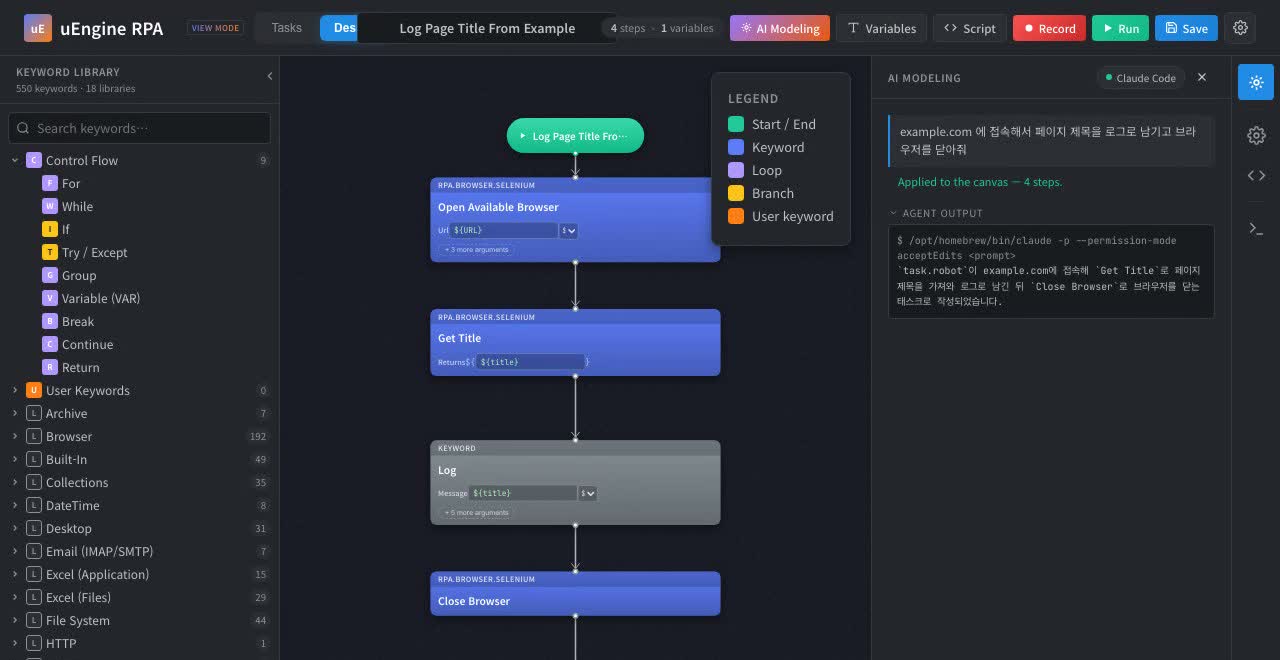
Describe it in plain language and AI builds the automation

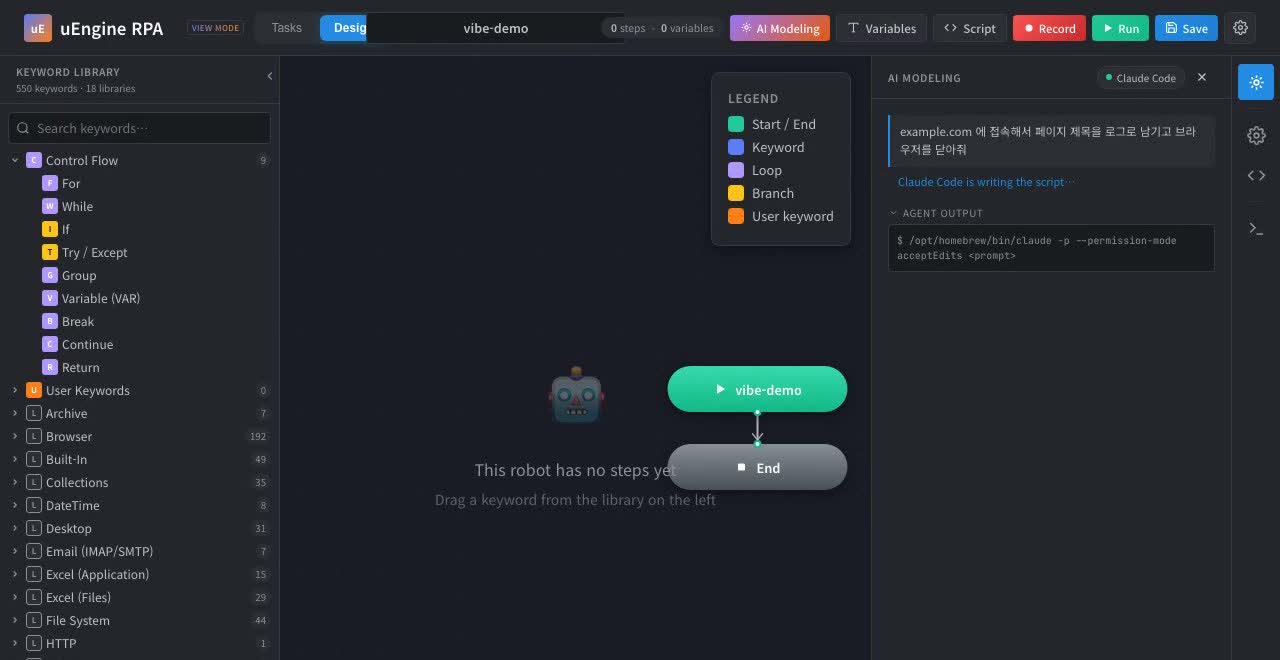
Describe it in plain language and AI builds the automation

Just write it the way you would explain your work: "Open the order spreadsheet, pick only the rows over KRW 1,000,000, and register them in the internal system." AI selects the steps it needs, builds the automation flow, and draws it on the canvas.

Describe the task in plain language and you're done
Watch the build happen on screen in real time
Undo everything in one step if you don't like it
No AI cost once it's built

No AI cost once it's built

AI is used once, at build time. The finished automation is simply executed by a robot in a fixed sequence, so even hundreds of runs a day add no AI cost, and the result is the same every time.

AI cost once at build time, execution is free
Same result on every run — reproducible
Runs in-house without internet or external AI
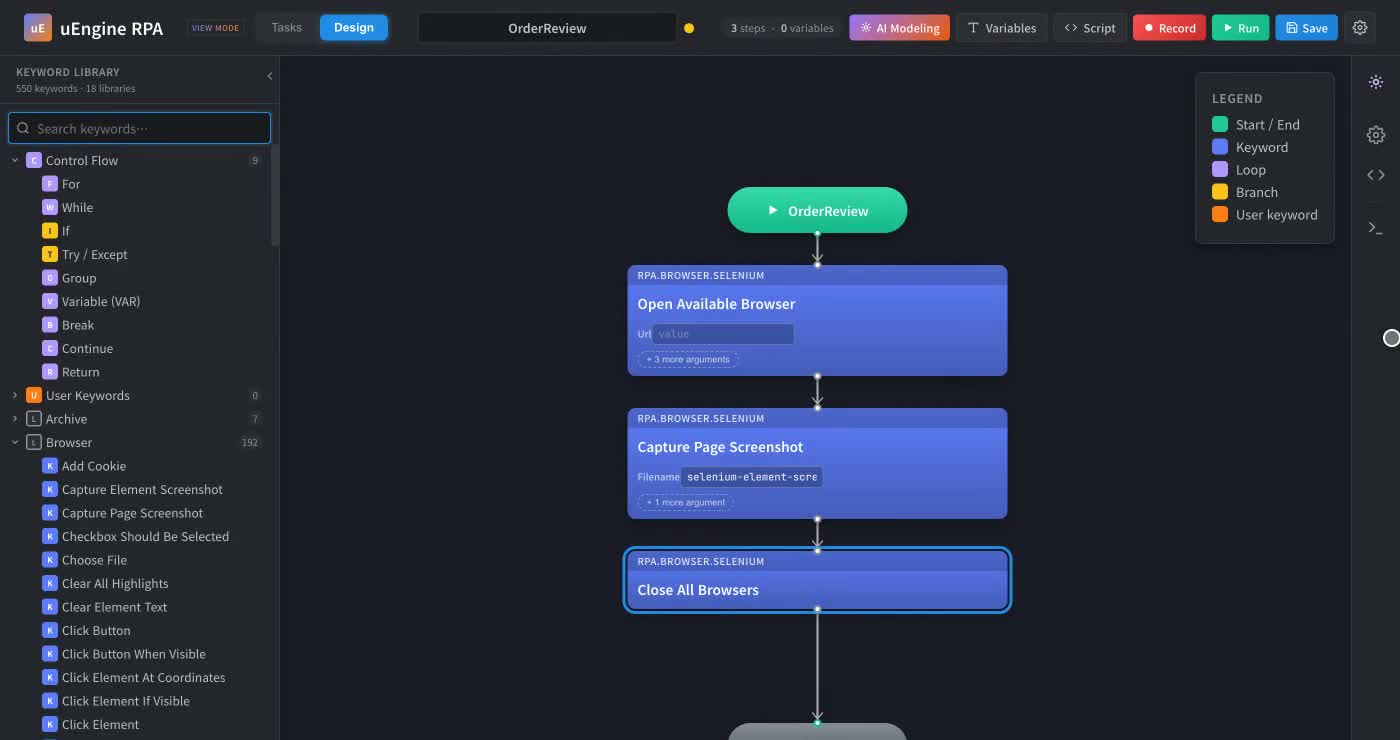
550 ready-to-use automation components

550 ready-to-use automation components

550 automation components across 18 categories are ready to go, from web browser control, Excel editing, PDF processing, and file management to email delivery and Windows application control. Search by name and drag them in.

Web · Excel · PDF · Files · Email · Desktop
Search, then drag or double-click to add
Description and input guidance for every component
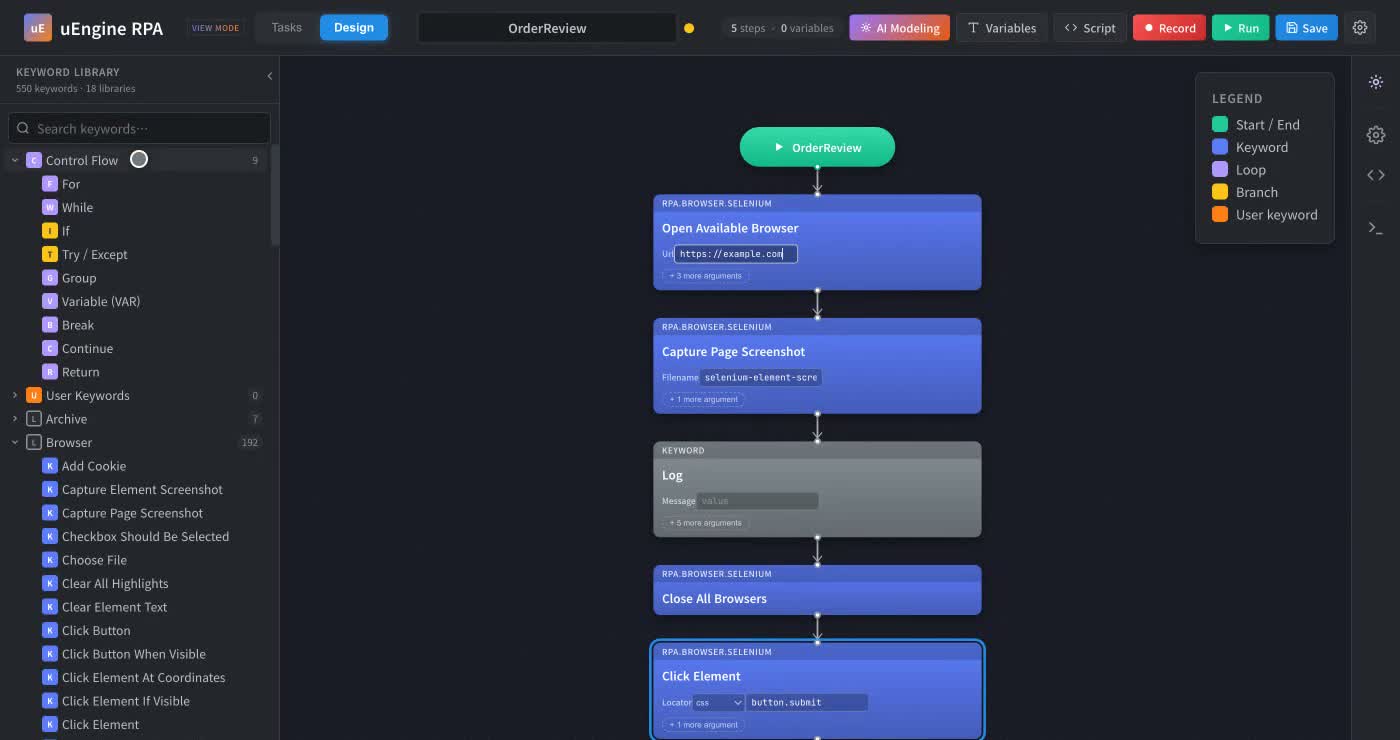
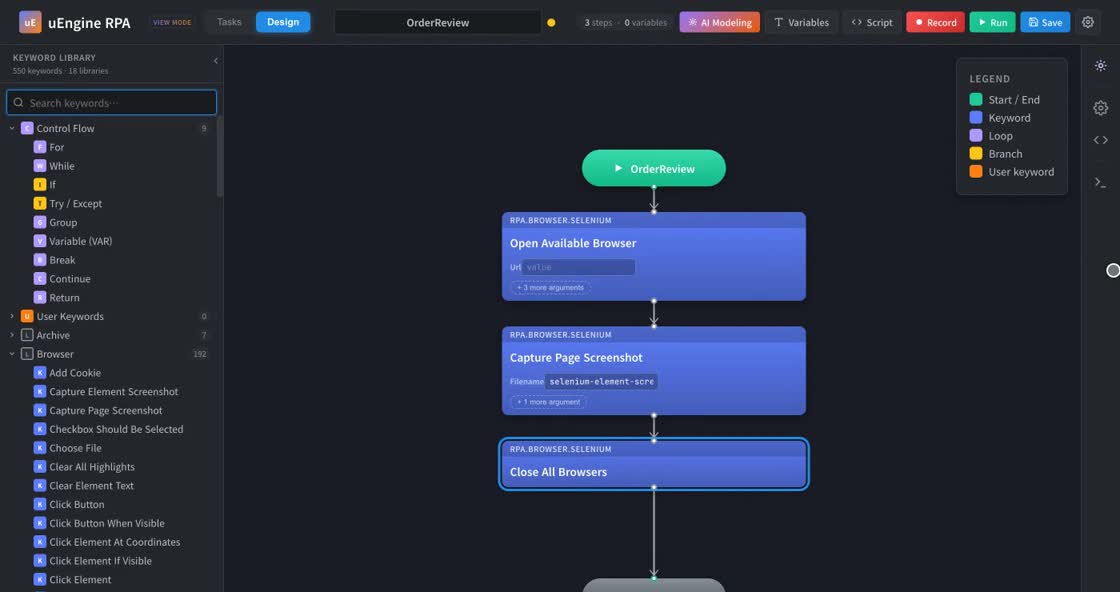
Fill in inputs right inside the block

Fill in inputs right inside the block

No jumping between settings dialogs: type values like URLs, file names, and conditions directly inside the block. Rarely used fields stay collapsed, and a red marker flags any required value left empty.

Enter values in the block · toggle on and off
Optional fields stay collapsed for a clean view
Red ! marker when a required value is empty
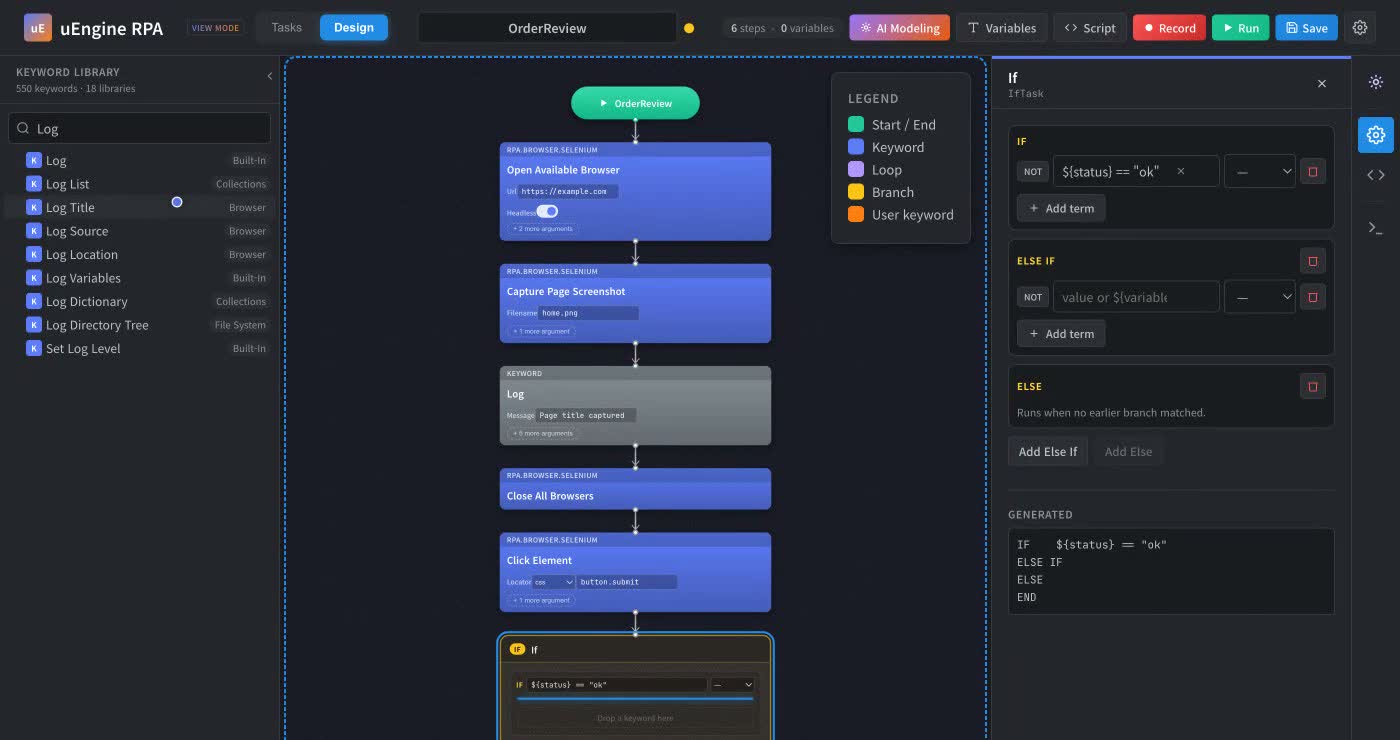
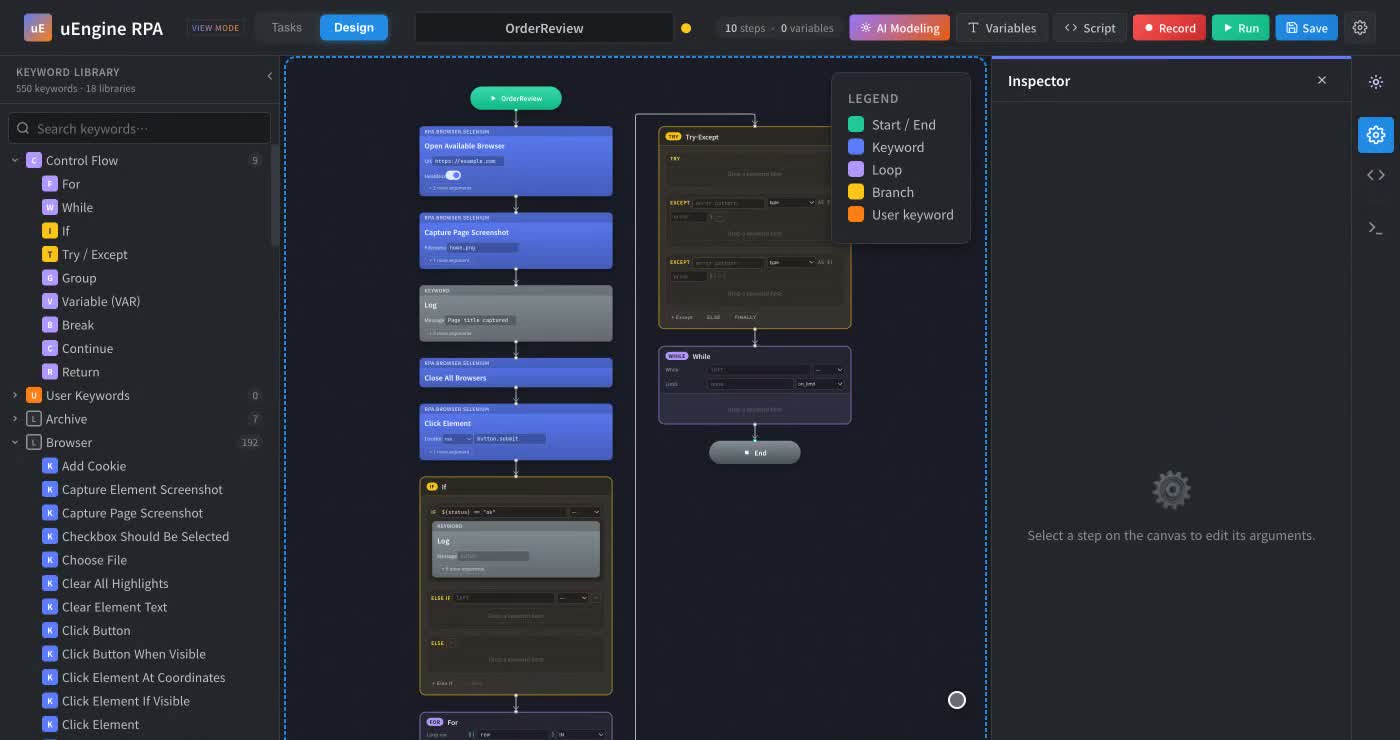
Conditions, loops, and exceptions as blocks too

Conditions, loops, and exceptions as blocks too

Flows like "if this, do that, otherwise do this," "go through the list one by one," and "if it fails, recover like this" are expressed as blocks. Nest blocks inside blocks without the canvas sprawling sideways, so even complex tasks stay readable at a glance.

Branching · loops · exception handling · grouping
Nested blocks inside blocks
Blue guide line shows where a block will drop
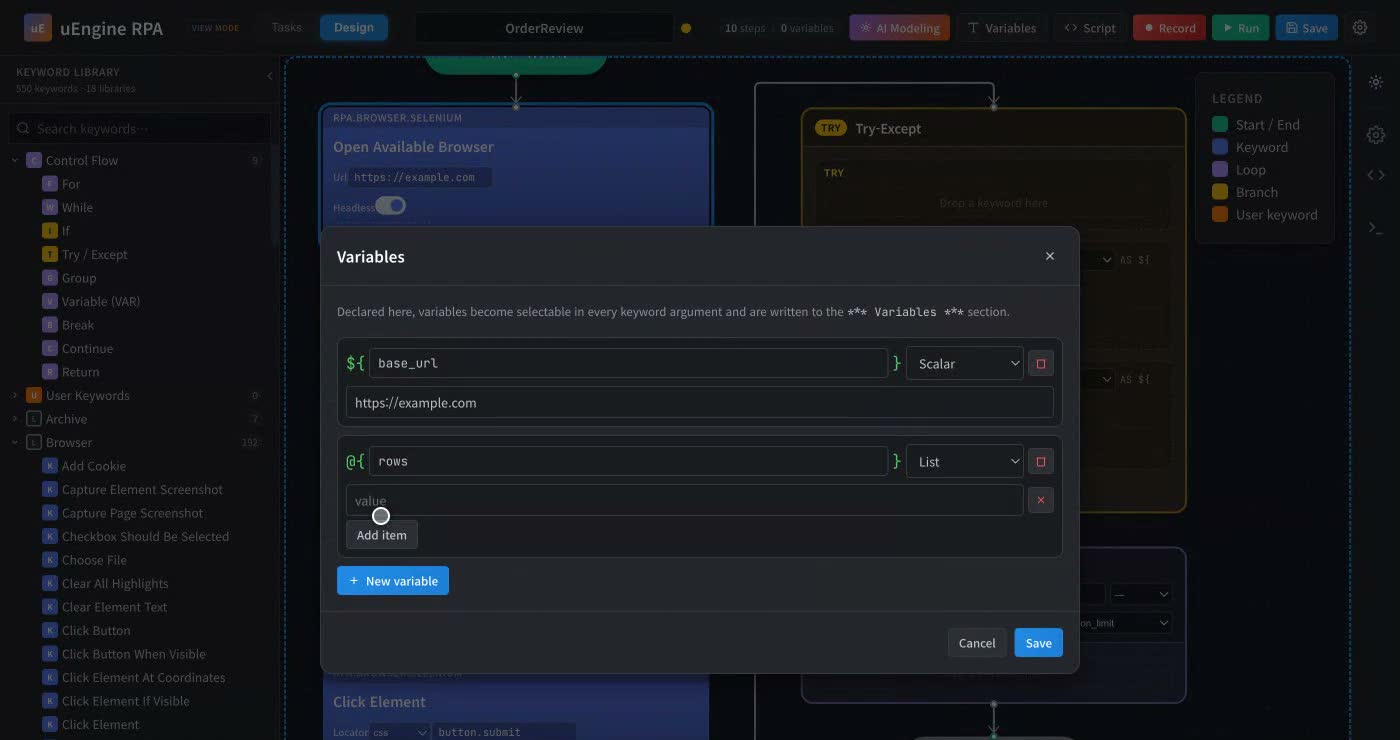
Name a value once, reuse it anywhere

Name a value once, reuse it anywhere

Give values like internal system URLs, lists of files to process, or each owner's email a name once, then pick them in any block with the $ button. When a value changes, you fix it in one place.

Scalars · lists · dictionaries · environment variables
Insert into any input field with the $ button
Change it once, applied everywhere
Never get lost, even in large automations

Never get lost, even in large automations

Double-click a block and the component's description and input guidance open alongside it. Zoom tools, a minimap, and a color legend by block type let you handle automations with dozens of steps on a single screen.

Per-block description · input guidance
Zoom in · zoom out · minimap
Color-coded by block type
Turn repeated procedures into your own components

Turn repeated procedures into your own components

Procedures that recur across automations, like "log in to the company portal," are bundled into a single component and reused. Build it well once and the whole team picks up the same component.

Save frequent procedures as components
Reuse across multiple automations
Fix the component once, updated everywhere it's used
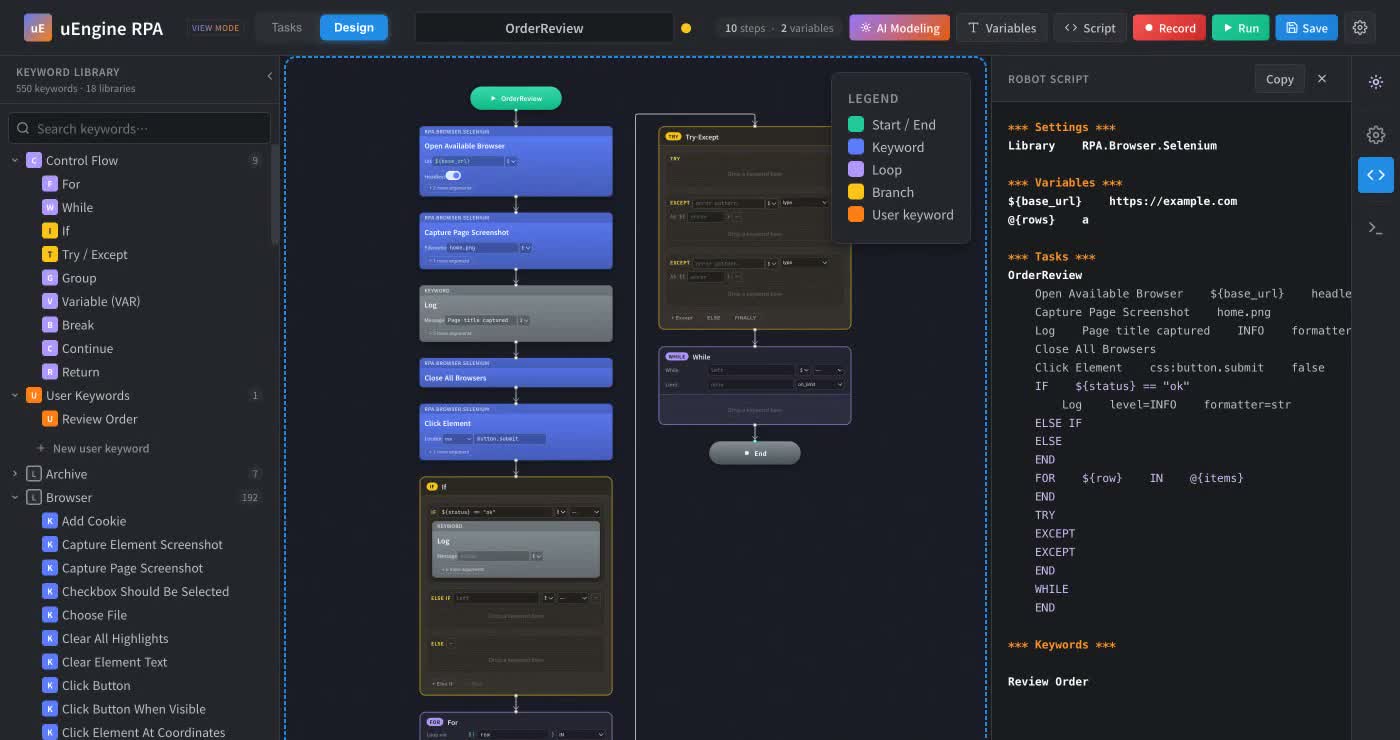
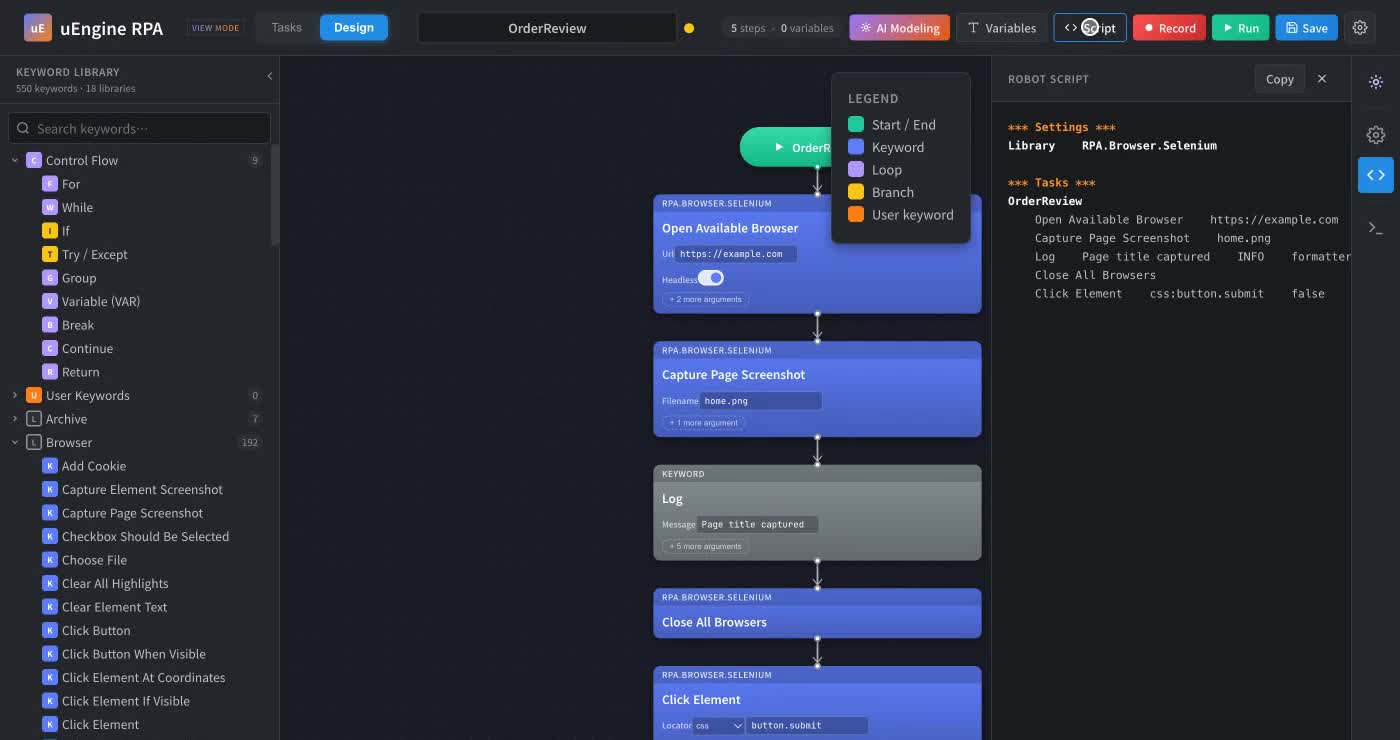
Always transparent about what will run

Always transparent about what will run

Next to the canvas you can also read exactly what will execute, as text. Because it is an industry-standard text format, you can track change history in version control, have colleagues review it, and take it to other tools.

Canvas and executable content always in sync
Change history · peer review
Standard format, not locked to any product
Choose the AI that fits your company policy

Choose the AI that fits your company policy

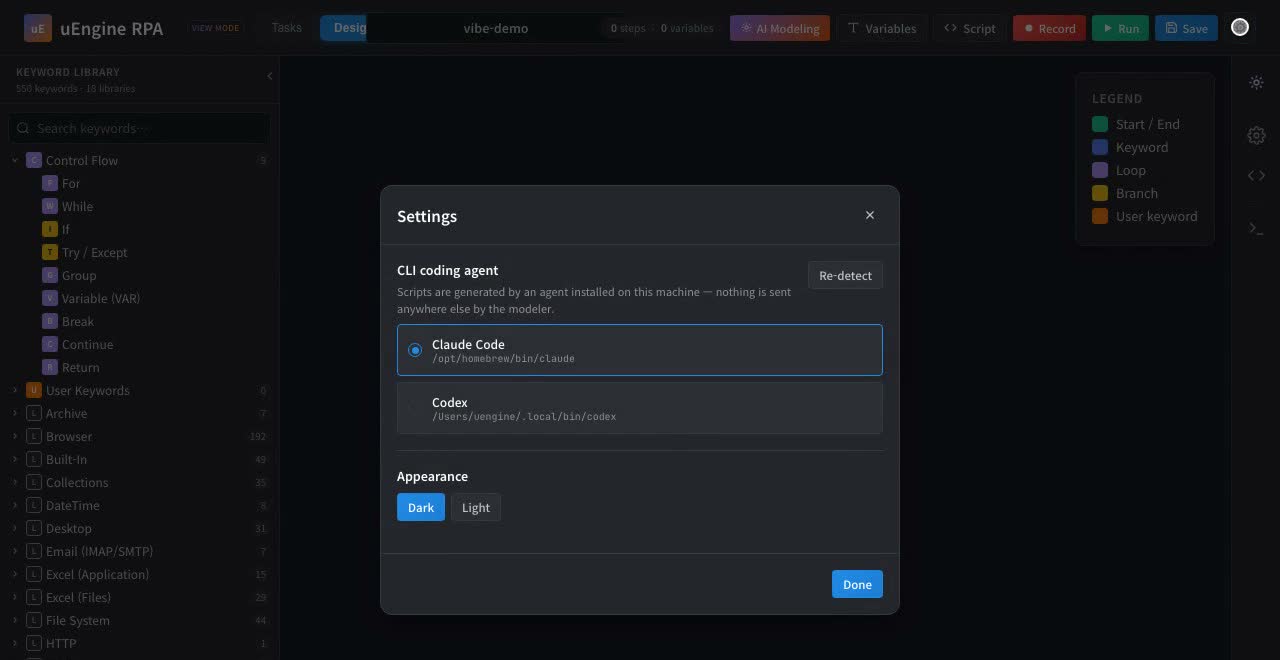
The AI used to build automations is whatever is installed on your own machine. It automatically detects available AI such as Claude Code and Codex, and the modeler never sends your task content outside.

Auto-detect and select installed AI
Task content never leaves the modeler
Dark / light screen themes
Save, run, and check the results

Save, run, and check the results

Automations are saved to folders as Tasks and can be reopened to keep editing. Press Run and it starts immediately, with progress shown in the panel below. Automations built with earlier versions open as they are.

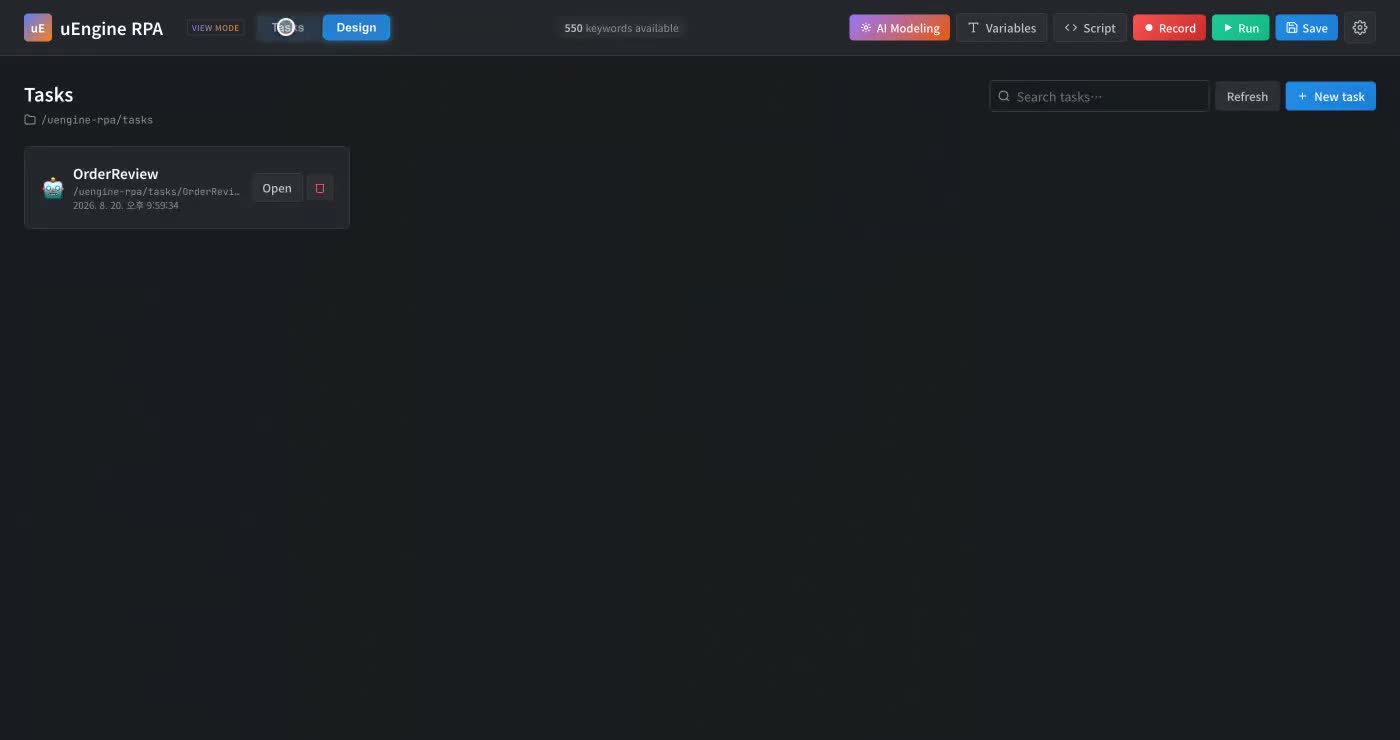
Open and save from the Task list
One-click run · log view
Fully compatible with existing automation assets
Record human actions into an automation

Record human actions into an automation

Record yourself clicking and typing on screen and it becomes automation steps as-is. It is the fastest way to start when you are not sure which components to use. (Windows desktop app)

Record desktop and browser actions
Stop recording with the ESC key
Edit the recording as blocks

What kinds of work can you automate?

550 automation components across 18 categories come built in. They cover most of what people do in front of a screen.

Web browser

192 components

The clicks and typing people used to do on internal portals and external sites

Open site · log inClick buttons · type textRead tables and listsUpload · download filesScreen captureSwitch popups and tabsWait for an element to appear

Excel · Tabular data

76 components

Read, write, and aggregate without opening the Excel file

Create workbooks and sheetsRead and write cells, rows, columnsAdd · delete rowsFilter by conditionSort · merge columnsExport to PDFControl the Excel application directly

PDF documents

29 components

Process contract, invoice, and report PDFs

Extract text and tablesMerge · split PDFsAdd watermarksSet · remove passwordsFill in formsRotate · extract pagesConvert to images

Files · Folders

51 components

Organize and archive shared folders

Copy · move · deleteRenameCreate · empty foldersList filesRead · append contentZIP · TAR compress and extractCheck for a file · wait

Desktop · Windows applications

62 components

Operate installed applications such as ERP and groupware

Launch · close applicationsFind windows · bring to frontClick · double-click · dragKeyboard input · shortcutsLocate by screen imageClipboard copy and pasteCapture a screen region

Email

7 components

Report results and collect attachments

Send email (with attachments)Search received emailSave attachmentsOAuth loginMark as read · move

Strings · Dates · Lists · JSON

130 components

Clean up and compute on the data you collected

Trim, replace, and format stringsCase · whitespace cleanupDate math · format conversionMerge · sort · deduplicate listsWork with dictionaries (key-value)Read, write, and extract JSON valuesType conversion · value validation

External integration

3 components

API calls and secret storage

Download a file from a URLSecure vault for passwords and API keysAdd work item files

Blocks that express your workflow

Go beyond a simple sequence and draw conditions, loops, and exceptions as blocks. Nest blocks inside blocks to carry real business rules over as they are.

Branching

IF · ELSE IF · ELSE

Send work down different paths depending on a condition, such as "if the amount exceeds KRW 1,000,000, request approval; otherwise register automatically." Multiple conditions can be combined with AND/OR.

Loops

FOR · WHILE

Four ways to loop: per Excel row, per file, from 1 to 100, or across two lists side by side. WHILE runs as long as a condition is true, such as "until the file arrives," and a maximum iteration limit prevents infinite loops.

Exception handling

TRY · EXCEPT · ELSE · FINALLY

When a site is slow or a file is missing, the robot recovers instead of stopping. Set a different response for each error type, and specify what to do at the end (such as closing windows) whether it succeeds or fails.

Flow control

BREAK · CONTINUE · RETURN

End the loop as soon as you find what you were looking for (BREAK), skip just that item (CONTINUE), or finish and return a result (RETURN).

Grouping

GROUP

Bundle several related steps under one name so they read as a single unit in the execution log.

Your own components

User keywords

Save recurring procedures like "log in to the company portal" under a name and call them anywhere as a single block.

Variables that hold values

Values that change often or are used in many places are stored under a name and pulled into any block with the $ button.

Type Notation Use it for
Scalar${name}A single value, such as a site URL, an owner's email, or a threshold amount
List@{name}A sequence of values, such as files to process or branch names
Dictionary&{name}A table pairing names with values, such as branch → owner
Environment variable%{name}Values that differ per machine, such as passwords and paths

How it works

Four steps are all it takes to hand off a task

1. Describe the task

Write it in everyday language, such as "Every Monday, gather the branch sales spreadsheets, build a summary table, and email it to the team lead."

2. AI drafts the automation

A draft automation appears on the canvas with the right components selected and wired in order. Review the blocks, drag in any missing steps, and refine the values.

3. Run it

Press Run and the robot gets to work immediately, with progress shown at the bottom of the screen. Wherever it gets stuck, fix the value in the block and run again.

4. Hand it off and forget it

Schedule the saved automation or attach it as a step in a uEngine BPM process. From then on, the robot repeats it with no AI cost.

AI cost once at build time, execution is free

This is the biggest difference from asking an AI to do the task every time. AI is used only when designing the automation; the actual work is handled by the robot.

At build time · once

Design with AI

Describe the task and AI draws the automation. This is the only time AI is used. Edits work the same way: once.

At run time · daily

Robot runs it repeatedly

The finished automation is executed by a robot in a fixed sequence. No AI calls means no cost and no worry about answers changing.

Predictable cost. A thousand runs a day adds nothing to your AI bill.
Same input, same result. Safe to use even for work that faces audits and regulatory requirements.
Runs without external connections. The robot keeps running on networks with no internet access. The AI used for design is limited to what your company allows.

One flow with uEngine BPM

It does not end with a robot running on its own. An automation built with uEngine RPA attaches as a step (script task) in a uEngine BPM process, so human work and robot work follow each other in order within a single business flow.

HumanReceive purchase requestThe requester submits a request form
→
Robot · uEngine RPACollect quotes · build comparison tableVisits vendor sites, gathers quotes, and compiles them in Excel
→
HumanTeam lead approvalReviews the comparison table and approves
→
Robot · uEngine RPARegister ERP purchase orderEnters the approved details into ERP and reports back the result

Robot steps inside the process

In the BPM process model, define the robot's step as a script task and assign a uEngine RPA automation. When its turn comes, BPM wakes the robot, receives the result, and passes it to the next step.

Data flows through as-is

Values a person entered in the previous step are passed to the robot as variables, and what the robot produces (files, tables, status) appears on the next person's screen. Nothing needs to be copied over by hand.

Manage and track in one place

Who did what and when, and how far the robot got, are all recorded together in BPM's work history. If the robot fails, the work is returned to the owner as a task and a person takes over.


Side-by-side comparison

Item uEngine RPA Commercial RPA products Asking an AI agent every time
How you build itDescribe it → AI drafts → refine with blocksExperts design flowcharts by handWrite a prompt every time
AI cost at run timeNone (once at build time)NoneIncurred on every run
Consistency of resultsSame every timeSame every timeMay vary from run to run
License costOpen source, freePaid per robotUsage-based billing
Expressing complex rulesNested condition, loop, and exception blocksHarder to read as connector lines multiplyHard to pin down precisely in natural language
Business process integrationConnects directly as a step in uEngine BPMSeparate integration developmentSeparate integration development
Air-gapped executionYesMostly yesRequires an external AI connection
Ownership of assetsStandard text format — portable anywhereProprietary formatNo reusable asset remains

Get started today!

uEngine RPA is free and open source. Download and install it, and you can build your first automation right away.
Wondering which task to hand off first, or how to tie it into BPM? Contact uEngine.


Have more questions?

Want to learn more about uEngine RPA or have a question? Reach out anytime.